
Contents
Run the whole year: who can sign in, People, High Holiday services and honors, invitations and follow-up, the Gabbai rotation, and every Setup page.
- At a glance
- Sign in and two-step sign-in
- Home: what needs you today
- Who can sign in: access, roles and requests
- People
- Set up a year and its honors
- Assign honors and send invitations
- Follow up, approve, reassign and close
- Shabbat and the Gabbaim
- The other Setup pages
- Quick answers
Section 1At a glance
The app is the ritual committee's switchboard. People, the congregation list, is the phone book. Roles decide who gets which buttons. Every honor, reading and Gabbai assignment is a call you route.
Torah reader sign-ups work the same for you as for Staff; see Torah readers and Sign-up settings in the Staff Manual.
Roles
A person can hold several roles. What they can do adds up.
| Role | In short |
|---|---|
| Admin | Everything, including Setup and Admin |
| Staff | Sees High Holidays, People and honor setup; edits Shabbat and Torah readers |
| High Holiday volunteer | Assigns and follows up on High Holiday honors |
| Shabbat editor | Edits Shabbat readings, honorees, readers and B'nai Mitzvah; doesn't assign Gabbaim |
| Gabbai | On the Gabbai list; sees the Shabbat calendar; marks out dates |
| Member | Signs up to read Torah and sees their own readings. Everyone who can sign in has this |
| Read only | Looks, never changes |
The yearly rhythm
- Summer — start the new year and set up its High Holiday services and honors.
- Before the High Holidays — assign honors, send invitations and chase replies.
- After each service — close it.
- All year — the Gabbai rotation and reminders, Shabbat readings, and Torah reader sign-ups.
The menu has Home, Shabbat, High Holidays, Follow-up and People at the top, and Gabbaim, Setup and Admin under Manage. The Viewing box at the bottom left picks which year you're looking at.
Help on every page
- Help, in the top bar (the ? on a phone), opens the manual at the part about the page you're on. A small ? beside a title, for example Needs attention, opens the part about that card.
- On a computer with a wide window, the manual opens in a Help panel on the right and the page moves over, so you can follow the steps while you click. Use Search the manual, the In this section buttons and Back; Open in full manual opens it in a new tab; ✕ or Esc closes the panel.
- On a phone, Help and ? open the manual in a new tab.
- Everyone gets the manual for what they do: Admins this one (or the Staff Manual for Shabbat pages and Torah readers, as this manual does), Staff, Shabbat editors and Read only the Staff Manual, High Holiday volunteers this one, Gabbaim the Gabbai Manual. On Member home, the sign-up pages and the High Holiday answer page, Help opens the Congregant Manual for everyone, admins included.
Section 2Sign in and two-step sign-in
Sign in
- Go to ritual.nertamid.com/admin.
- Click Continue with Google, or type your email and click Send sign-in link.
- Click the link in the email (Your CNT Ritual sign-in link), or click Enter code and type the code from the email.
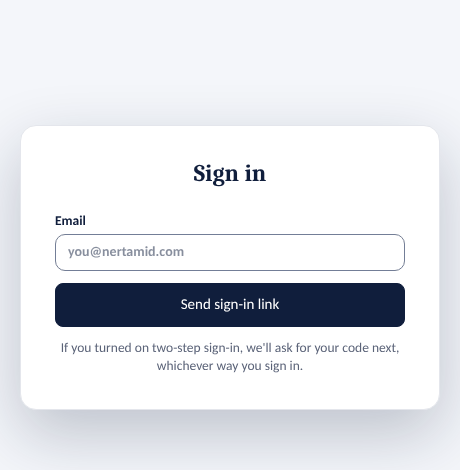 1The sign-in page
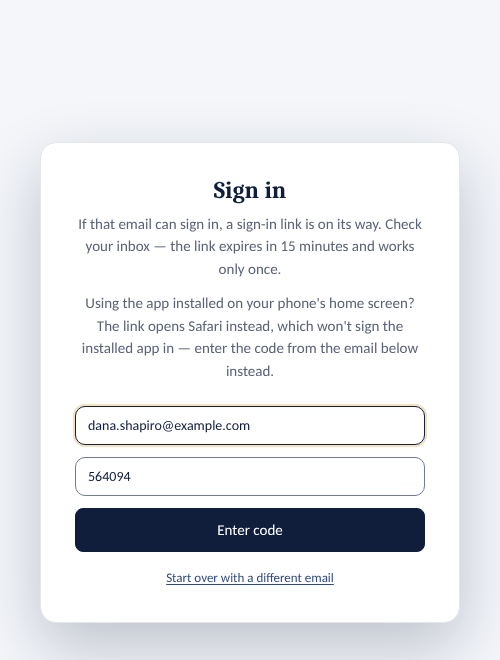 2Enter the code
Admin sign-ins last 12 hours, then you sign in again.
Turn on two-step sign-in
Recommended for every Admin.
- Click your initials at the top right, then Security settings.
- Click Set up two-factor authentication.
- Scan the QR code with an authenticator app such as 1Password, Authy or Google Authenticator.
- Type the 6-digit code from the app and click Confirm and enable.
- Save the recovery codes it shows you somewhere safe. Each one works once if you lose your phone.
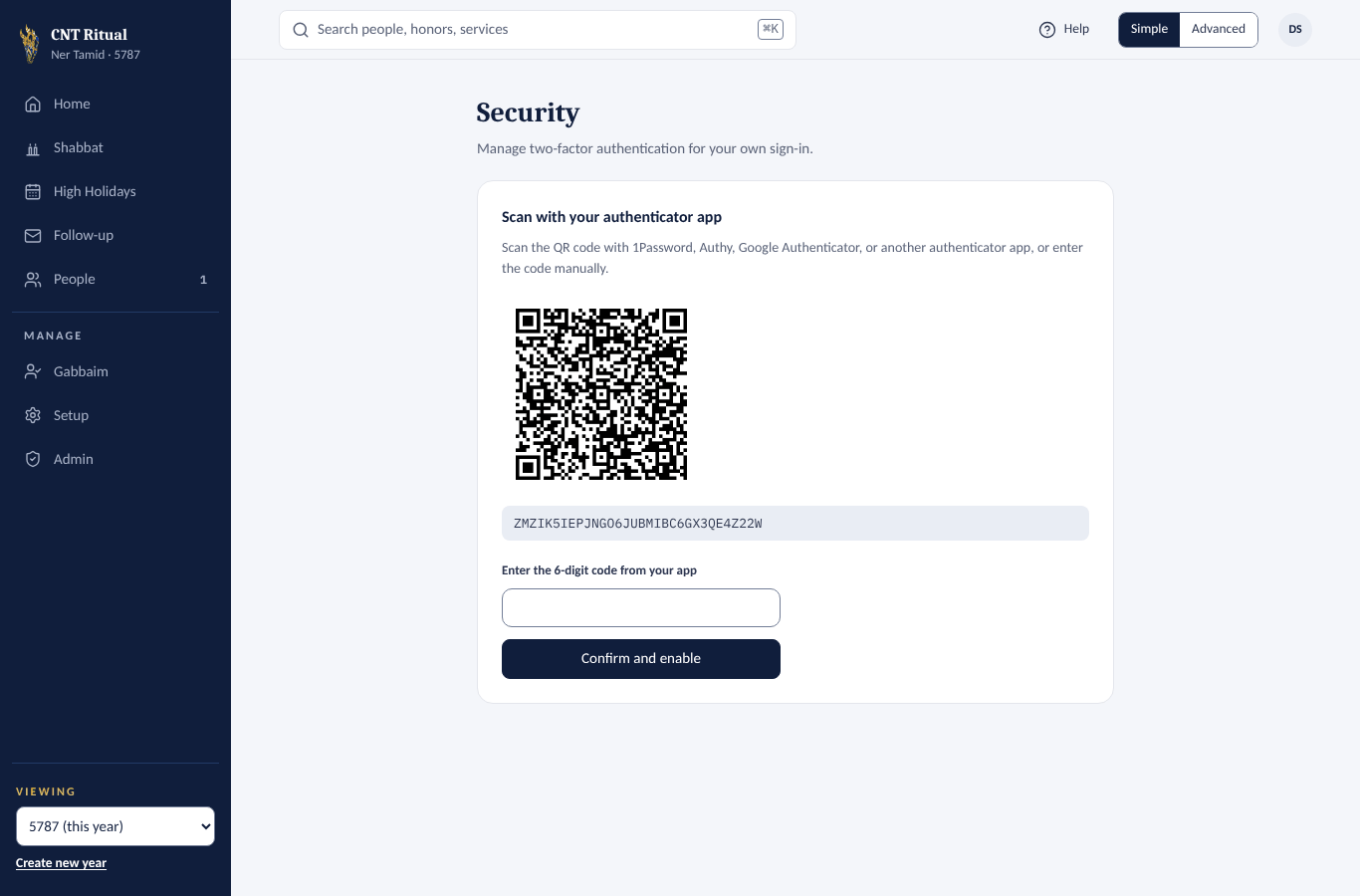
From then on, after the email link or Google, the app asks for your authenticator code. Five wrong codes lock two-step sign-in for 15 minutes.
Good to know
Your authenticator app lists the account as CNT Ritual. An entry you added before October 2026 is still called HH Responses: its codes keep working and nothing needs redoing. To see the new name, remove the entry and set up two-step sign-in again.
Notifications
In the same menu, Enable RSVP and Gabbai notifications sends a phone or browser alert when a member answers an honor, and — since you are also on the Gabbai list — your own Gabbai reminders.
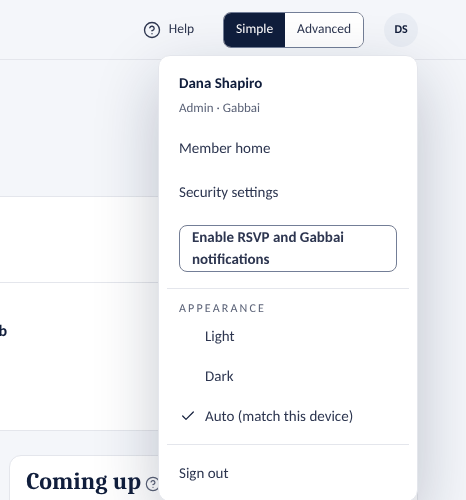
Light or dark screen
The app can show light pages, dark (navy) pages, or follow your computer or phone.
- Click your initials at the top right.
- Under Appearance, click Light, Dark or Auto (match this device).
The screen changes at once. The choice is kept on this computer or phone only, and Member home and the sign-in page on that device follow it too. Printed programs always print black on white.
Go back to Member home
Your own readings, honors and Gabbai Shabbatot are on Member home, the members' page.
- Click your initials at the top right.
- Click Member home.
To come back to the admin, click Admin at the top right of Member home.
Section 3Home: what needs you today
Home is your morning to-do list. Top to bottom:
- Title — whatever is next by date, for example Shabbat Noach · Oct 17, with a countdown to the High Holidays.
- This Shabbat — the Gabbai and whether they confirmed, the Friday and Saturday greeters with their status (Open, Not confirmed or Confirmed) and any notes about them, the Torah reading, and Text [name]… if the Gabbai hasn't confirmed.
- Needs attention — one list: Hebrew names to review, access requests, shared email addresses the app picked, readers waiting for OK, services that are over but still open, Shabbatot with no Gabbai or an unconfirmed Gabbai, notes from the Matbea, and High Holiday honors that need you.
- Coming up — the next few Shabbatot, beside Needs attention.
- Reserved readings not confirmed — Torah readings members are holding but haven't confirmed yet, soonest first, with the day each must be confirmed by. It isn't shown when there are none. Confirm or let them go on Shabbat › Torah readers; see Reserved readings in the Staff Manual. Reserving is switched on, and its limit and timing set, under Reserving readings on Setup › Torah readers (Staff Manual). It is off until someone switches it on.
- High Holidays [year] — invitations and replies so far, with Download spreadsheet.
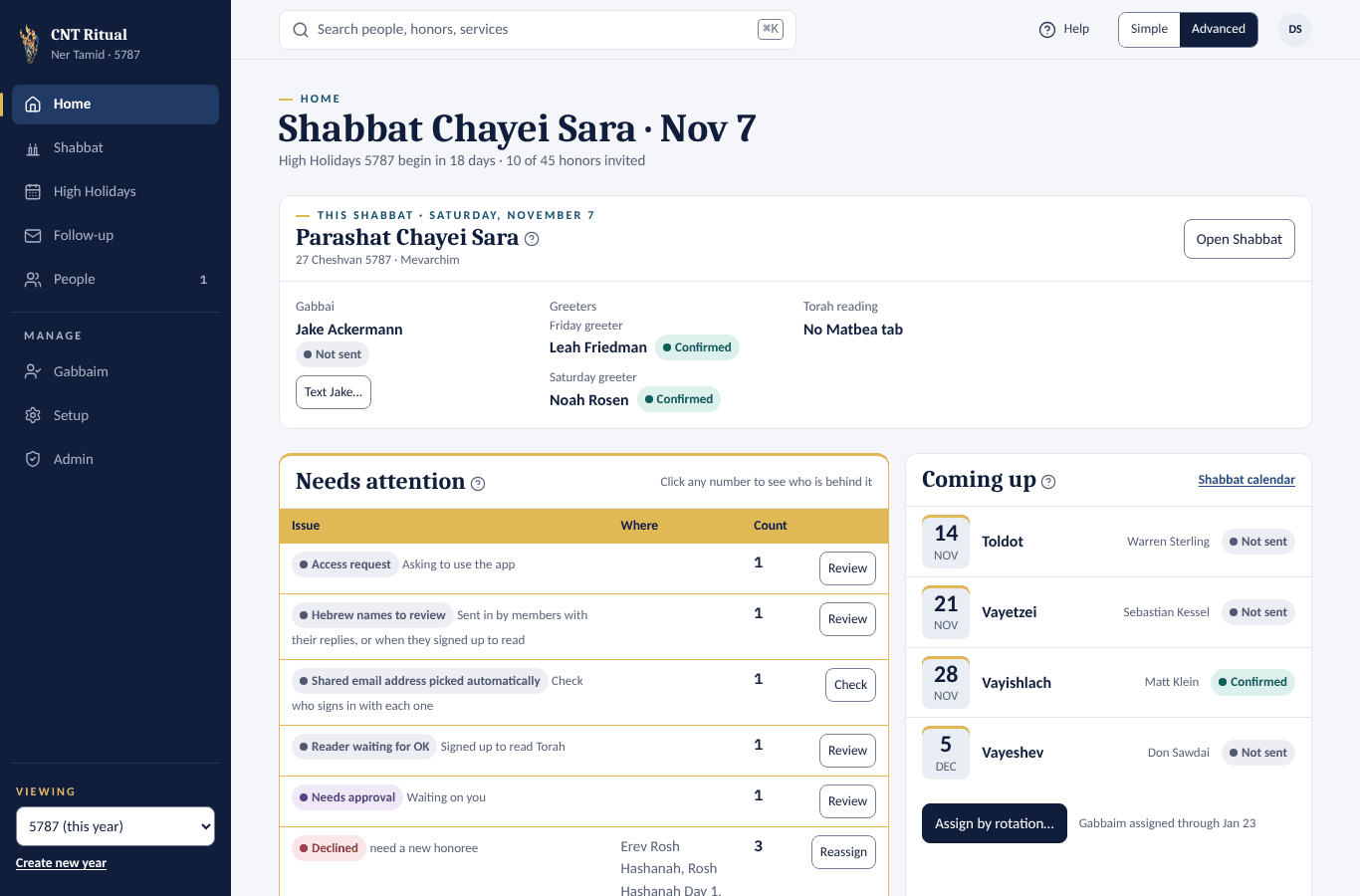
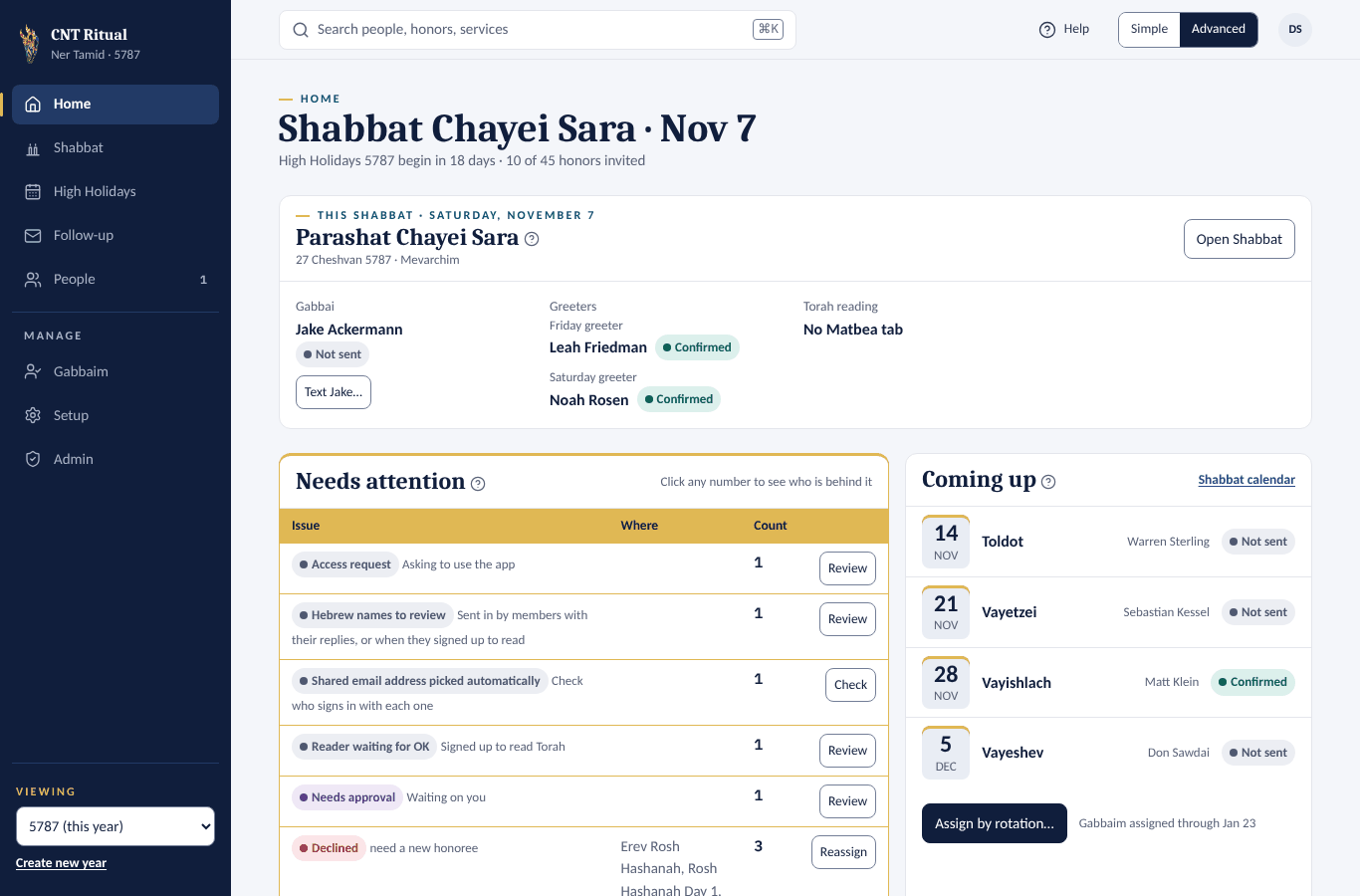
Click Advanced at the top right for more numbers and the list of recent replies.
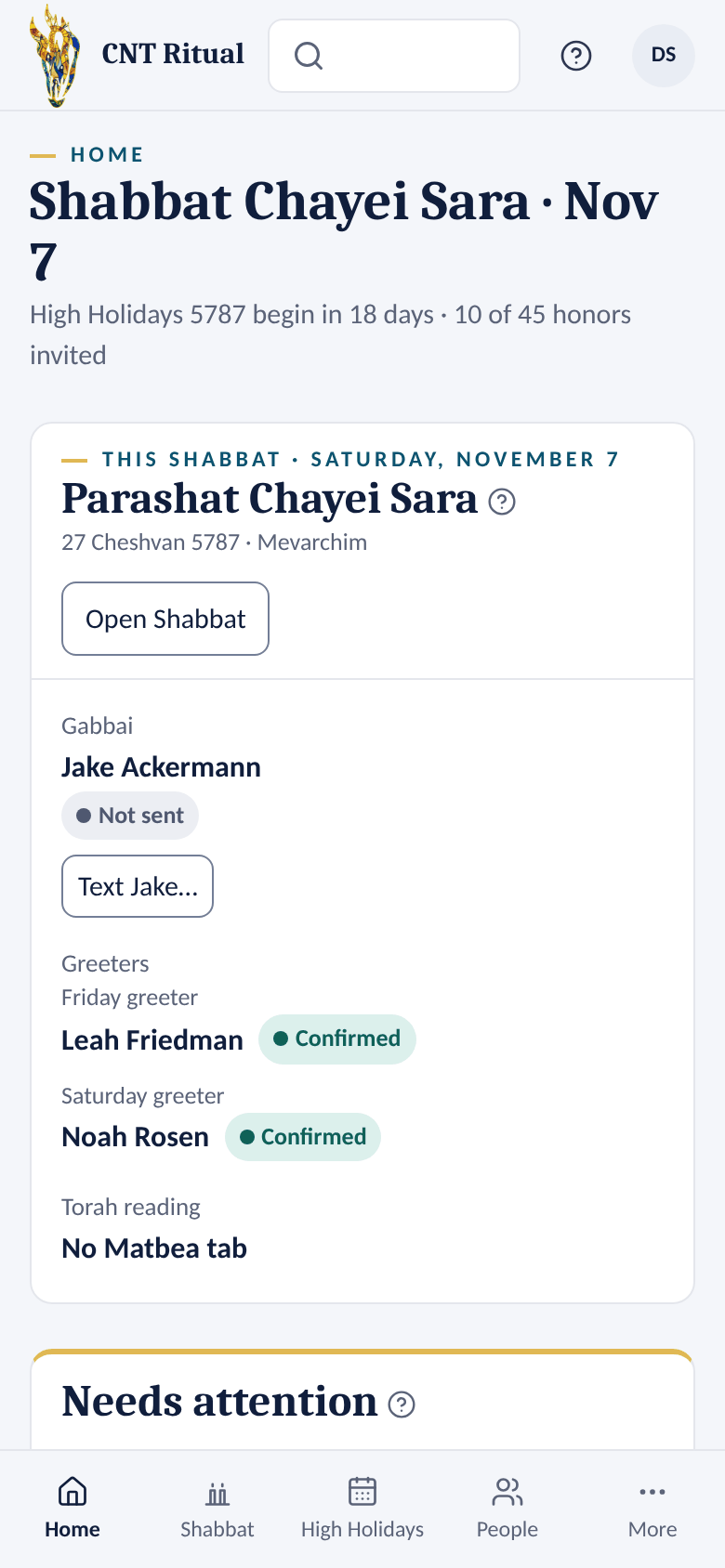
On a phone, Home, Shabbat, High Holidays and People are tabs at the bottom. The rest is under More.
Section 4Who can sign in: access, roles and requests
The rule: everyone in People with an email can sign in as a Member. You only give extra roles. Click Admin in the left menu. Its tabs are Access, Access requests, Activity log, What each role can do and Ritual VP.
One-time setup
Only if you see Before people can sign in. Two steps make accounts for everyone already in People. Each shows a preview first, changes nothing until you click Do it, and emails nobody.
- People for users with none — click Show what would happen, check the list, then click Do it.
- Accounts for People with an email — click Show what would happen, check the counts and who's left out, then click Do it.
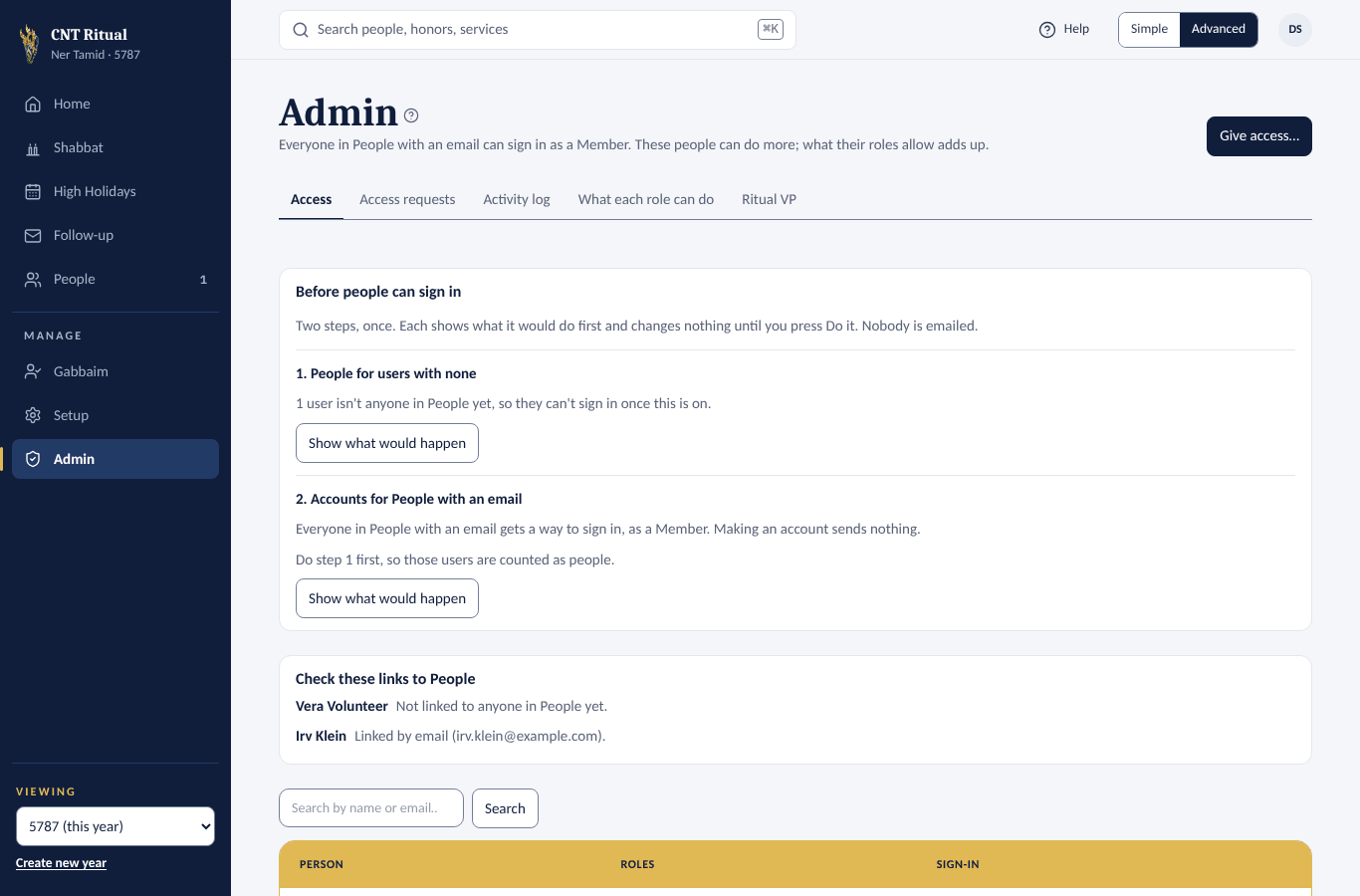
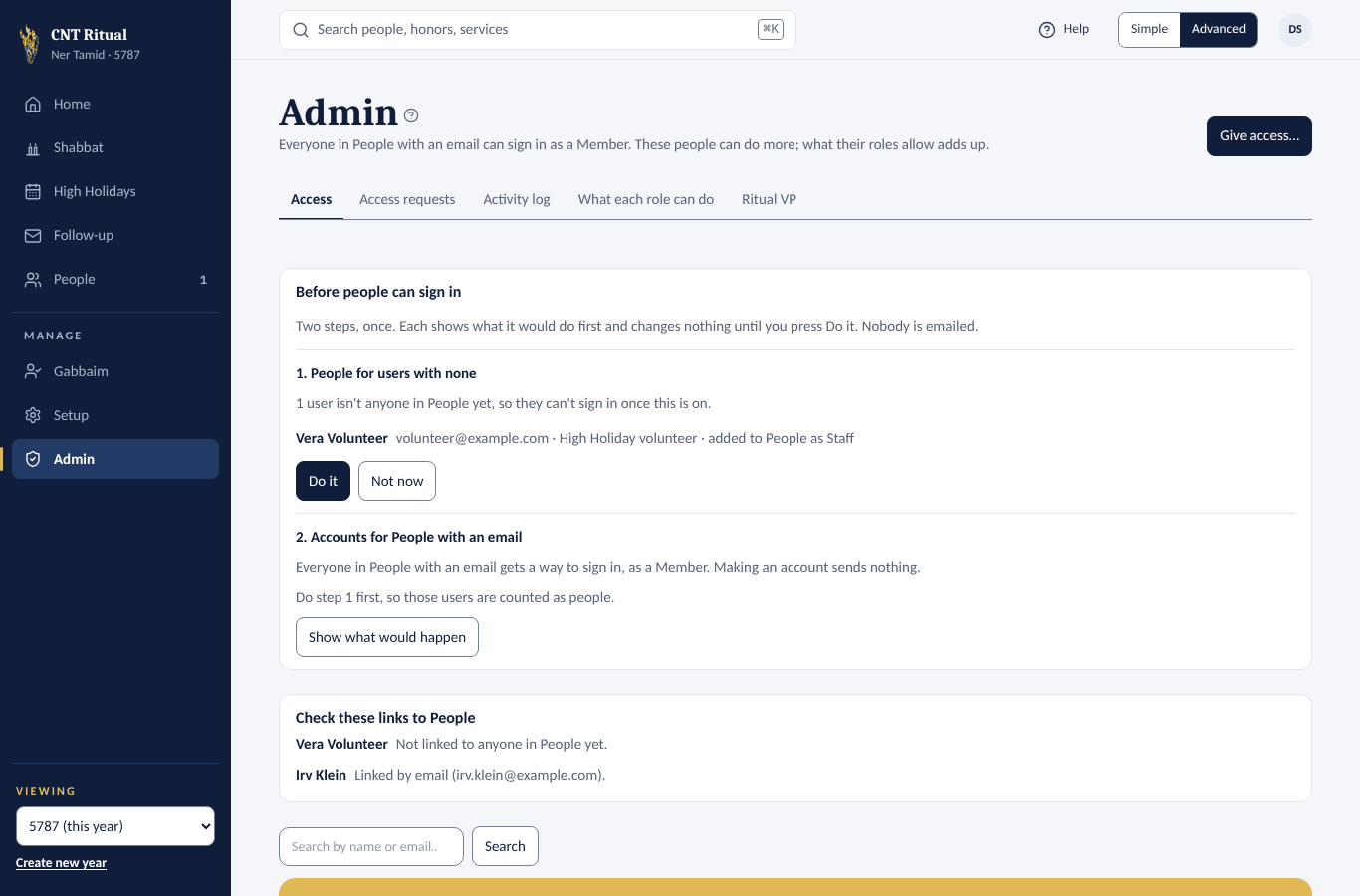 1Step 1
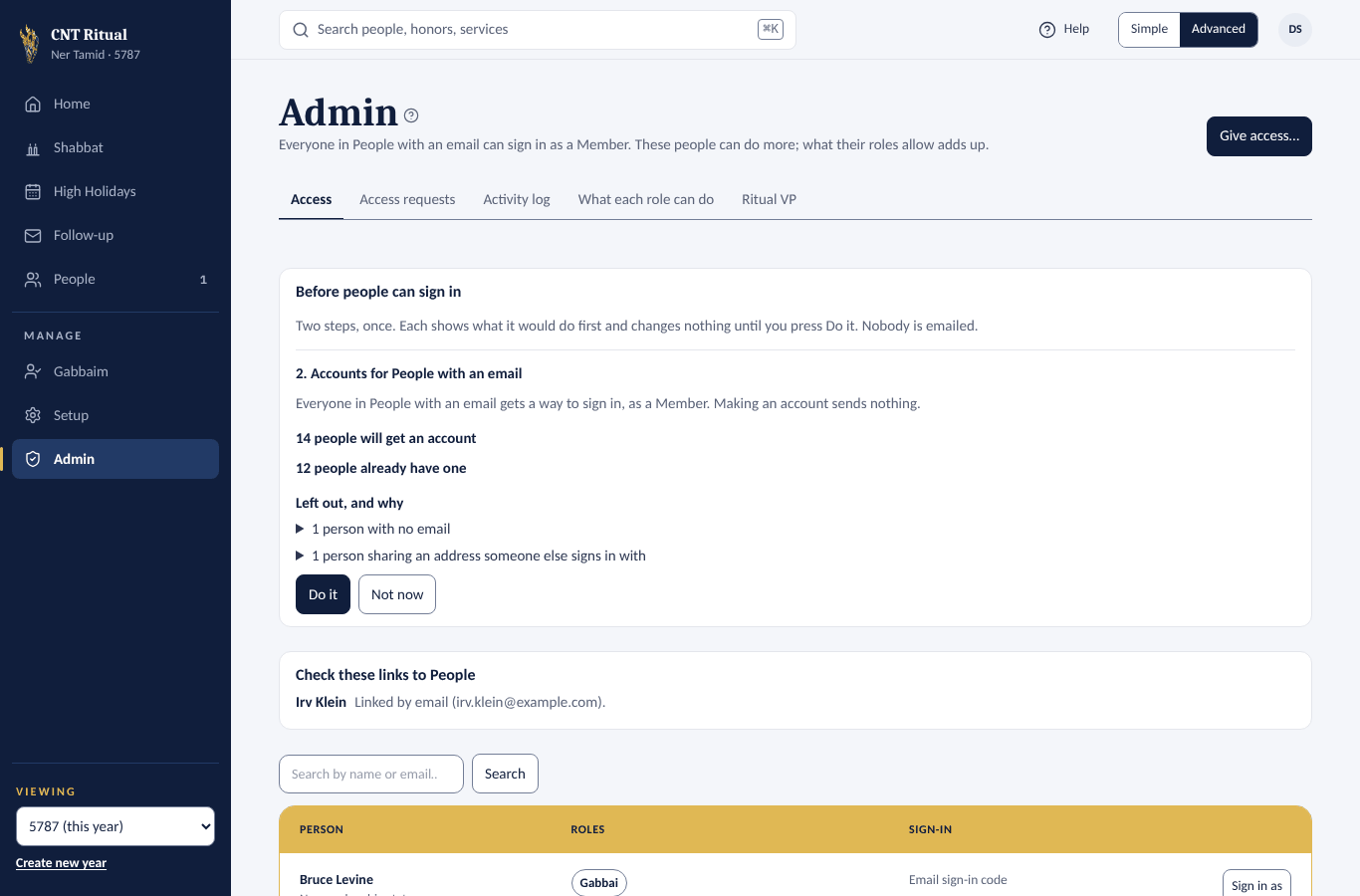 2Step 2
Give someone a role
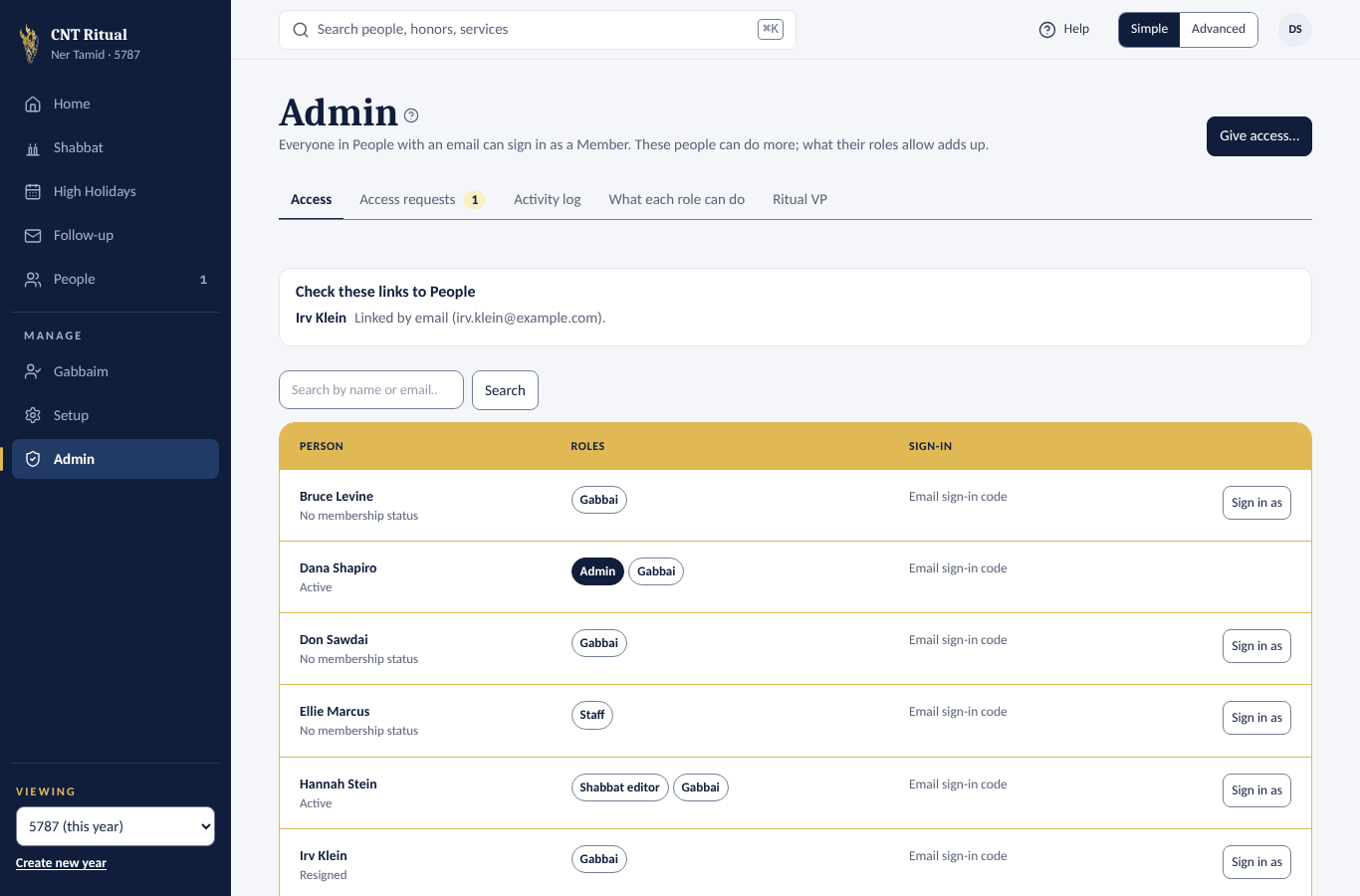
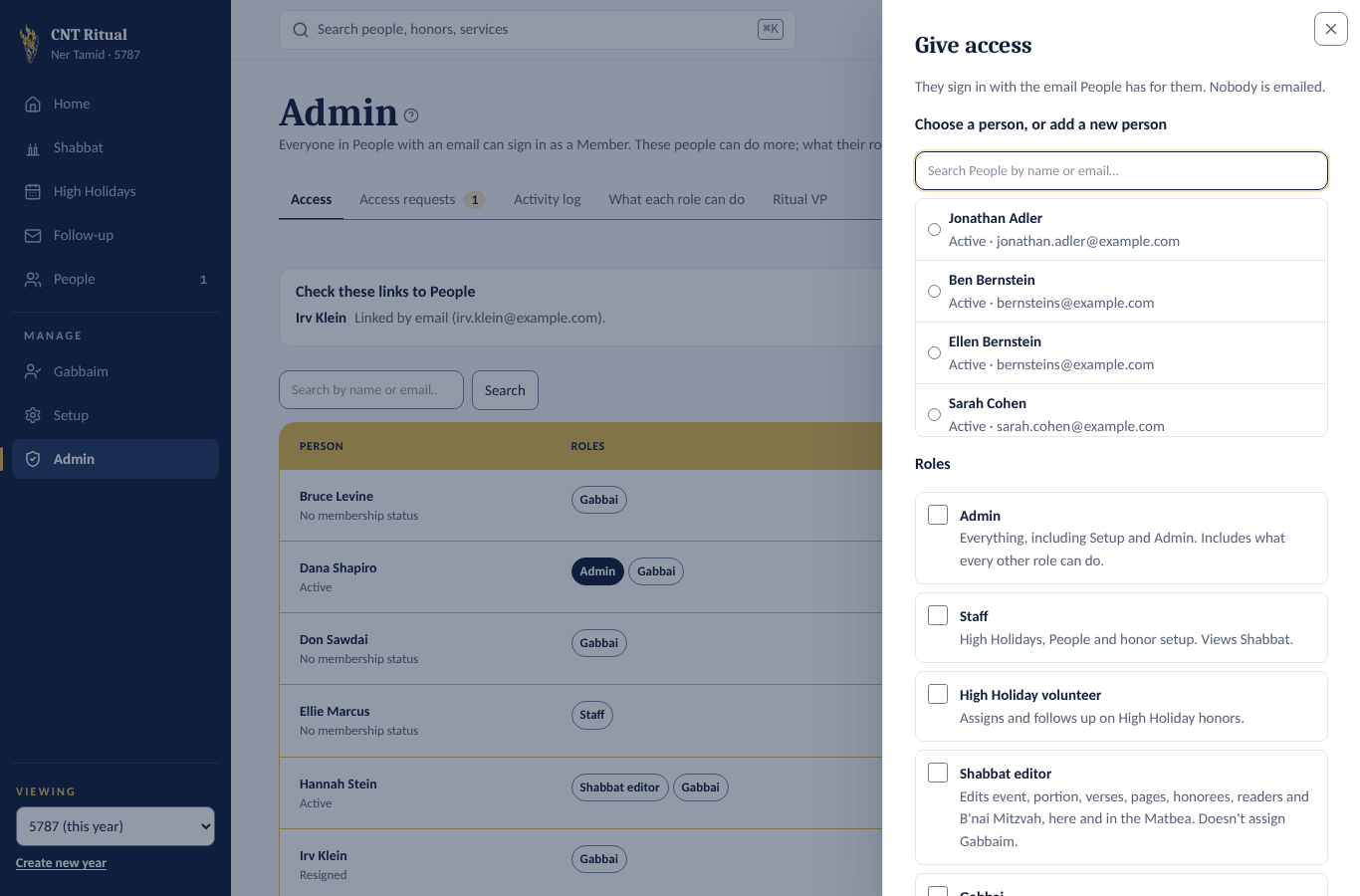
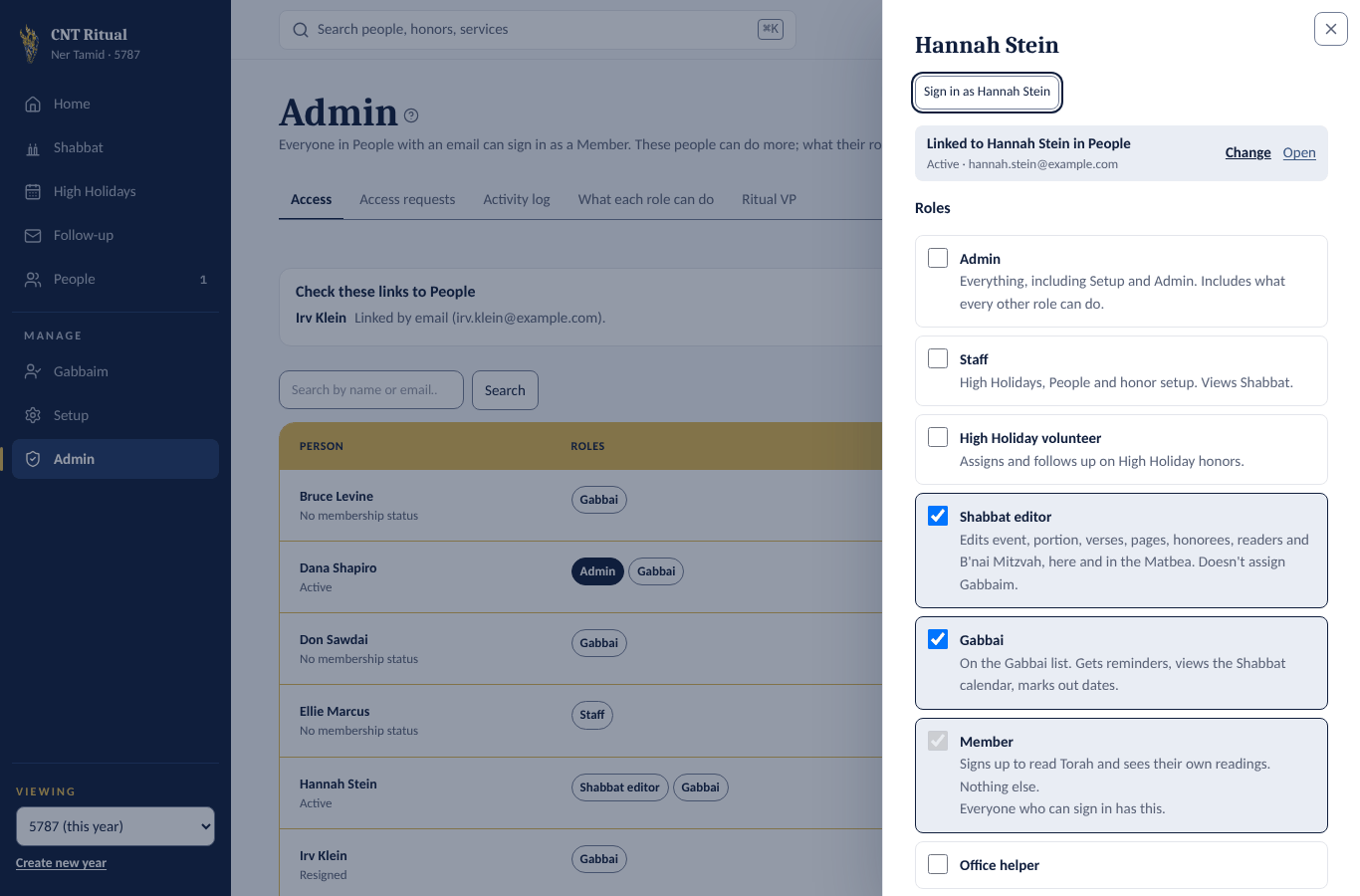
- On Access, click Give access….
- Pick the person, or add a new person.
- Tick their roles, for example Shabbat editor. Click Give access.
They sign in with the email People has for them. The app emails nobody, so tell them yourself.
Change someone's roles, or lock them out
- On Access, click the person's name.
- Tick or untick roles. Admin includes every other role.
- Switch off Can sign in to lock them out on their next visit.
- Click Save roles.
Sign in as someone else
See the app exactly as someone else sees it, to find problems or help them. Only Admins can do this.
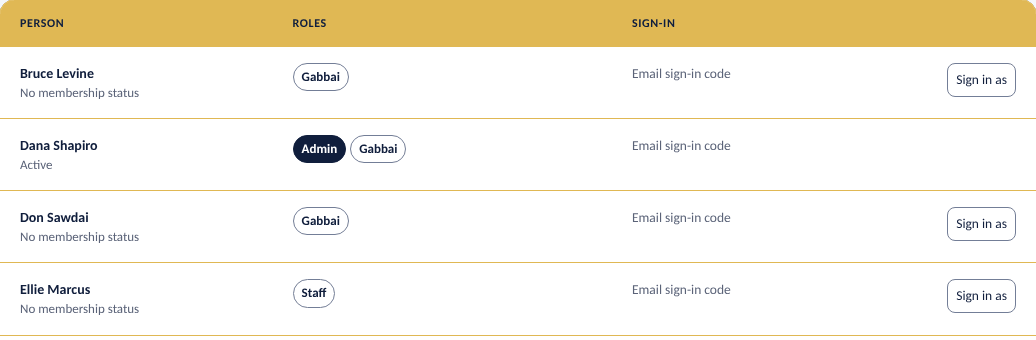
- Find the person: - on Access, click Sign in as on their row, or click their name and then Sign in as under it; - or, for someone who is only a Member, open their page in People and click Sign in as on the Sign-in card.
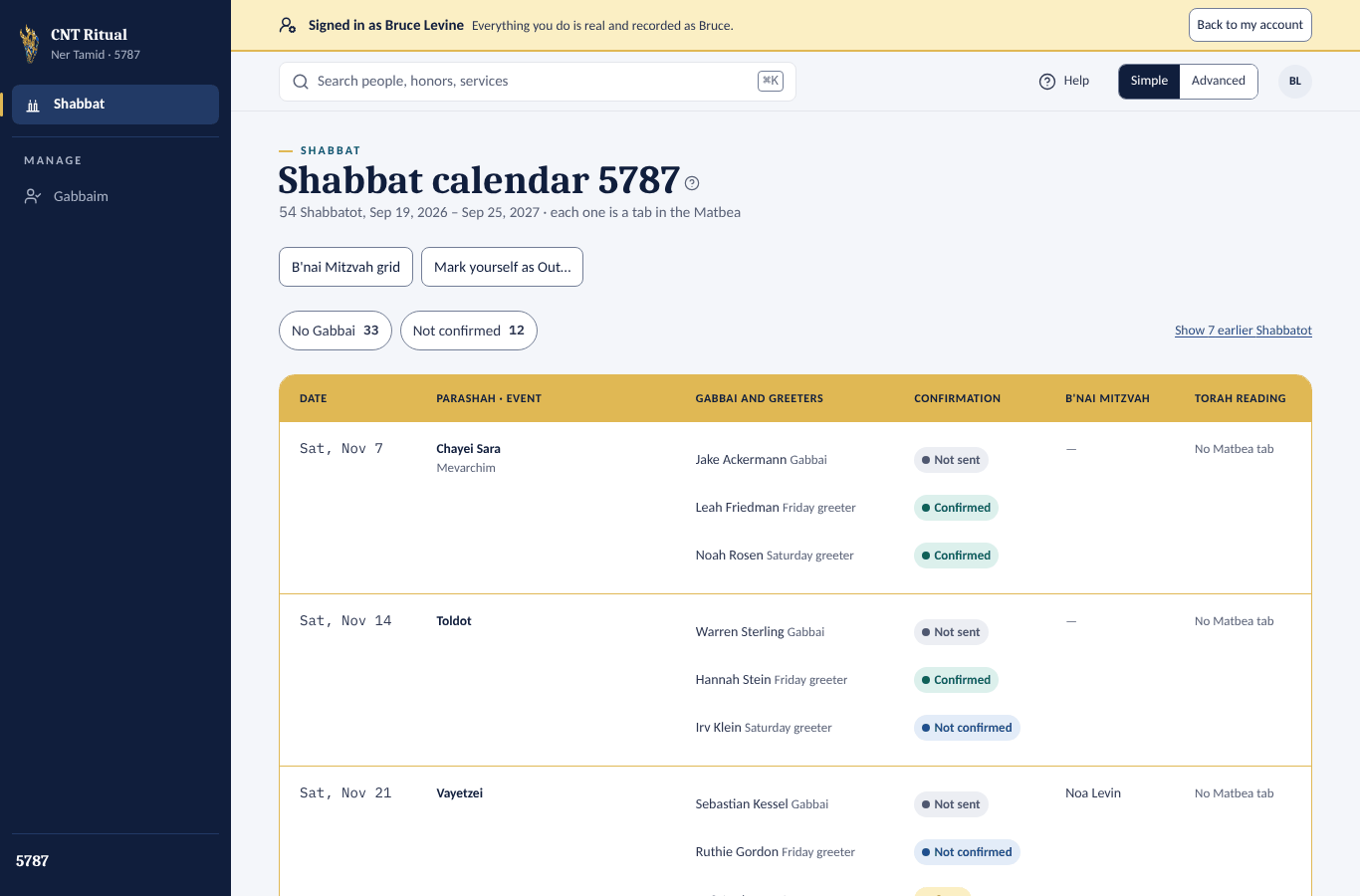
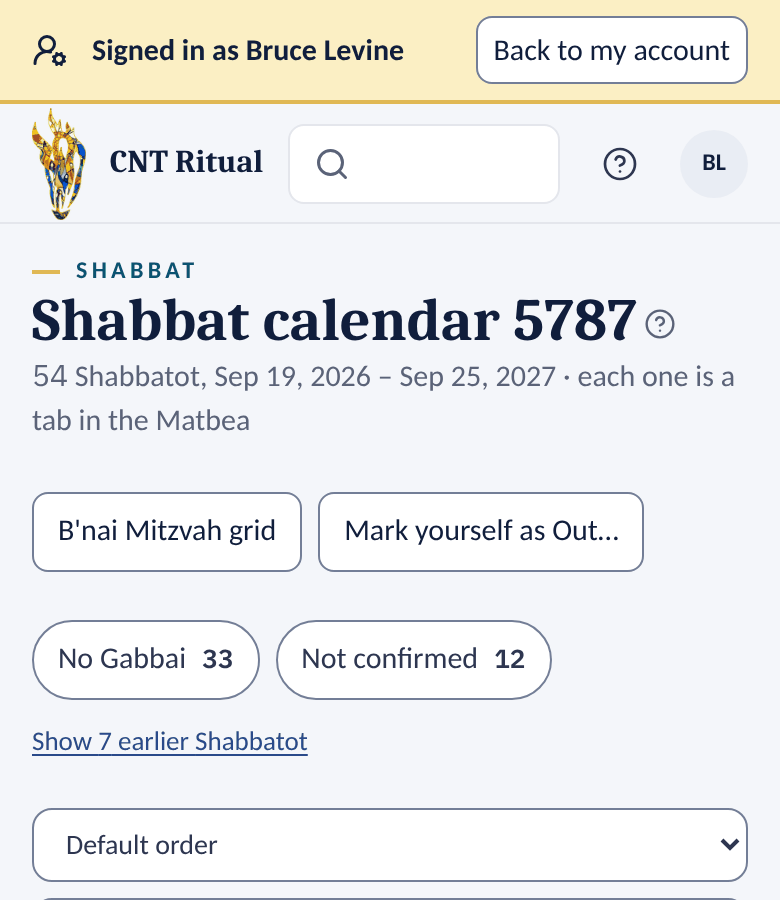
- The app switches to them straight away: their menu, their screens, their Member home. A yellow bar at the top says Signed in as and their name.
- When you're done, click Back to my account in the yellow bar. You're back on the page you started from, as yourself, without signing in again.
Good to know
Everything you do while signed in as someone is real and recorded as them, not you: a reading you sign up for is theirs, and the emails go out as usual (they get Your Torah reading is approved, for example). The Activity log shows when you started and stopped.
It lasts until you click Back to my account or sign out. While you're signed in as someone you can't change their Security settings or turn on their notifications, and you can't sign in as a third person.
Answer an access request
People the app doesn't recognize can ask to be added. You see their requests on Home › Needs attention and on Access requests.
- Open Access requests.
- Under Who is this?, pick the matching person in People, or Add a new person and pick their membership status.
- Tick any extra roles, then click Give access. Or click Not now… to decline.
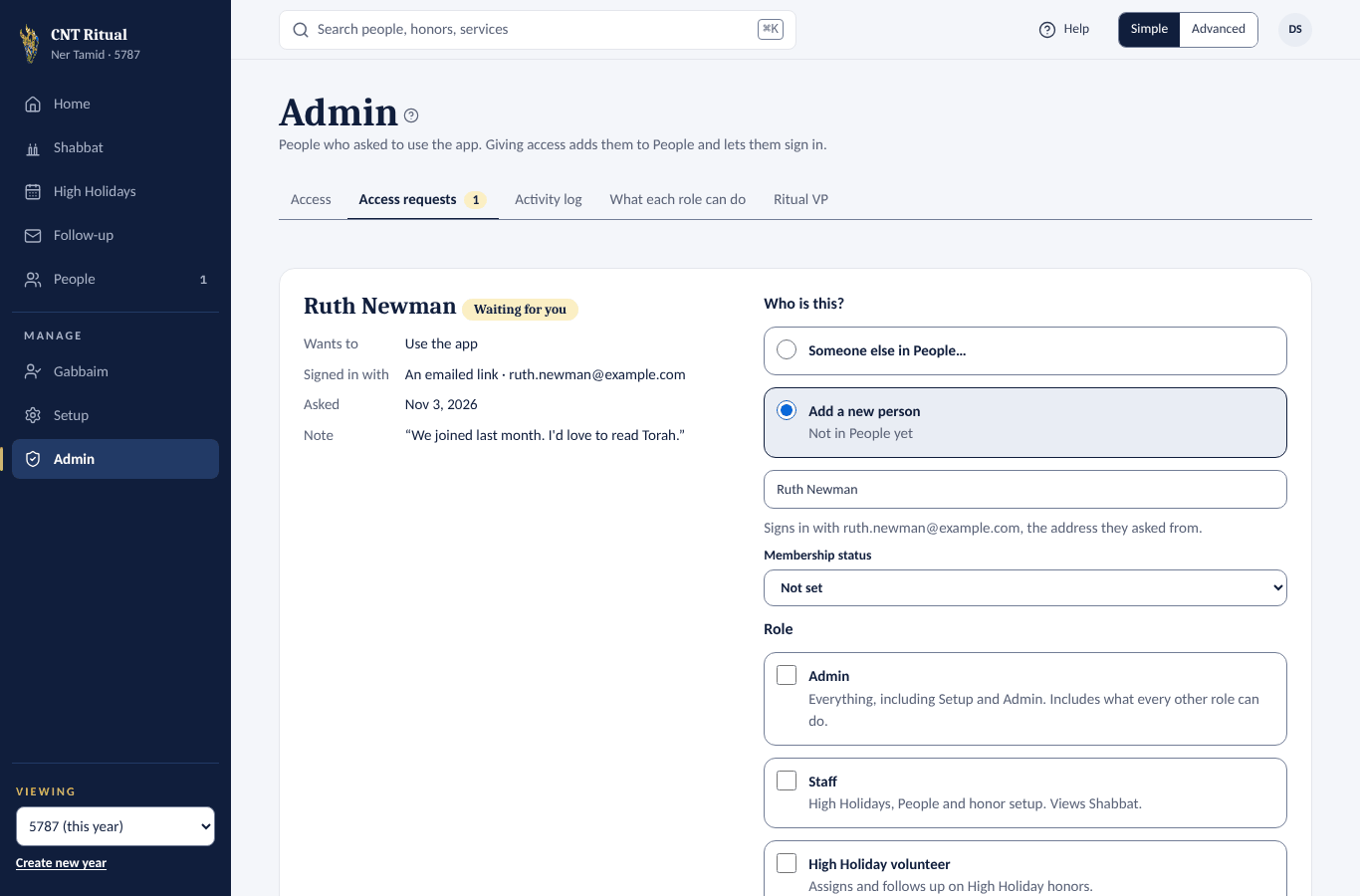
If they picked readings when they asked, giving access signs them up and sends Your Torah reading is approved. Otherwise nobody is emailed, so let them know.
What each role can do
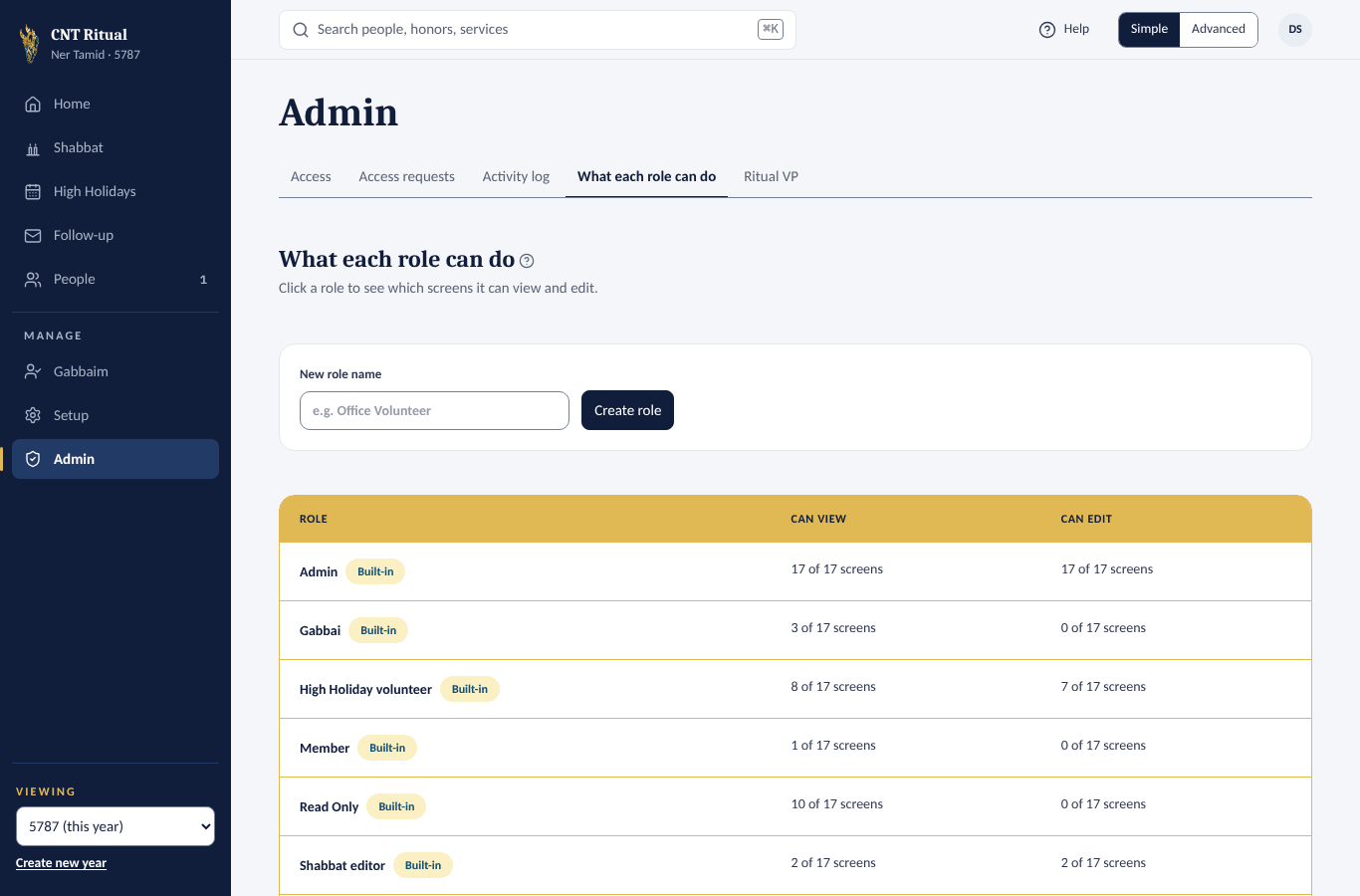
A list of the roles, with how many screens each can view and edit. Change a role with care: it applies to everyone with that role.
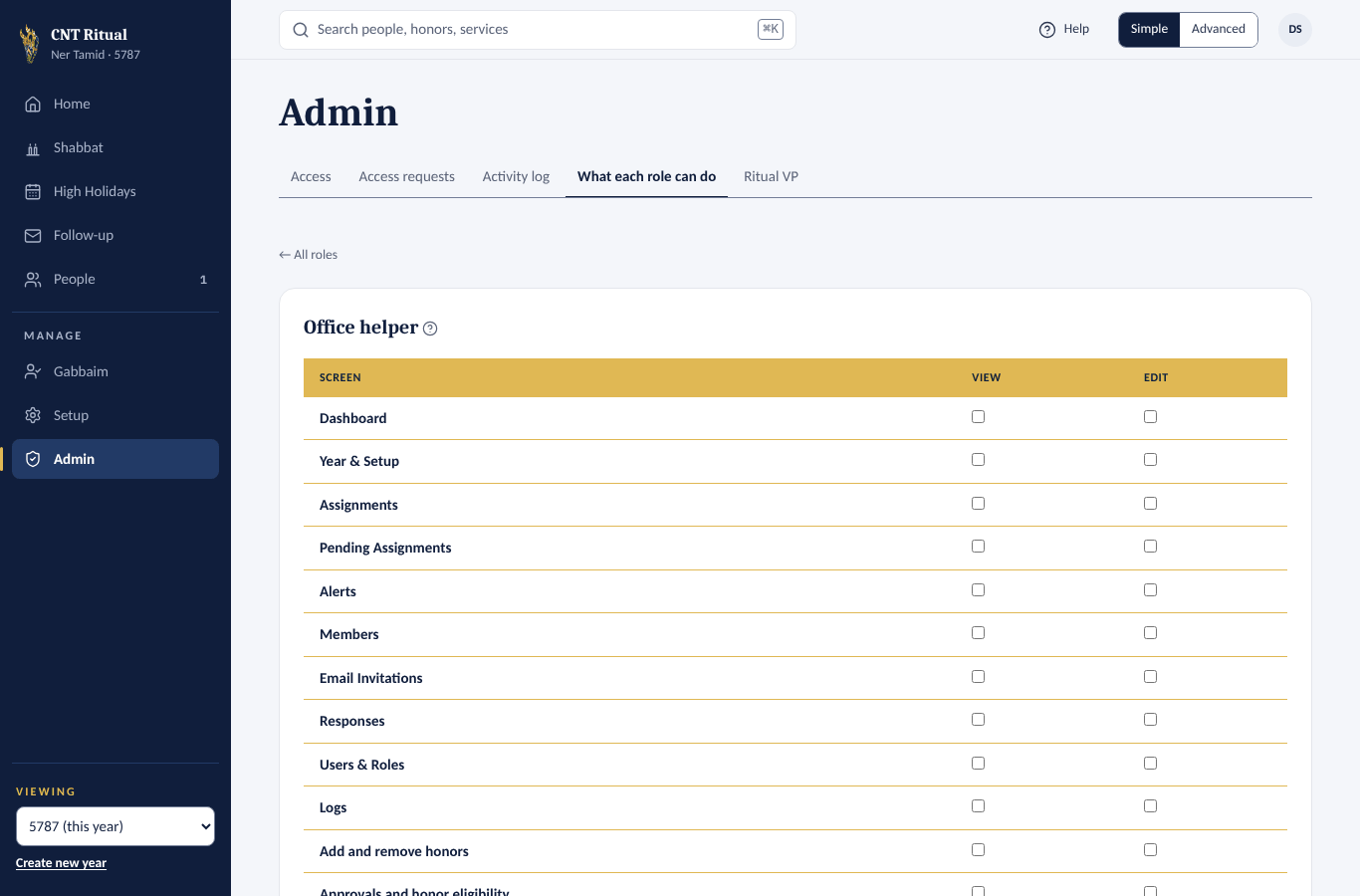
- Click a role's name. Its page shows every screen, with View and Edit.
- Tick or untick the boxes, then click Save permissions. Built-in roles can't be changed.
- Click ← All roles to go back to the list.
To add a role, type its name under New role name and click Create role. Its page opens so you can tick what it can do.
Sync a Shabbat with the Matbea is the Sync now button on each Shabbat page. Admins and Staff have it; no other role does unless you tick it.
Ritual VP
Who members and Gabbaim are told to contact. You set it once in a long while: click Admin, then Ritual VP. The name, email and phone come from that person's page in People, so they stay up to date.
- Under Choose a person from People, search by name or email and pick the person. Someone with no email is greyed out (Add an email first).
- Type a Title if you like. Left empty, it is Ritual VP.
- Click Save. You see Saved.
The card shows who it is now and where it comes from: From People, or From the app's settings when nobody is picked. If the person has no phone in People, the card says Gabbaim won't see Call or Text. Use the app's settings instead clears the pick. To change the Ritual VP's email or phone, edit their page in People. If that person is deleted from People, the app goes back to its settings. The Torah reader QR poster (Download poster on Shabbat › Torah readers) prints the Ritual VP's name, title and email too, so download it again after a change.
Activity log
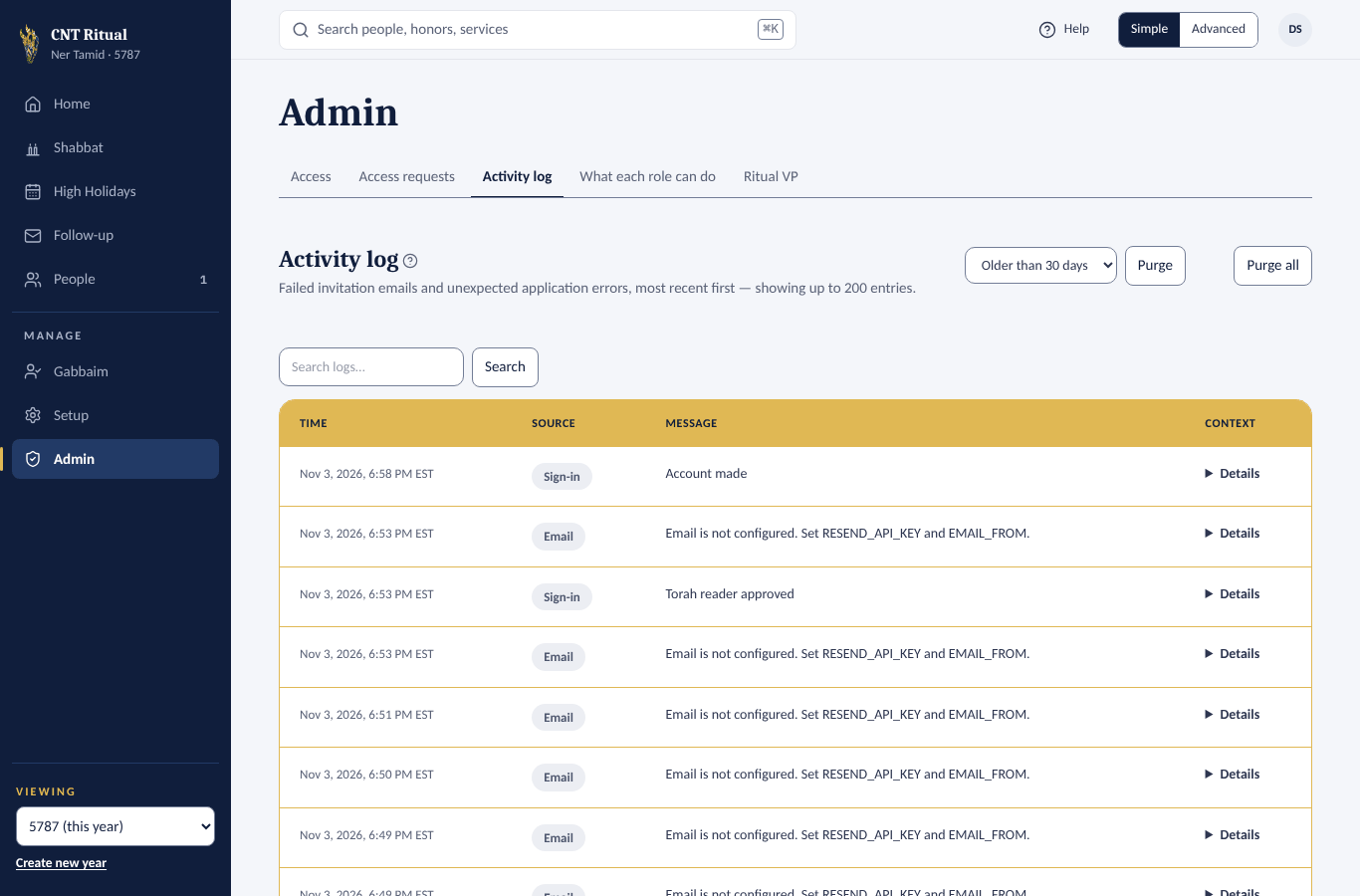
Failed emails, errors, sign-ins, and each time an Admin signs in as someone else and goes back. Click Details on a row for more. Purge removes old entries.
Section 5People
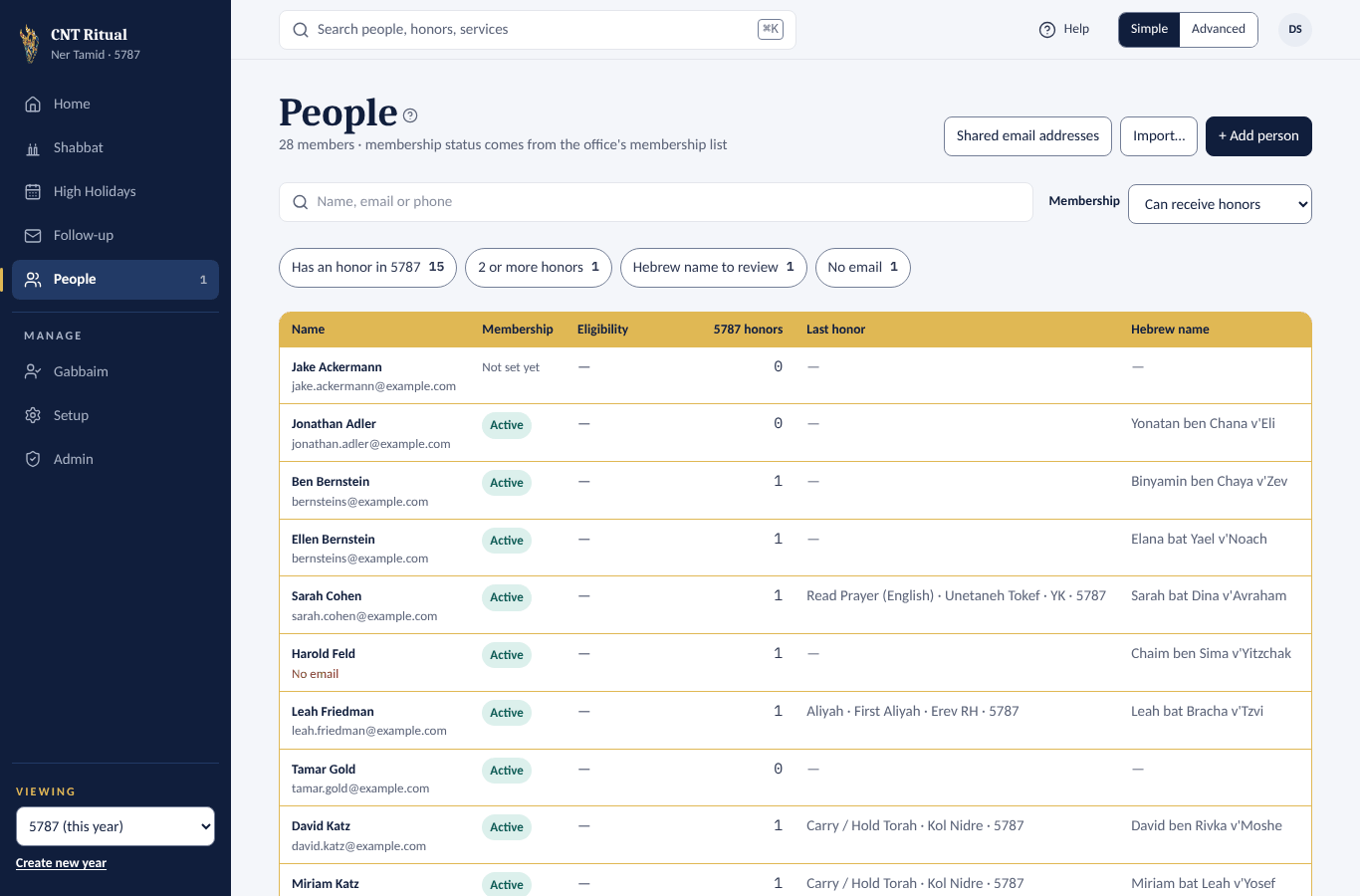
People is the congregation list. A person's email is also how they sign in.
Find someone
Click People, then type in the search box or click a filter pill: Has an honor, 2 or more honors, Hebrew name to review, No email.
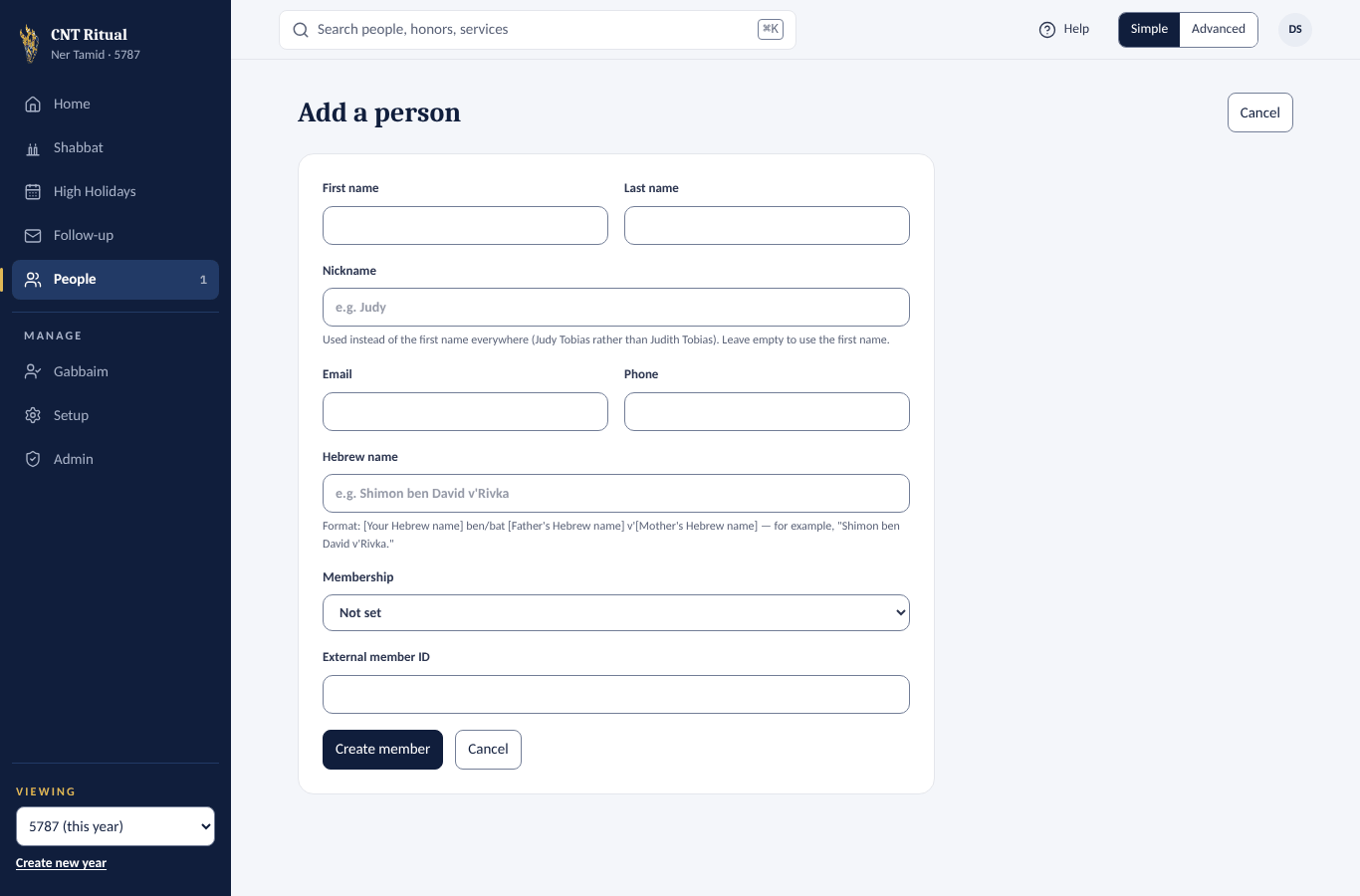
Add a person
- Click + Add person.
- Fill in first and last name, email, phone, Hebrew name and membership status.
- Click Create member. If they have an email, they can now sign in as a Member.
Good to know
If someone goes by a nickname (Judy rather than Judith), type it in Nickname. It then replaces their first name everywhere: People, search, honors, emails, greetings and the Matbea show "Judy Tobias". Their first name stays as the office has it, and searching either name finds them. Leave Nickname empty to use the first name. To change it later, open the person and click Edit details.
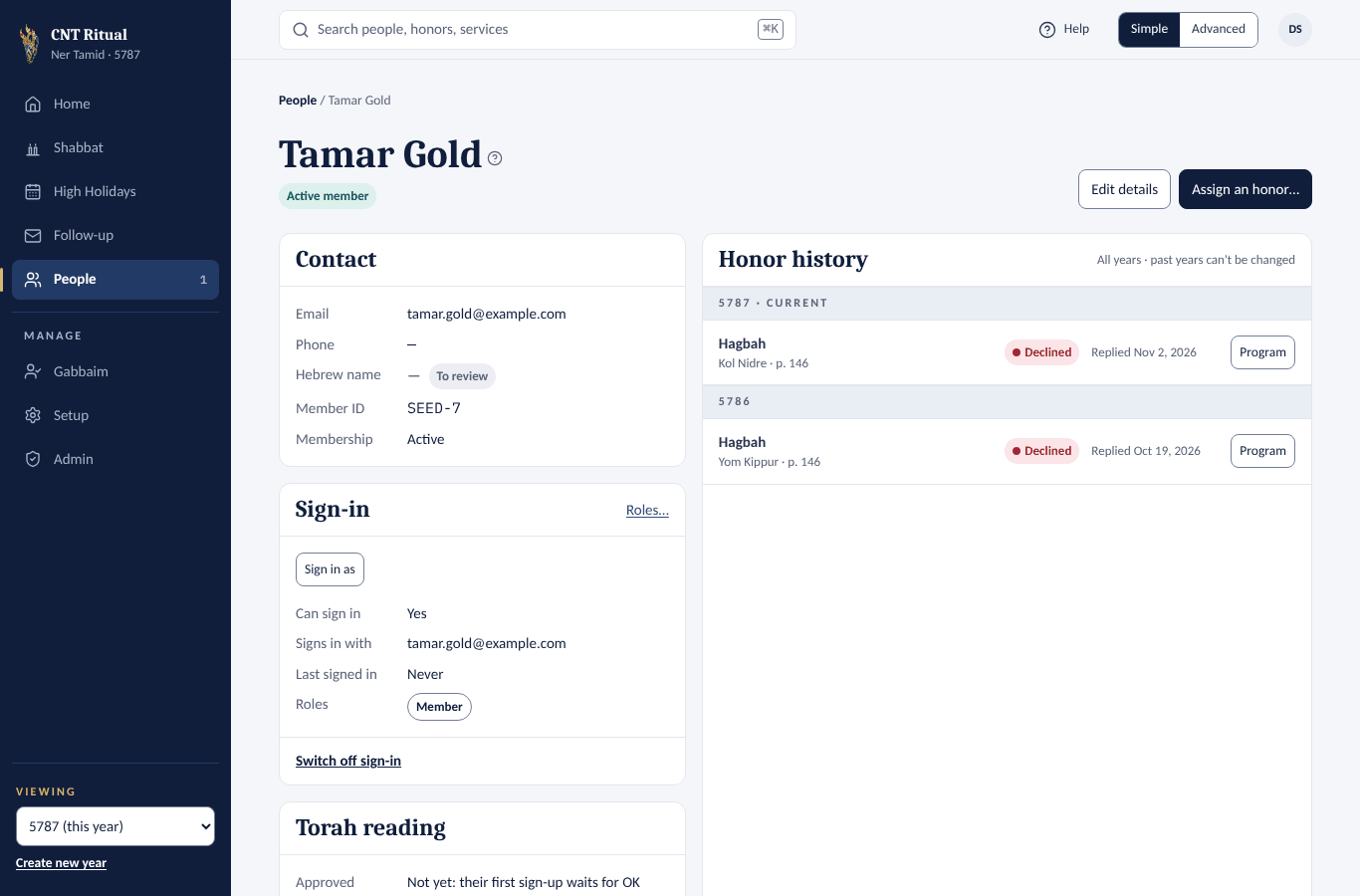
A person's page
Click a name. You see contact details, membership status, and whether they can be given honors (No restriction, Needs approval or Do not assign). Below that is every honor they've held, with the same accept and decline controls as the service pages, plus their Torah readings and how they sign in.
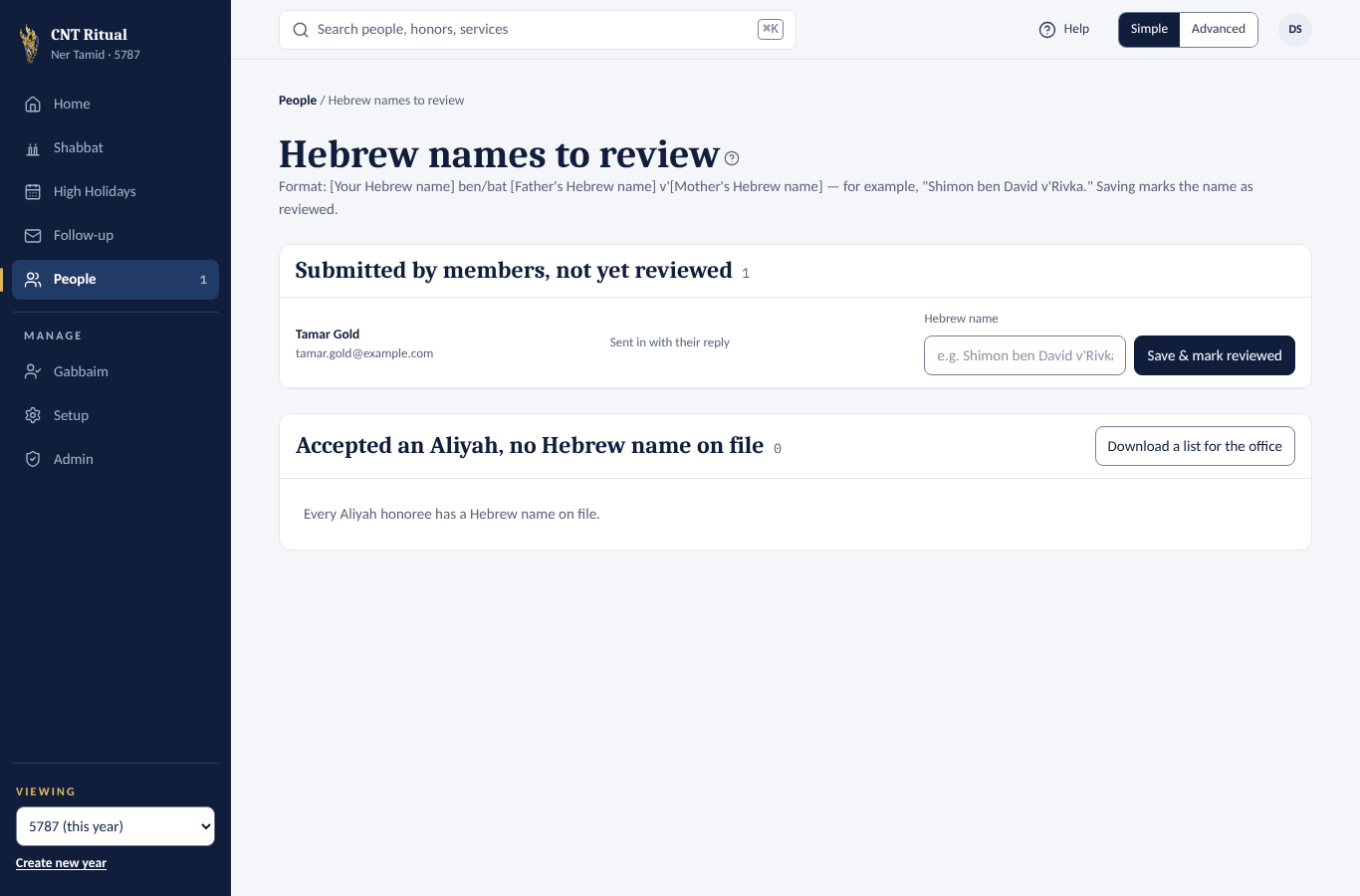
Review Hebrew names
Click the Hebrew name to review pill, or the item on Home. Fix the name if needed and click Save & mark reviewed. Download a list for the office saves the list to share with the office.
Shared email addresses
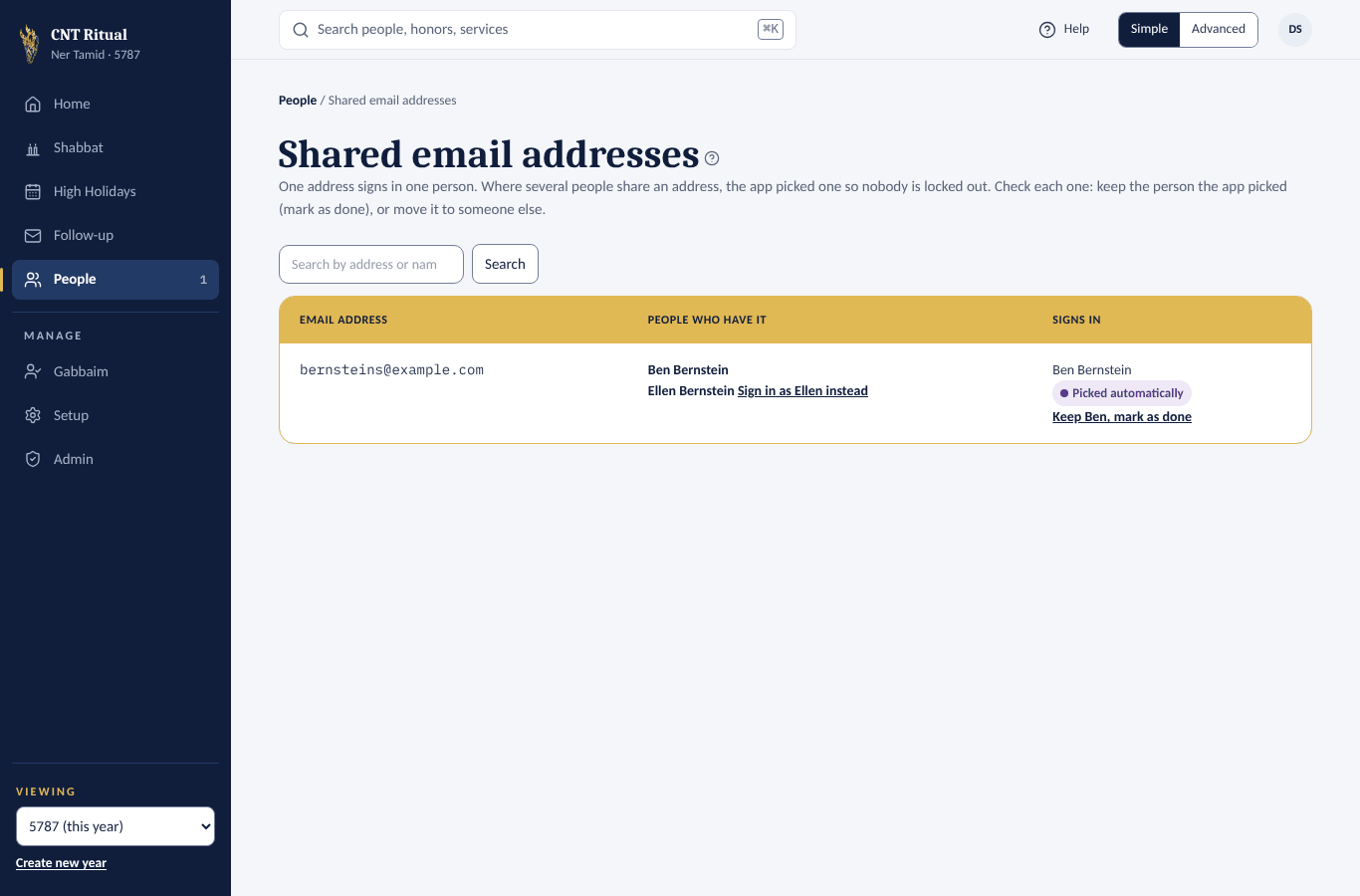
A couple may share one email, but one address can sign in only one person. Click Shared email addresses to see who it signs in. Where the app picked the person by itself (Picked automatically), check it:
- If it is the right person, click Keep [name], mark as done. It stops showing on Home.
- If not, click Sign in as [name] instead next to the other person.
You can do the same on the person's page, in the Sign-in card.
Good to know
- Only an Admin can change an existing person's email. Their sign-in moves with it.
- Import… loads people from a spreadsheet. It fills in missing emails only; any other difference is listed for you to decide.
Section 6Set up a year and its honors
A year in the app runs from Rosh Hashanah to Erev Rosh Hashanah. It holds every Shabbat plus the High Holiday services.
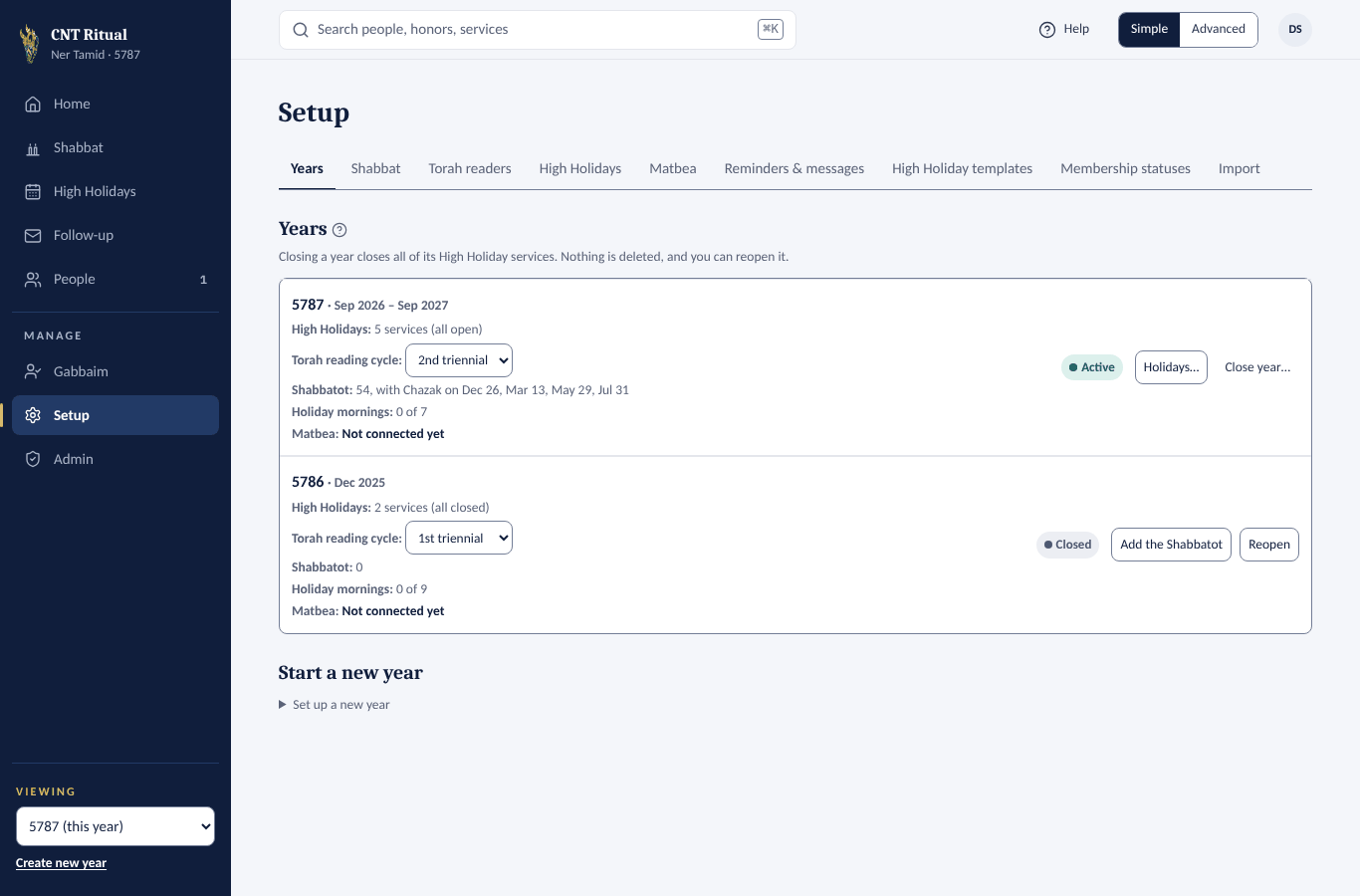
See your years
Click Setup, then Years. Each year shows its High Holiday services, Torah reading cycle, Shabbatot, holiday mornings and Matbea.
Start a new year
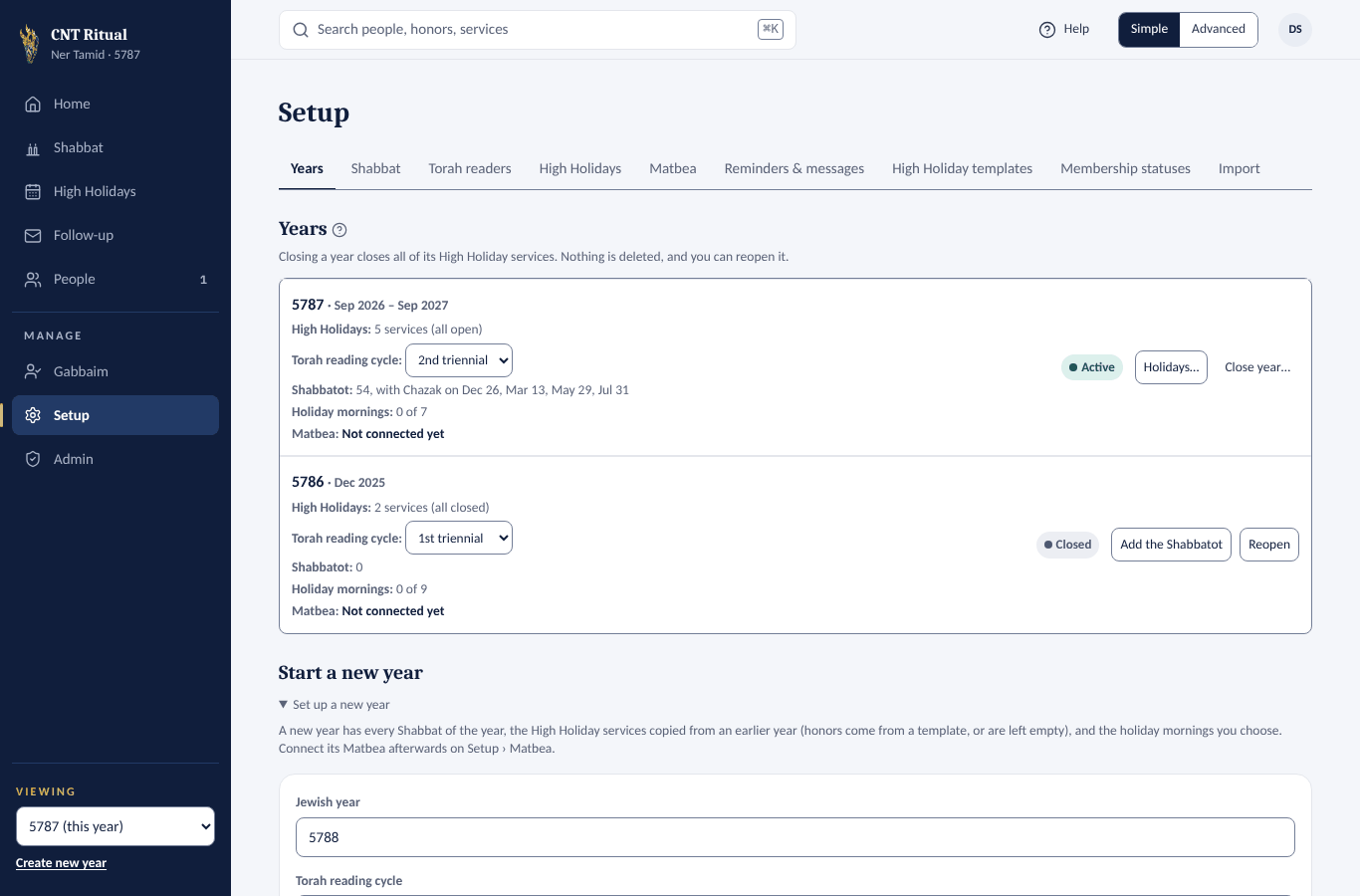
- Click Create new year under the Viewing box, or scroll to Start a new year on Setup › Years.
- Check the Jewish year (for example 5788) and the Torah reading cycle. The cycle only decides where the Chazak line goes.
- Copy High Holiday services from — pick last year to copy its services with new dates. Honors aren't copied.
- For each service, pick a template of honors, or leave it empty.
- Tick the Holiday mornings this year will have: Sukkot Day 2, Simchat Torah, Passover, Shavuot and so on.
- Click Create year.
- Connect that year's Matbea spreadsheet on Setup › Matbea.
Holiday mornings later
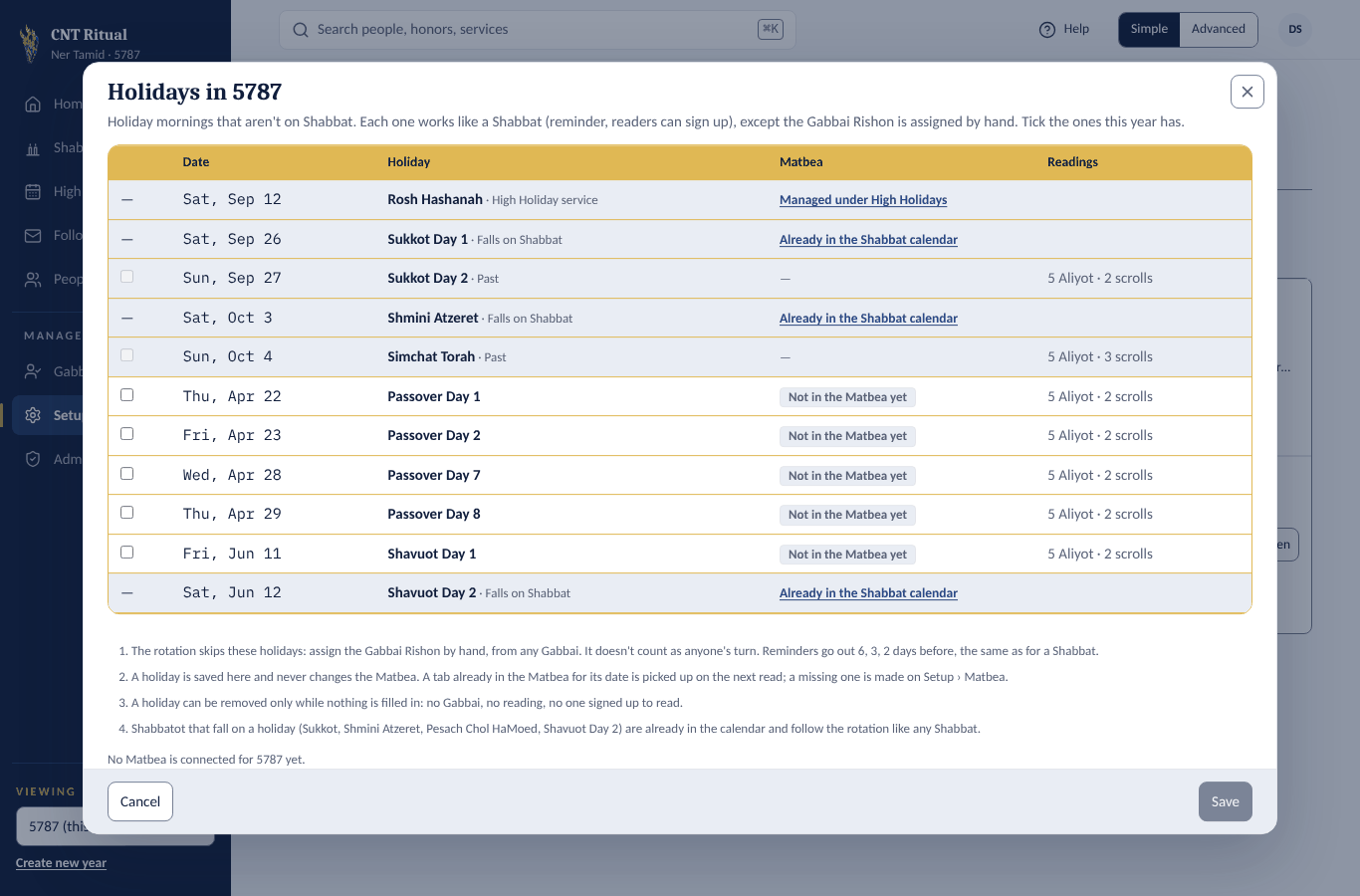
Click Holidays… on the year's row. Tick or untick, then click Save. A holiday that already has a Gabbai, a reader or readings filled in can't be removed.
Edit a service's honors
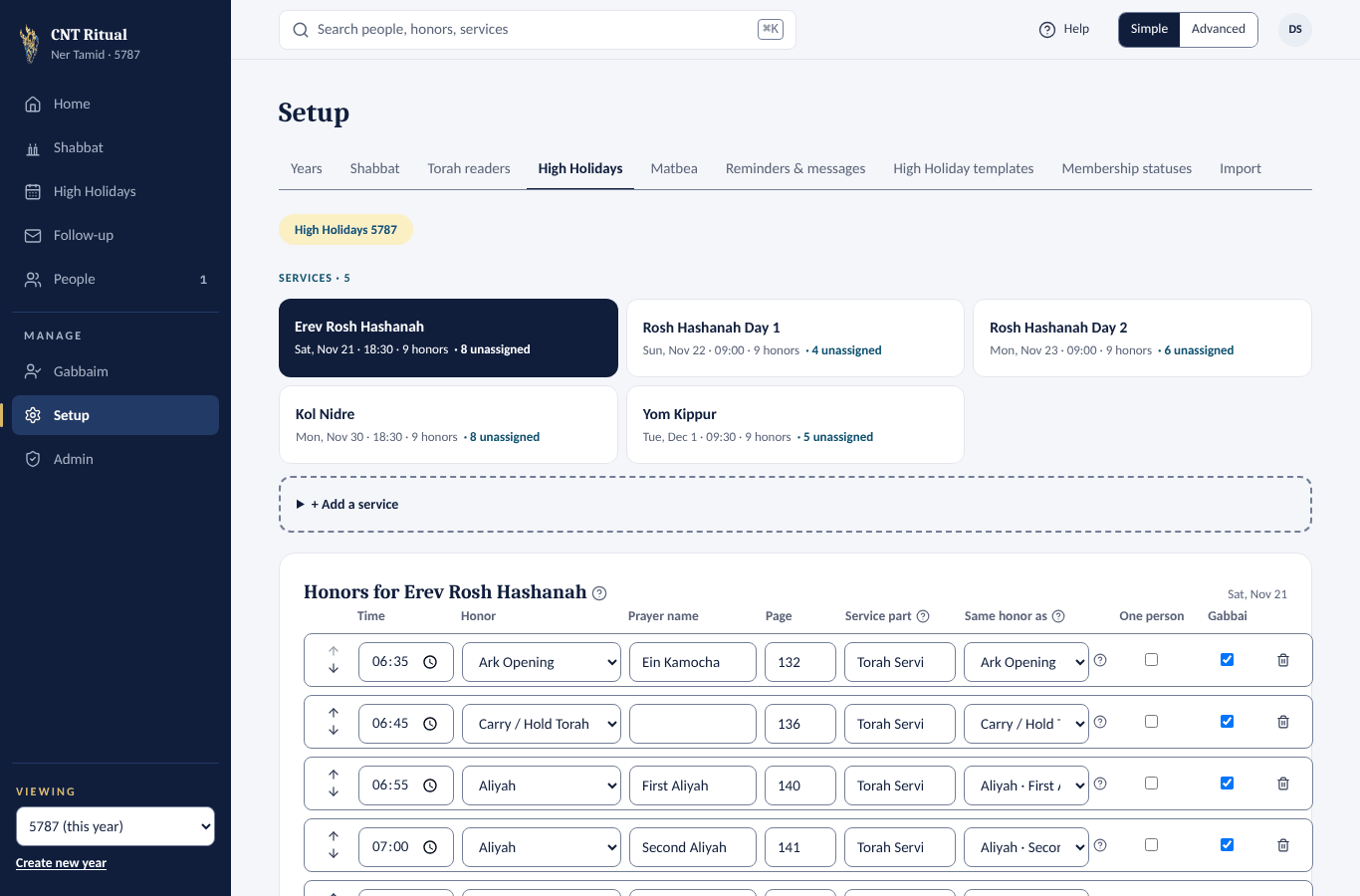
- Click Setup, then High Holidays.
- Click the service at the top, for example Erev Rosh Hashanah.
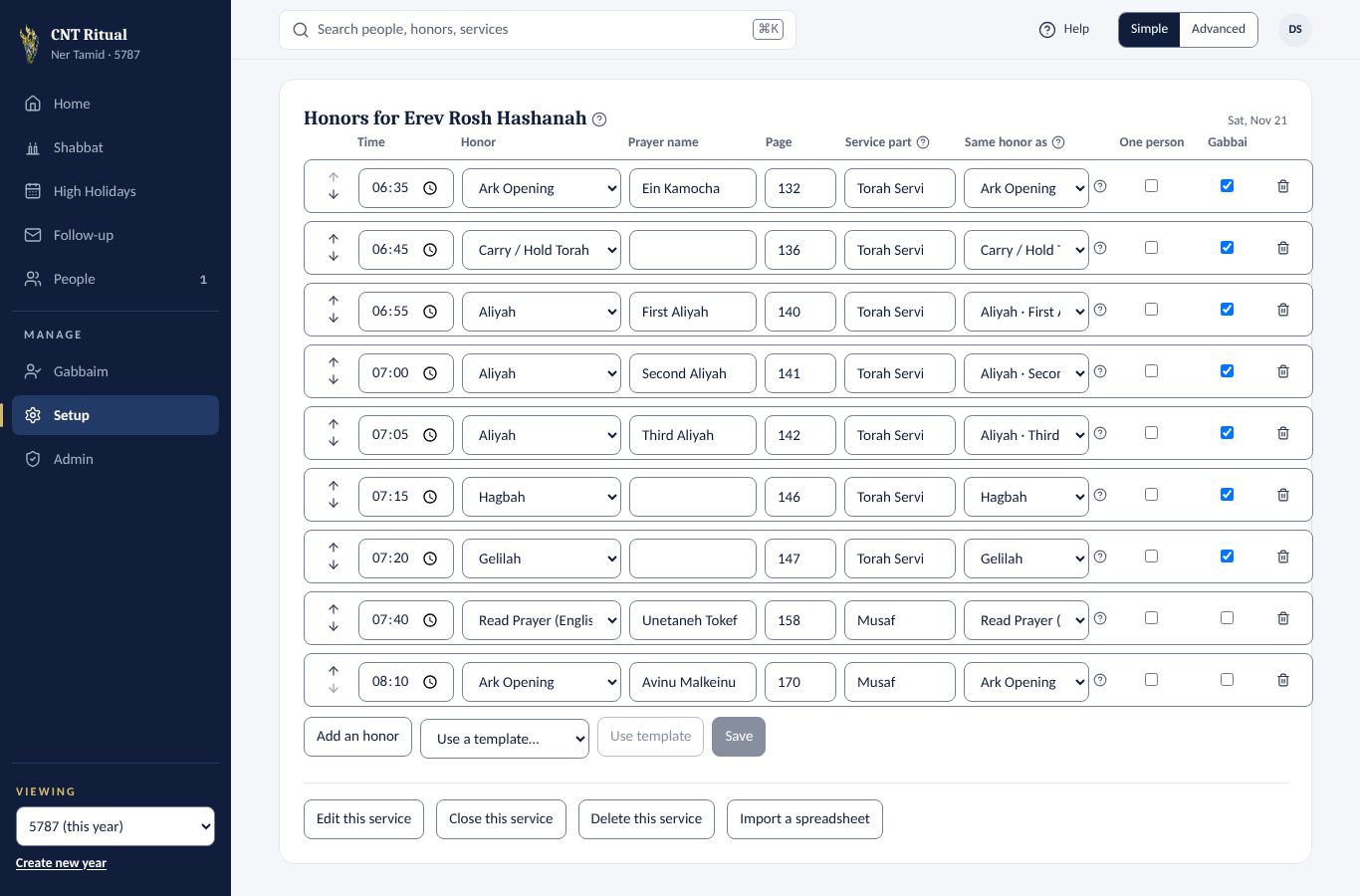
- Edit the Time, Honor, Prayer name, Page, Service part and Same honor as. Use ↑ and ↓ to reorder.
- Tick One person for an honor that goes to one person only, never a couple or family. Tick Gabbai to show the honor on the service's Gabbai list.
- Add an honor adds a row; the trash can removes one.
- Click Save.
Below the table: Use a template replaces all honors, and only works before anyone is assigned. Edit this service changes the name, date and time. Then Close this service, Delete this service and Import a spreadsheet. Reusable honor lists live on Setup › High Holiday templates.
Section 7Assign honors and send invitations
Open a service
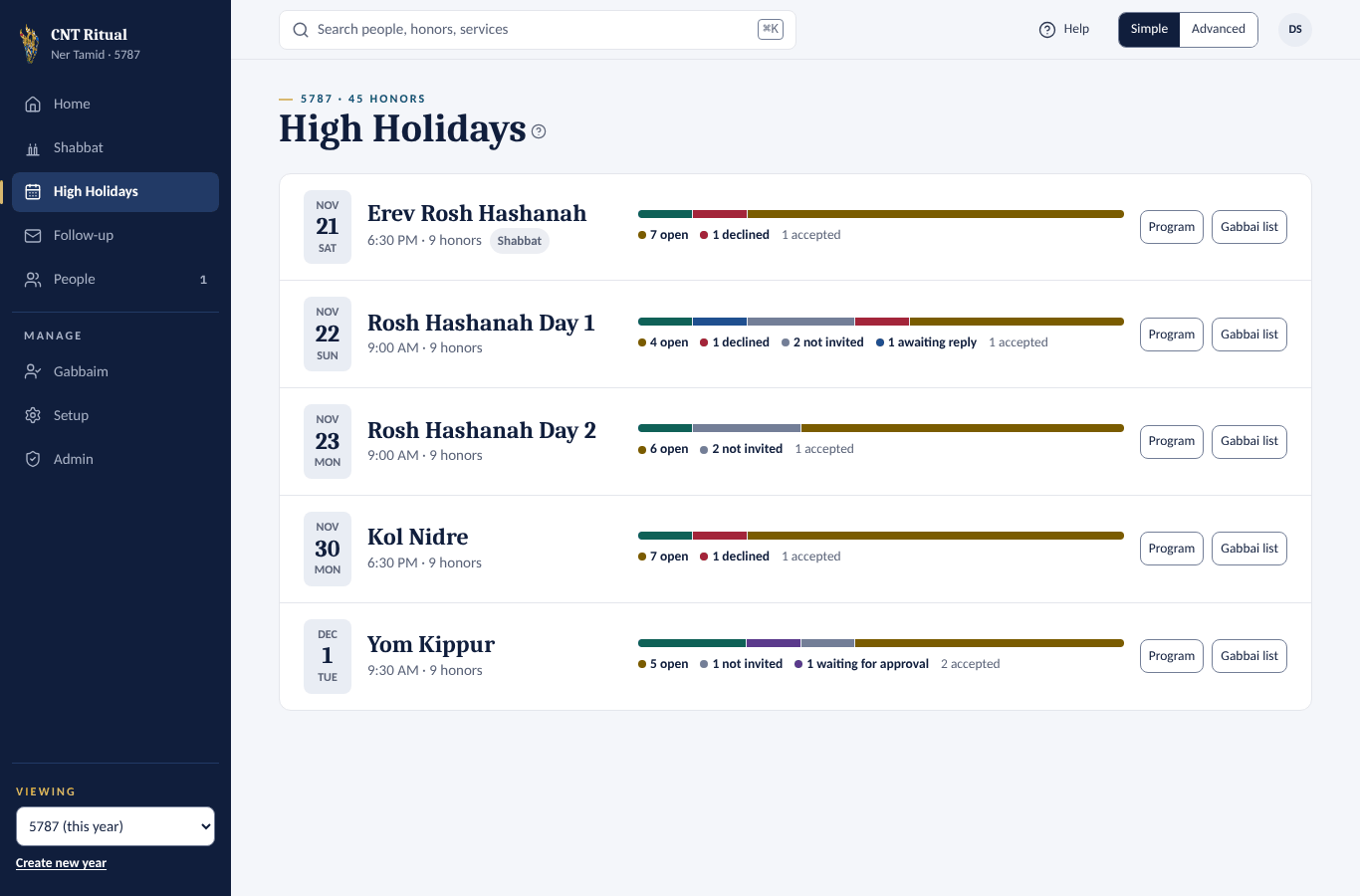
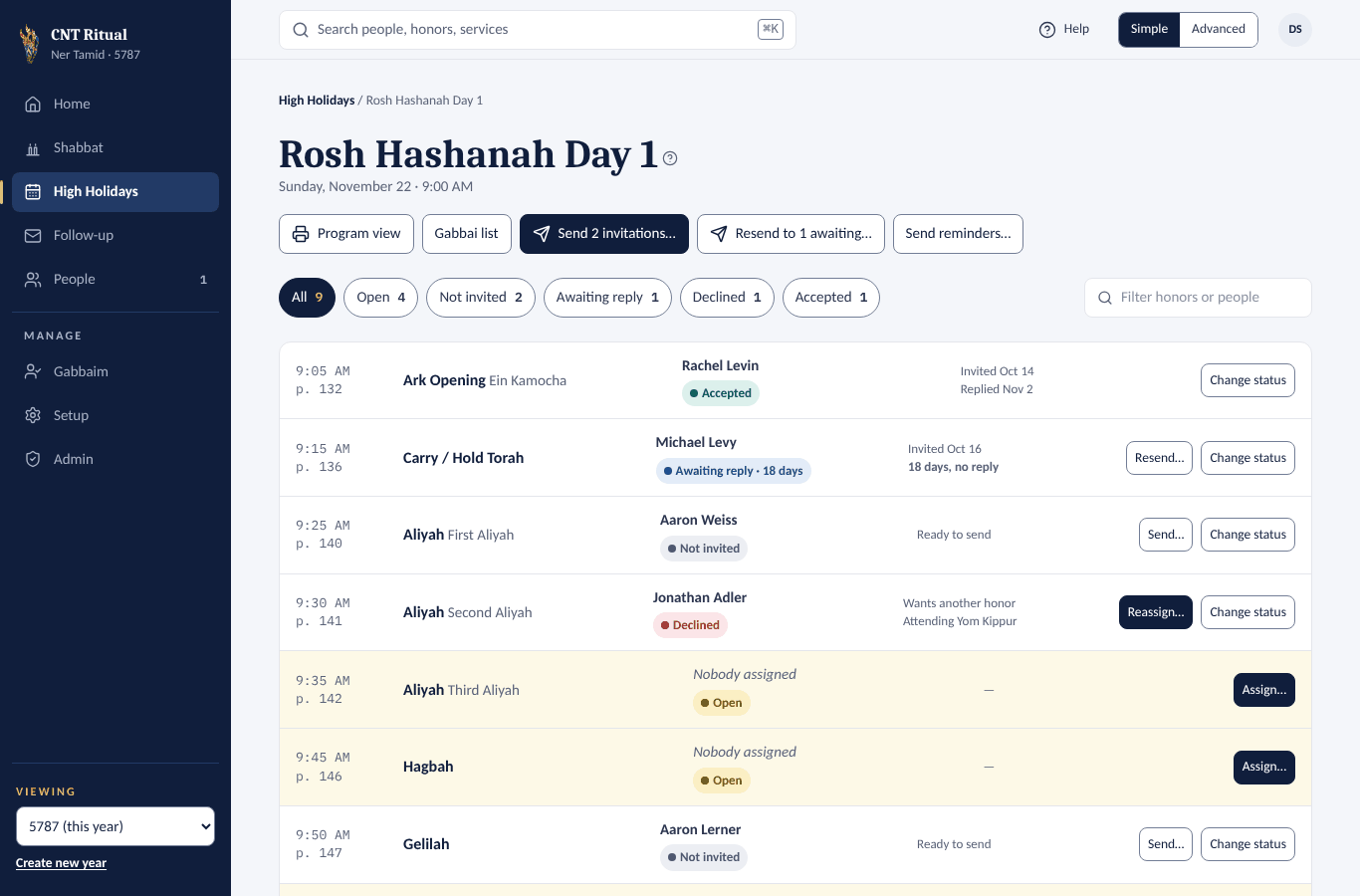
Click High Holidays, then the service. Each honor shows its honoree and status: Open, Not invited, Awaiting reply, Declined or Accepted. The pills at the top filter the list.
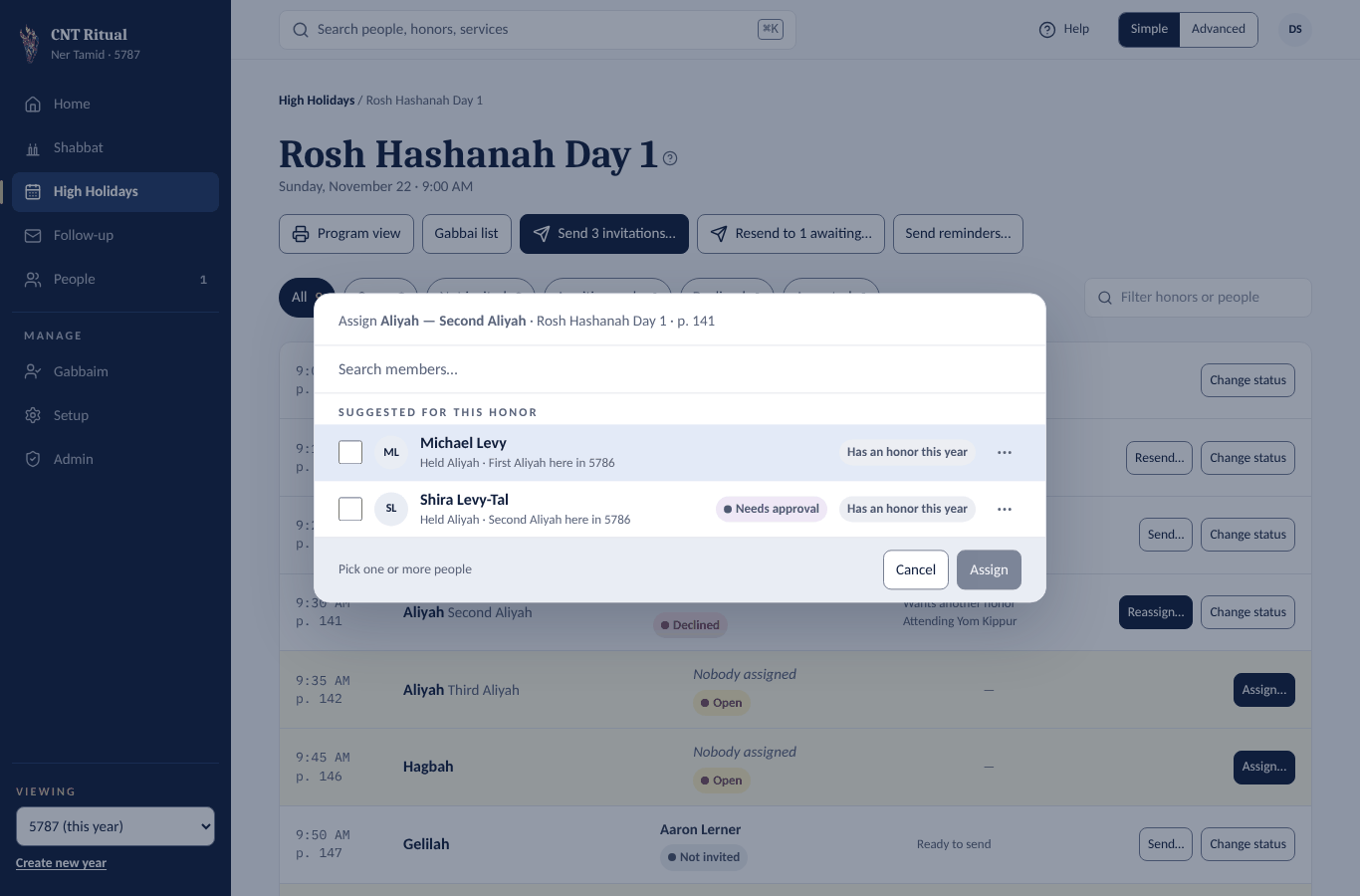
Assign an honor
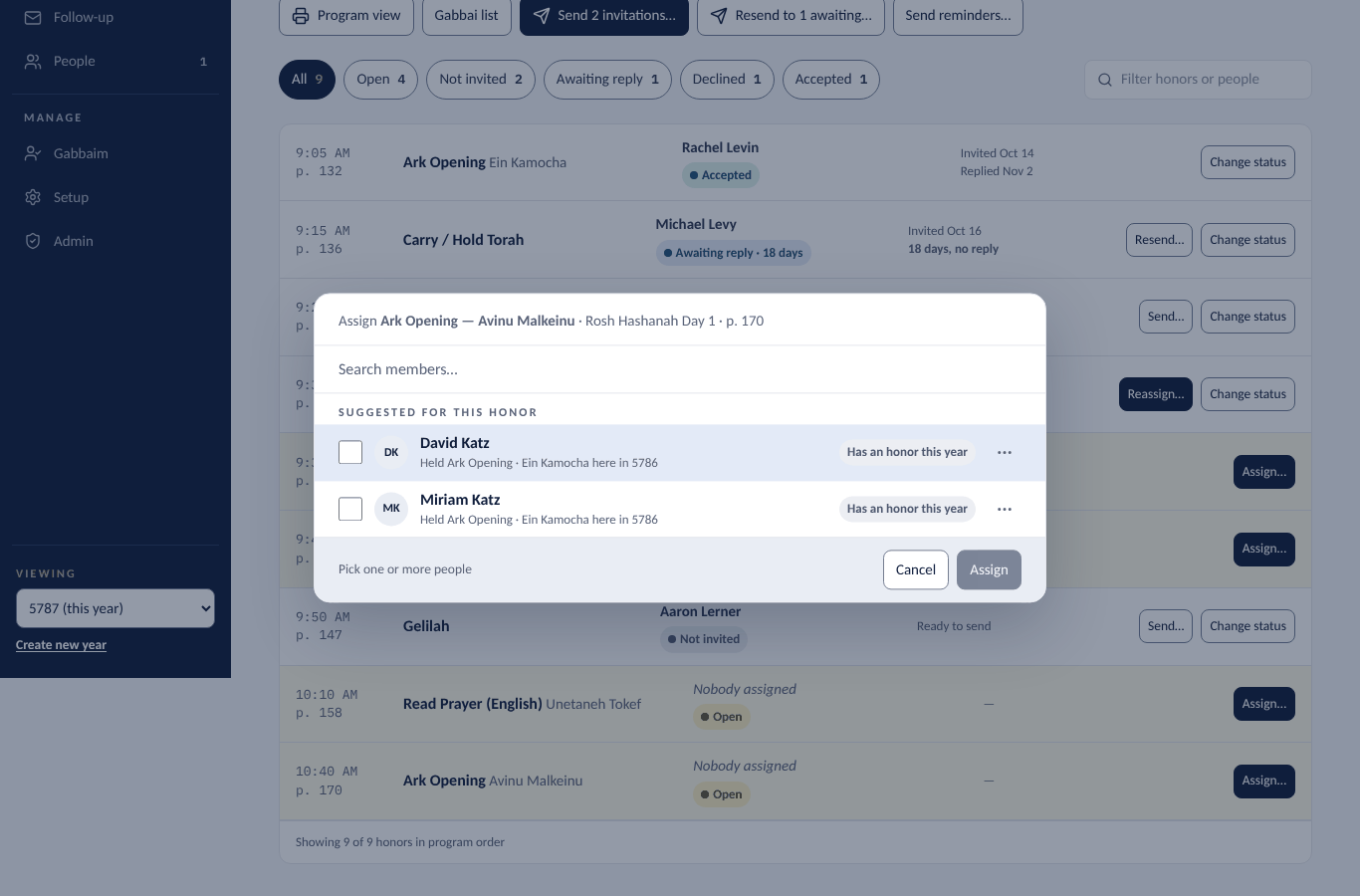
- On an Open honor, click Assign….
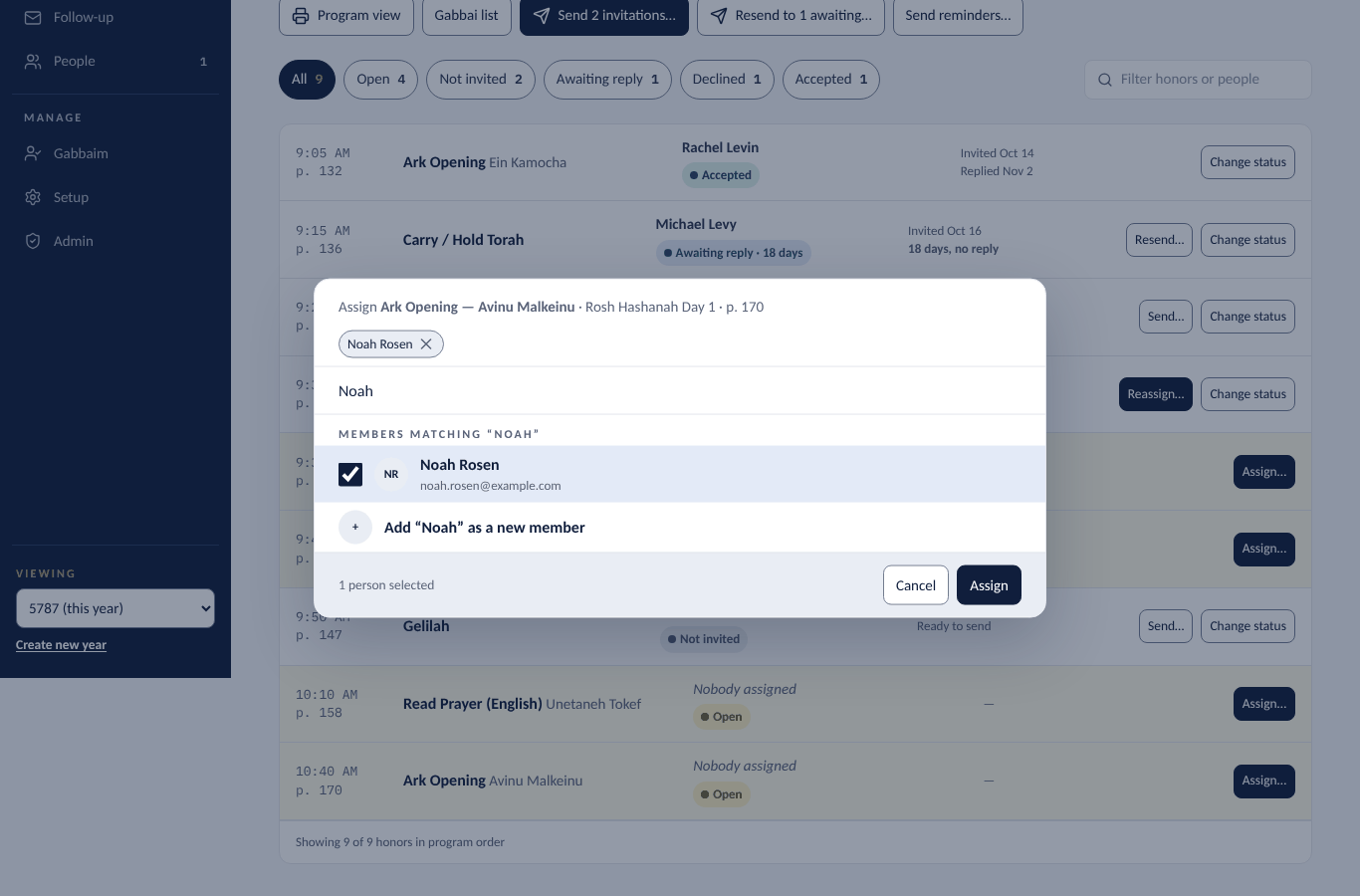
- Pick from Suggested for this honor — people who held it before — or type a name in Search members….
- Tick one person, or two or more to give it to a couple or family together. They get one shared answer.
- Click Assign.
Send the invitation
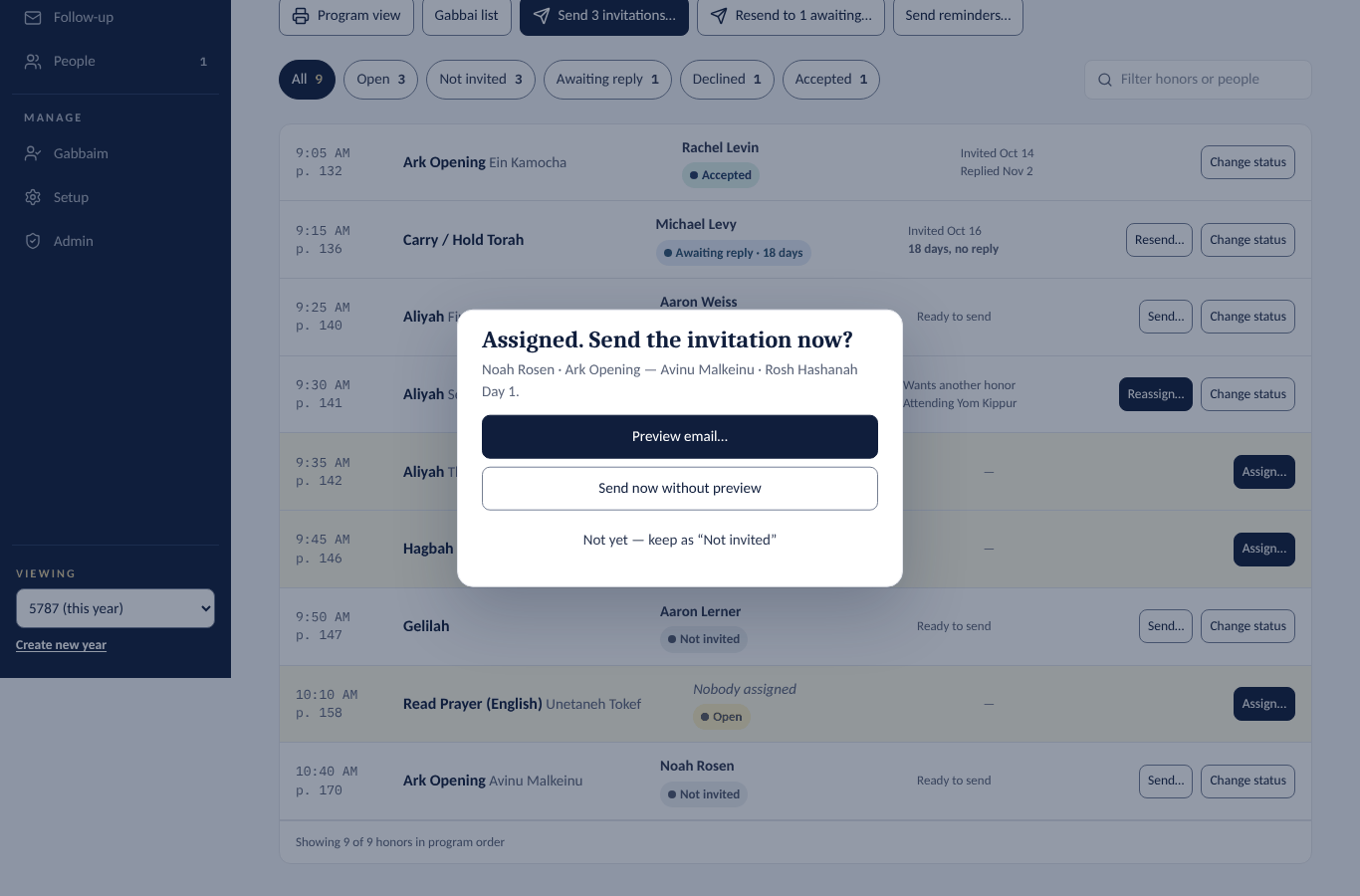
Right after you assign, the app asks Send the invitation now?
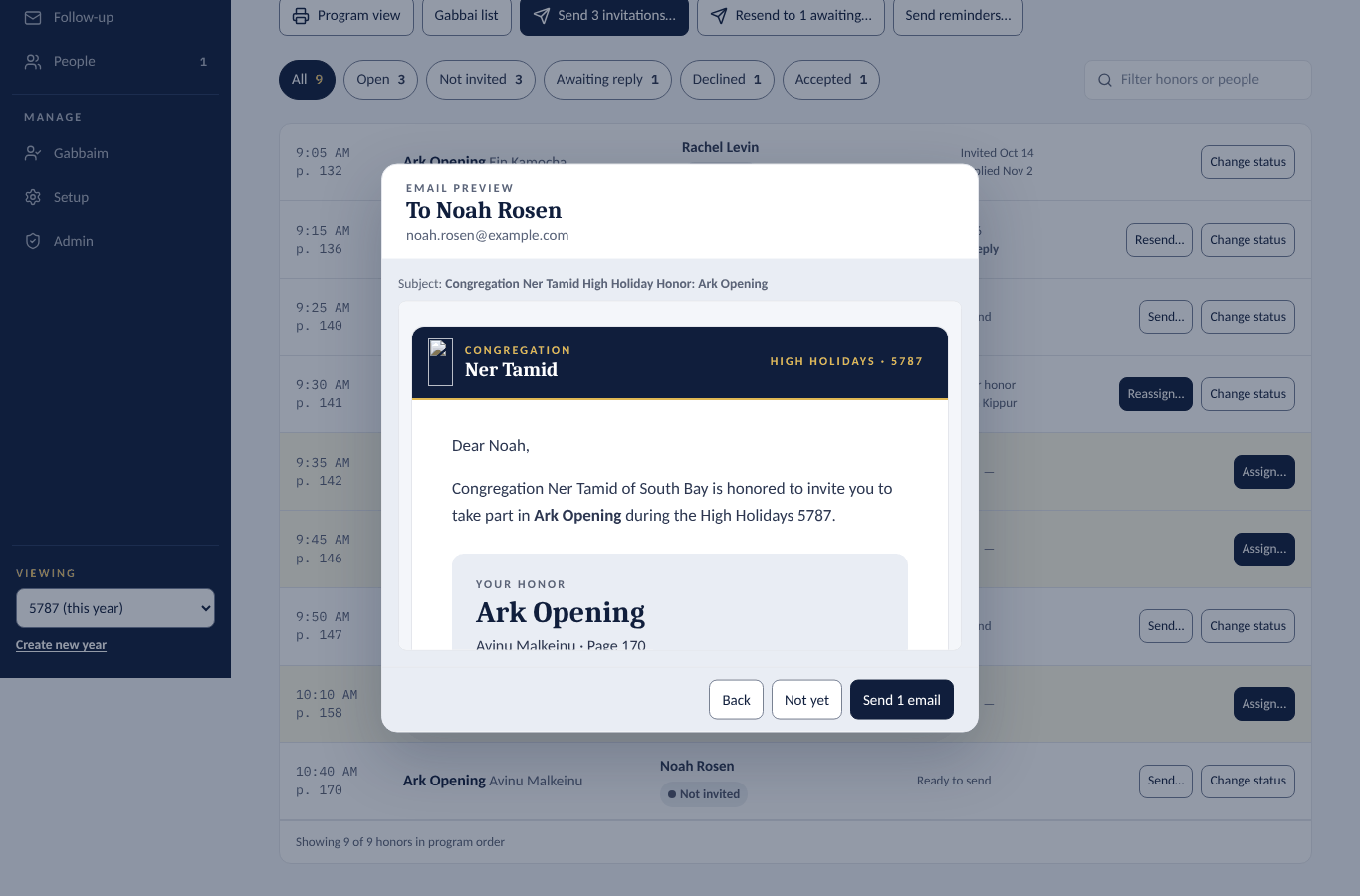
- Preview email… — see the exact email, then click Send 1 email.
- Send now without preview.
- Not yet — keep as "Not invited" — send it later with Send… on the row.
Send many at once
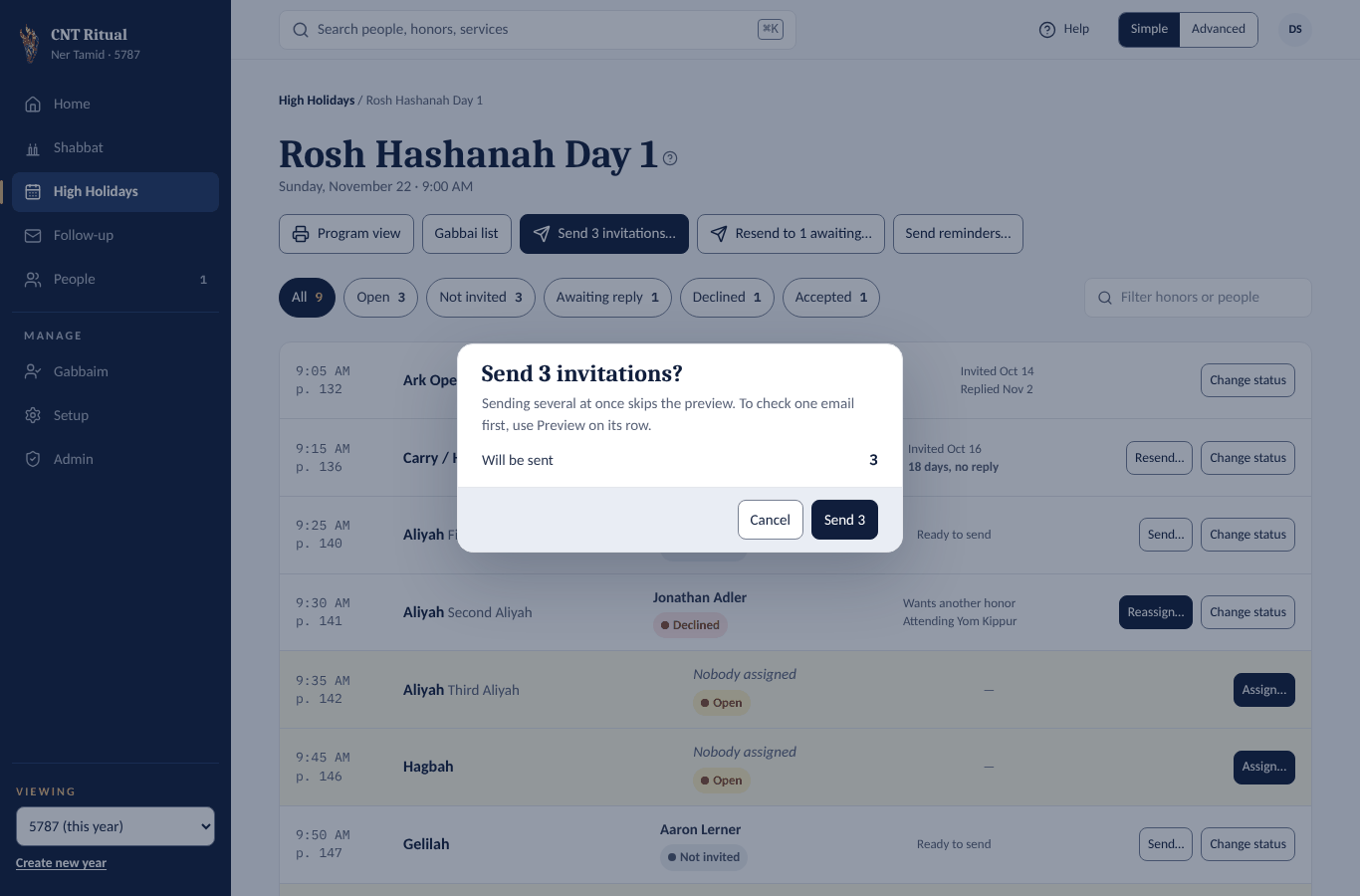
Click Send N invitations… at the top of the service. It skips the preview and sends one email per honor.
Other buttons on a service
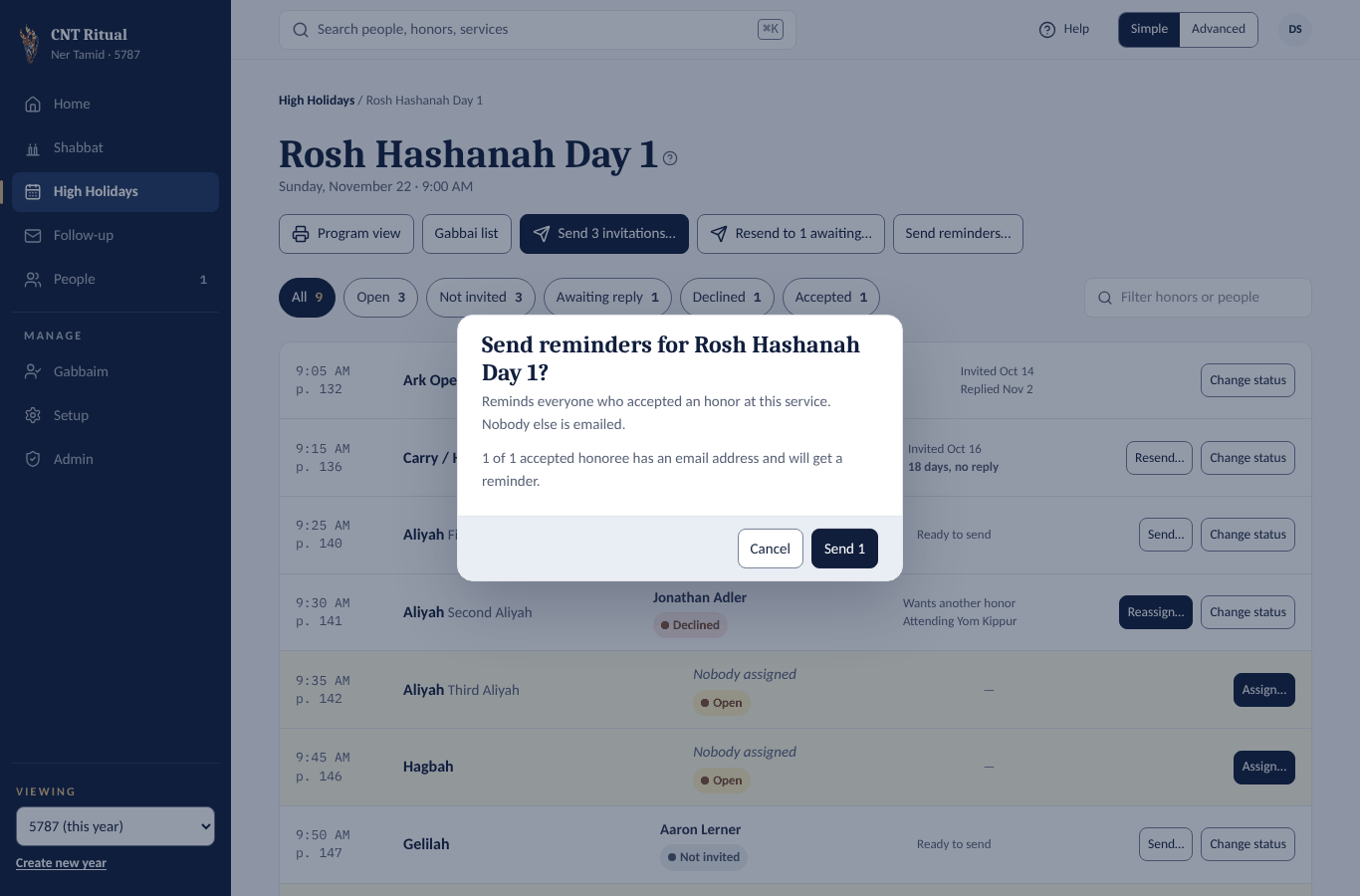
- Resend to N awaiting… — a gentle nudge to everyone who hasn't answered.
- Send reminders… — emails everyone who accepted, and nobody else.
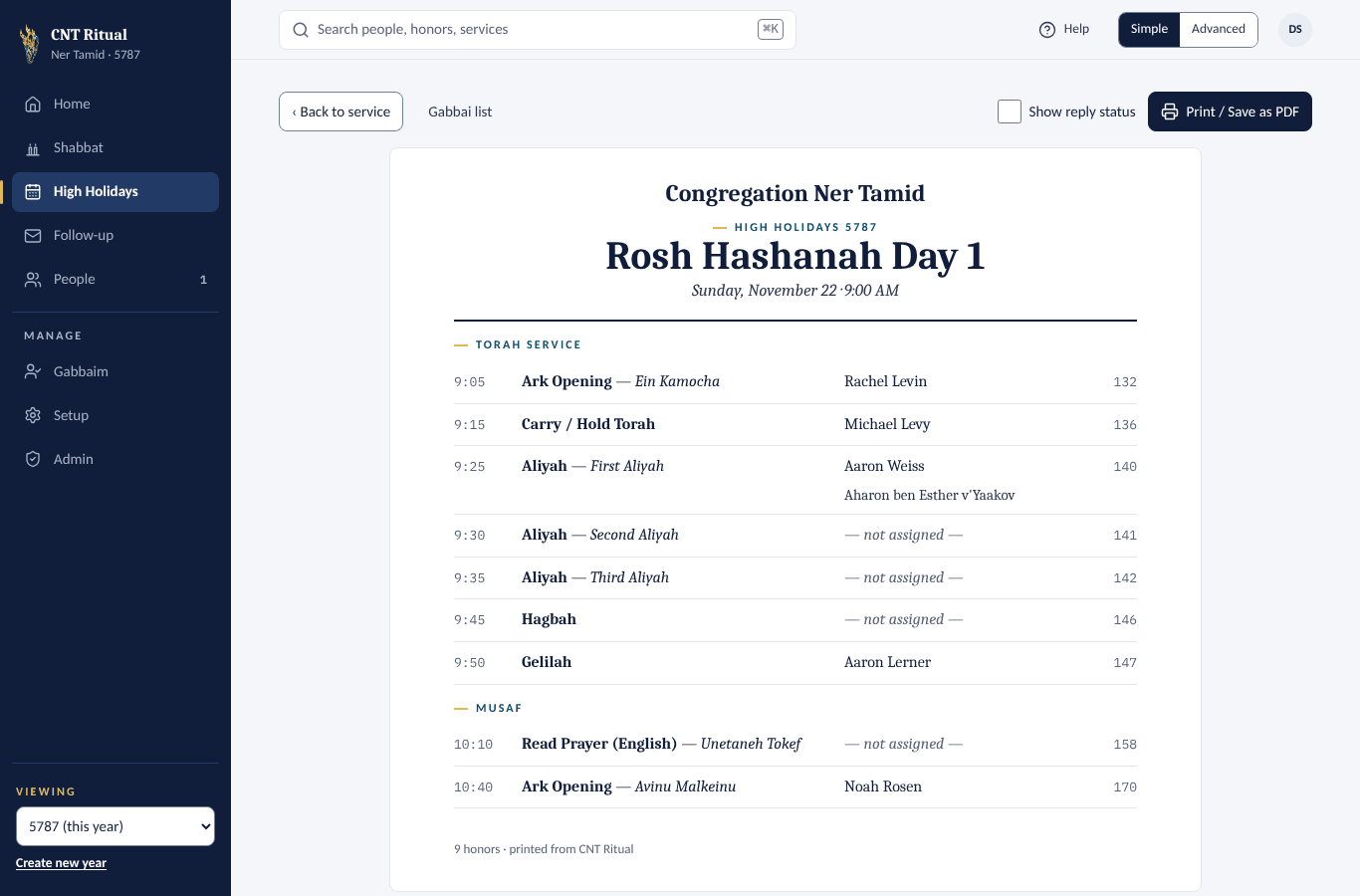
- Program view and Gabbai list — printable run-of-service sheets.
Good to know
- One email per honor. Someone with two honors gets two emails.
- People with no email are never emailed. Call them, then record their answer with Change status.
- People marked Needs approval are held until approved. People marked Do not assign can't be picked.
Section 8Follow up, approve, reassign and close
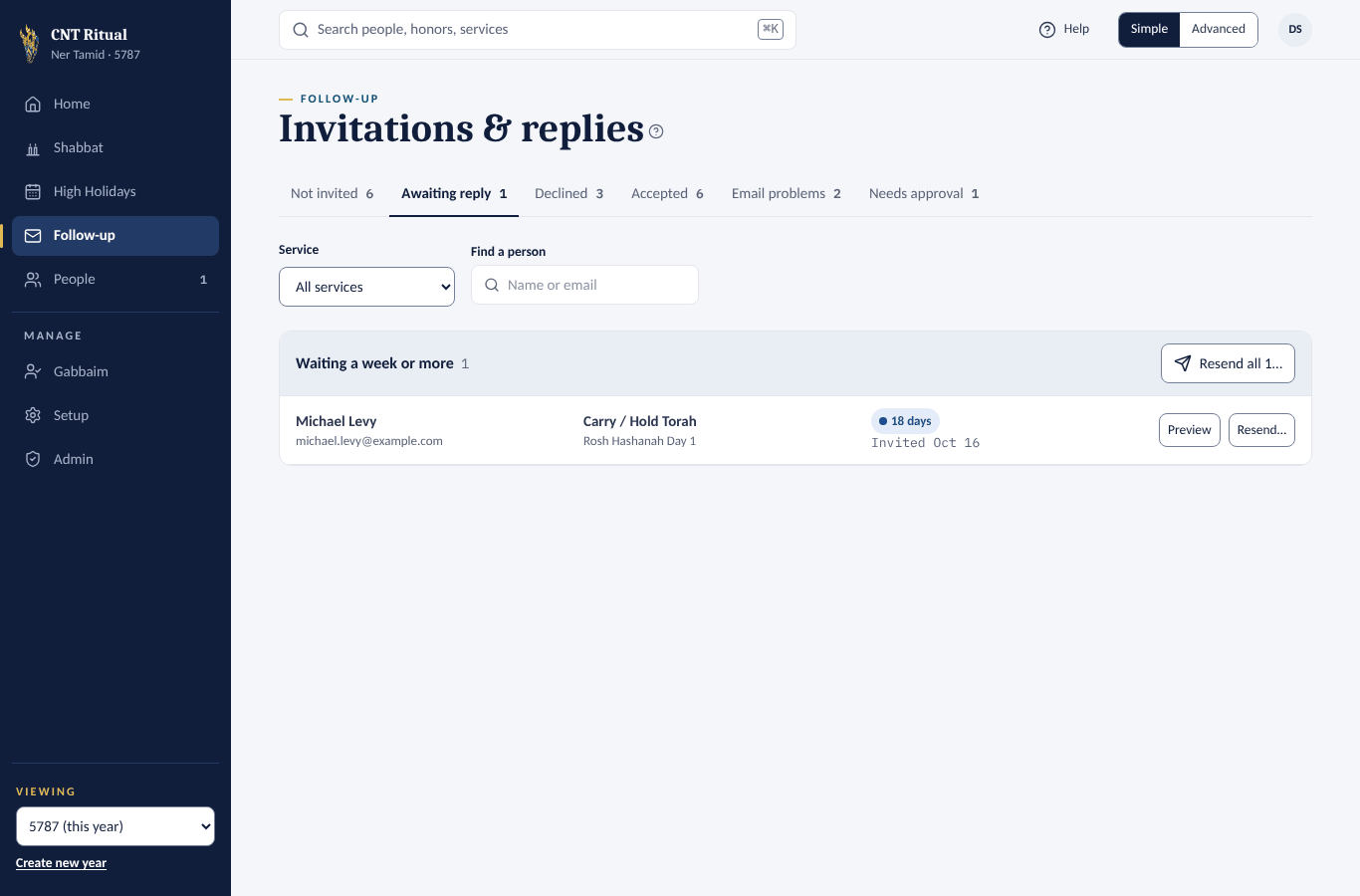
Follow-up collects every honor that needs a nudge, across all services. Click Follow-up, then a tab:
| Tab | What to do there |
|---|---|
| Not invited | Send… one, or Send all… |
| Awaiting reply | Preview, Resend…, or Resend all… |
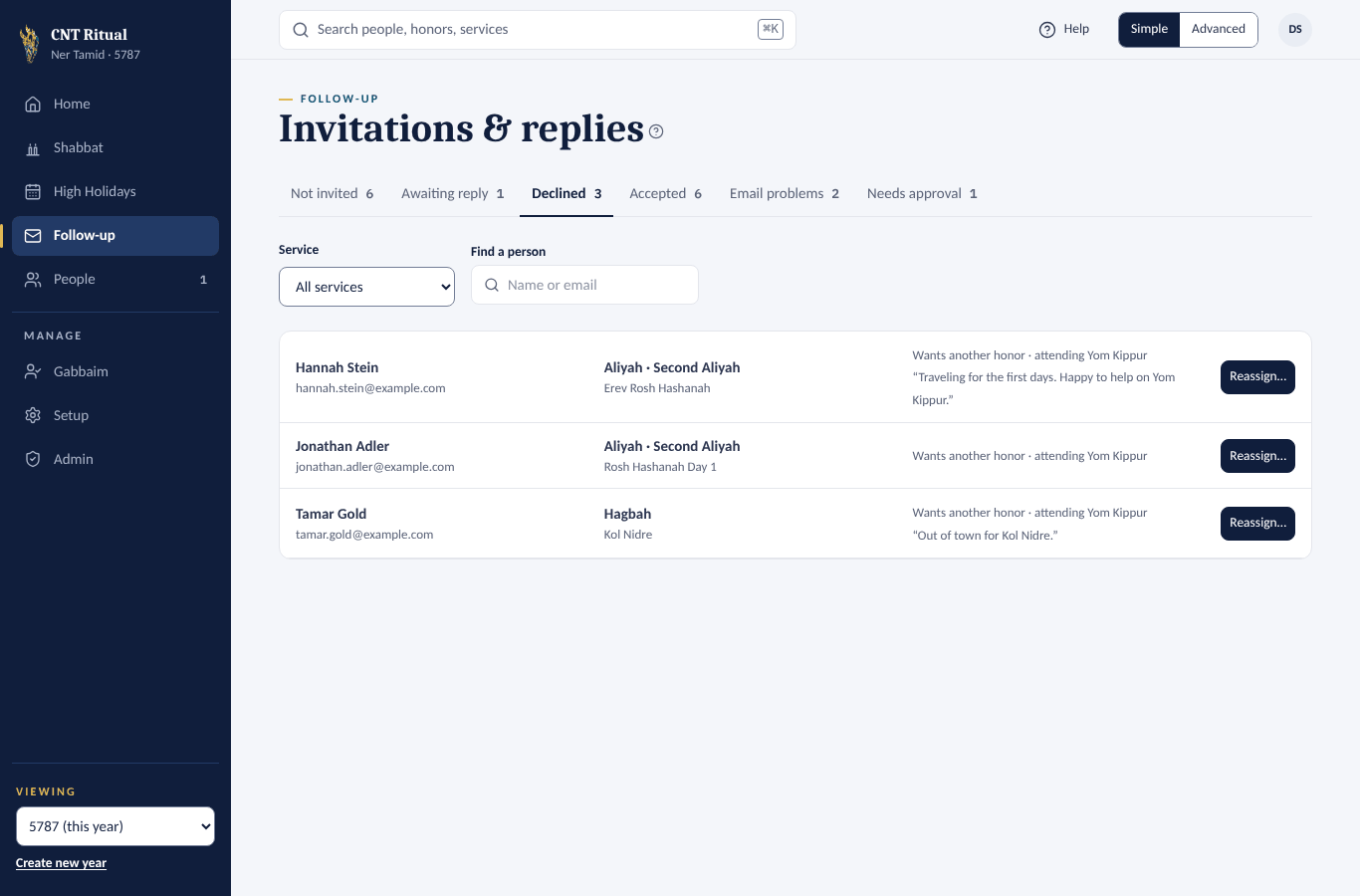
| Declined | See their answers — do they want another honor, which services will they attend — and Reassign… |
| Accepted | Nothing; it's just the list |
| Email problems | Fix the email on the person's page, then Try again… |
| Needs approval | Approve… or Deny…; Print list for the office |
Pick a Service or type in Find a person to narrow any tab. Download spreadsheet saves everything.
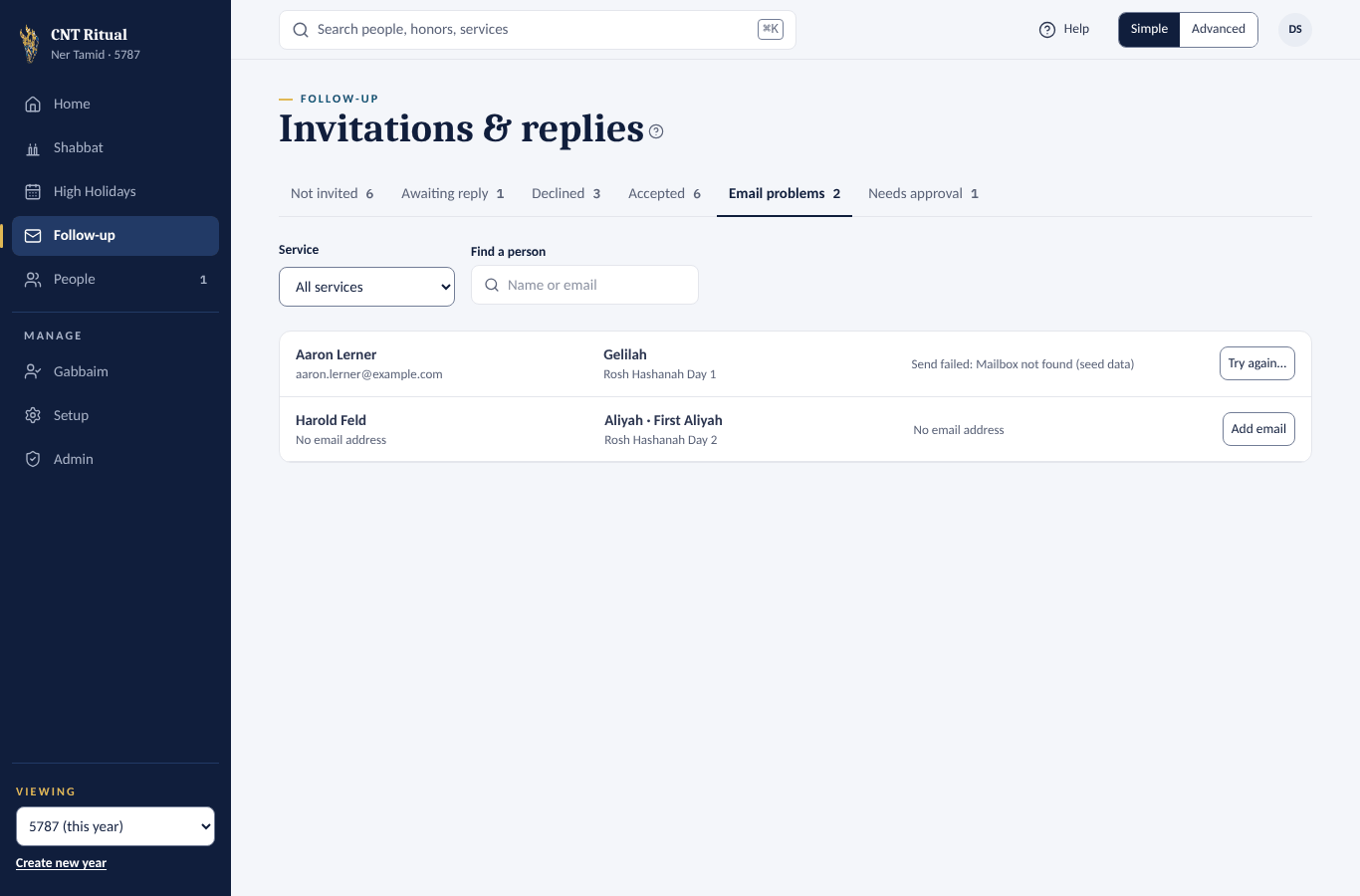 1Email problems
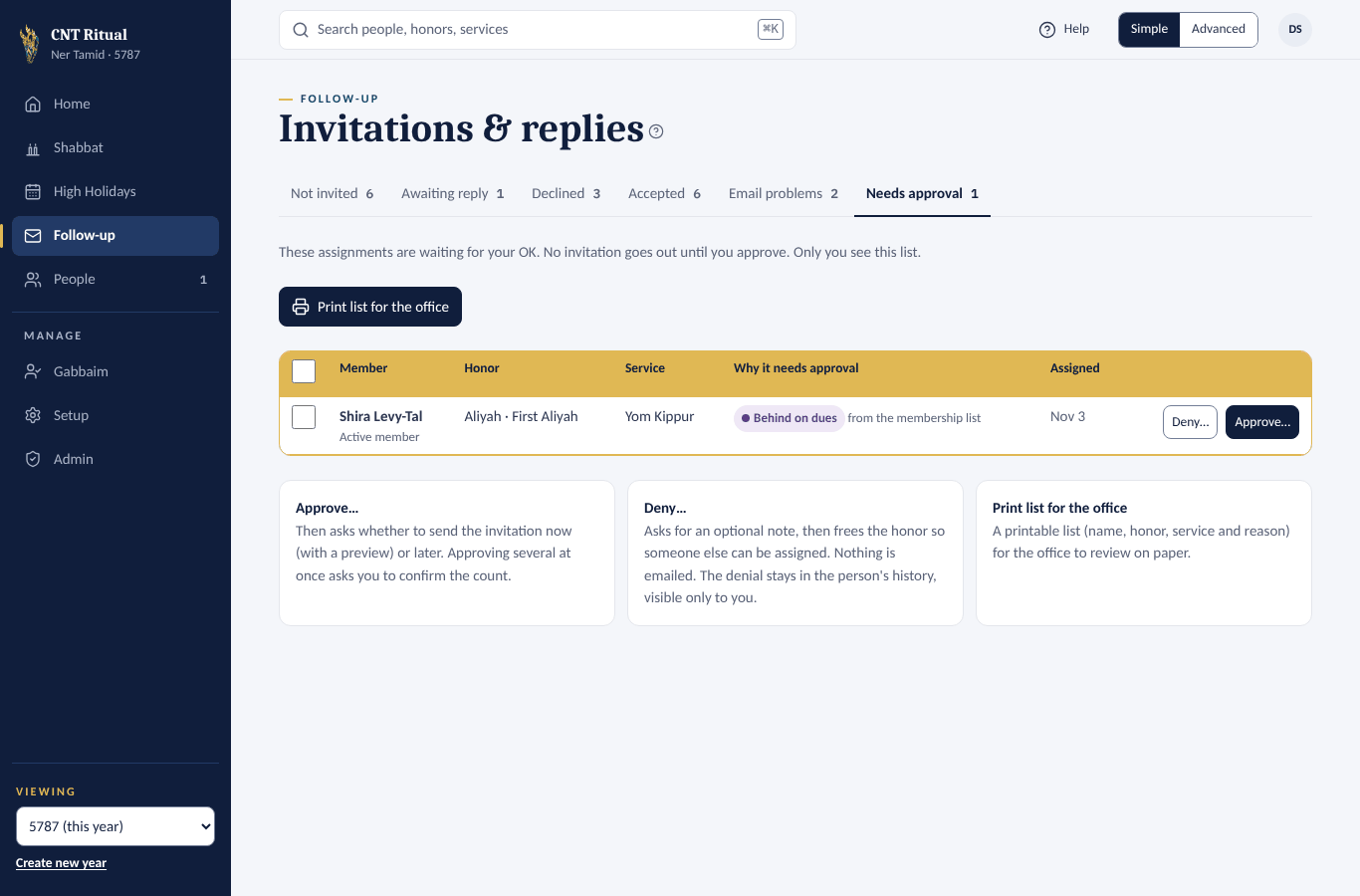 2Needs approval
Approve a held honor
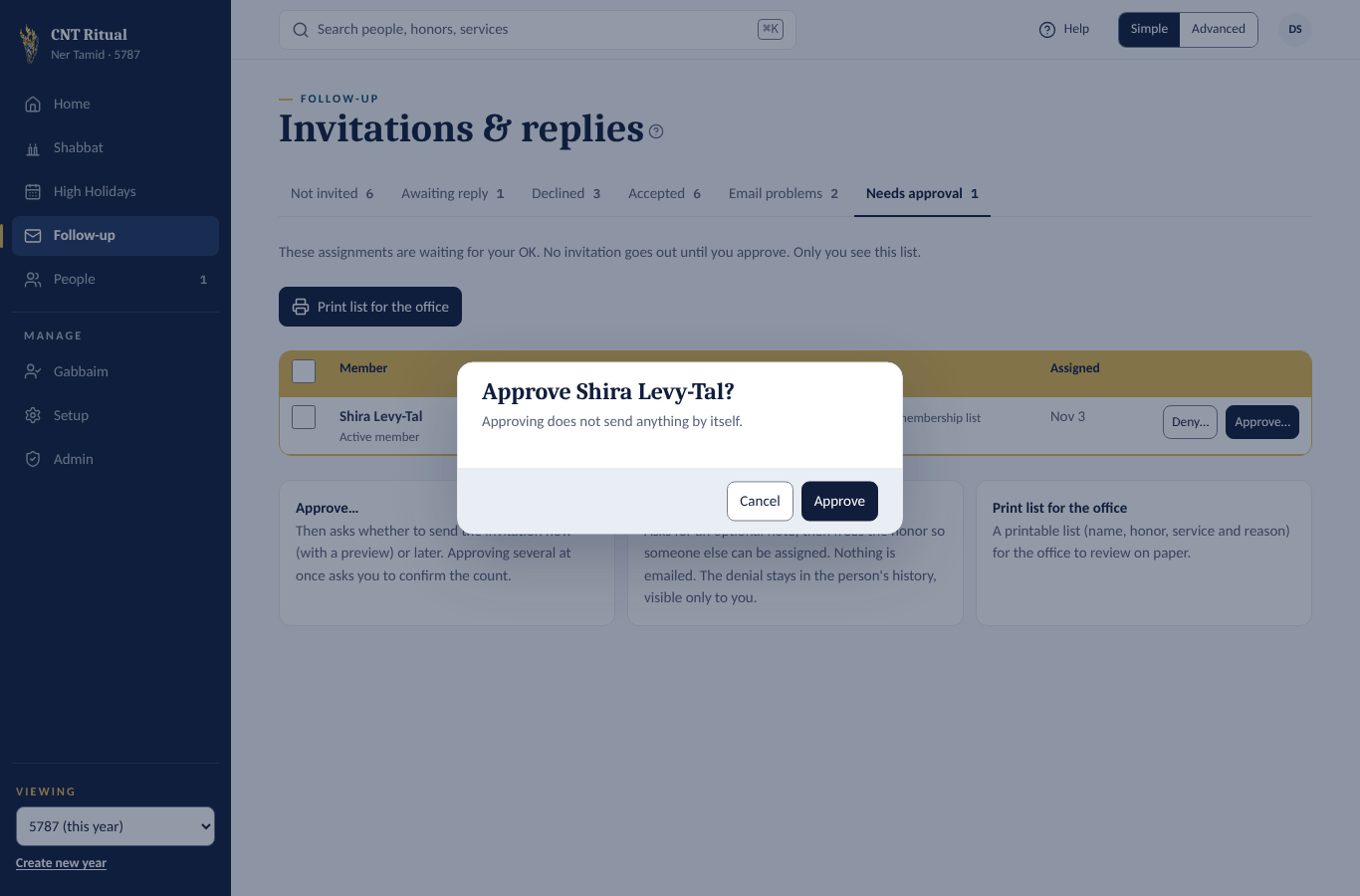
On Needs approval, click Approve…, then Approve. Approving sends nothing by itself, so send the invitation afterwards.
Reassign a declined honor
Click Reassign…. The same Assign dialog opens, with suggestions.
Record an answer you got by phone or in person
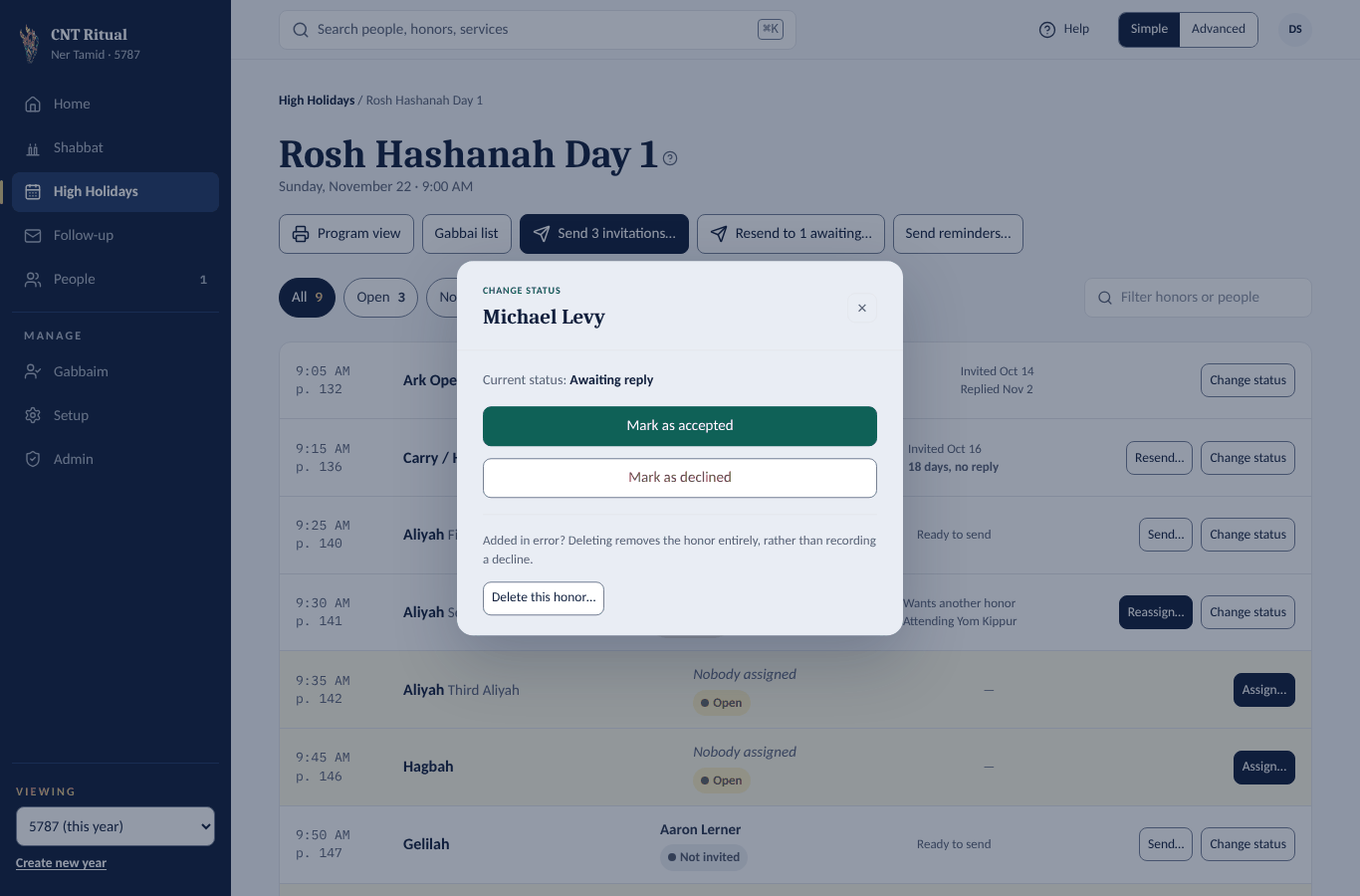
- On the service, click Change status on the row.
- Click Mark as accepted or Mark as declined.
- Added someone by mistake? Delete this honor… removes it completely instead of recording a decline. It warns you if an invitation already went out.
Close a service when it's over
Closing freezes a service: no more answers, assignments, invitations or edits. Reminders can still go out, and you can reopen it at any time.
- Click Setup, then High Holidays, then the service.
- Click Close this service and confirm.
Home reminds you when a service is over but still open.
Close a whole year
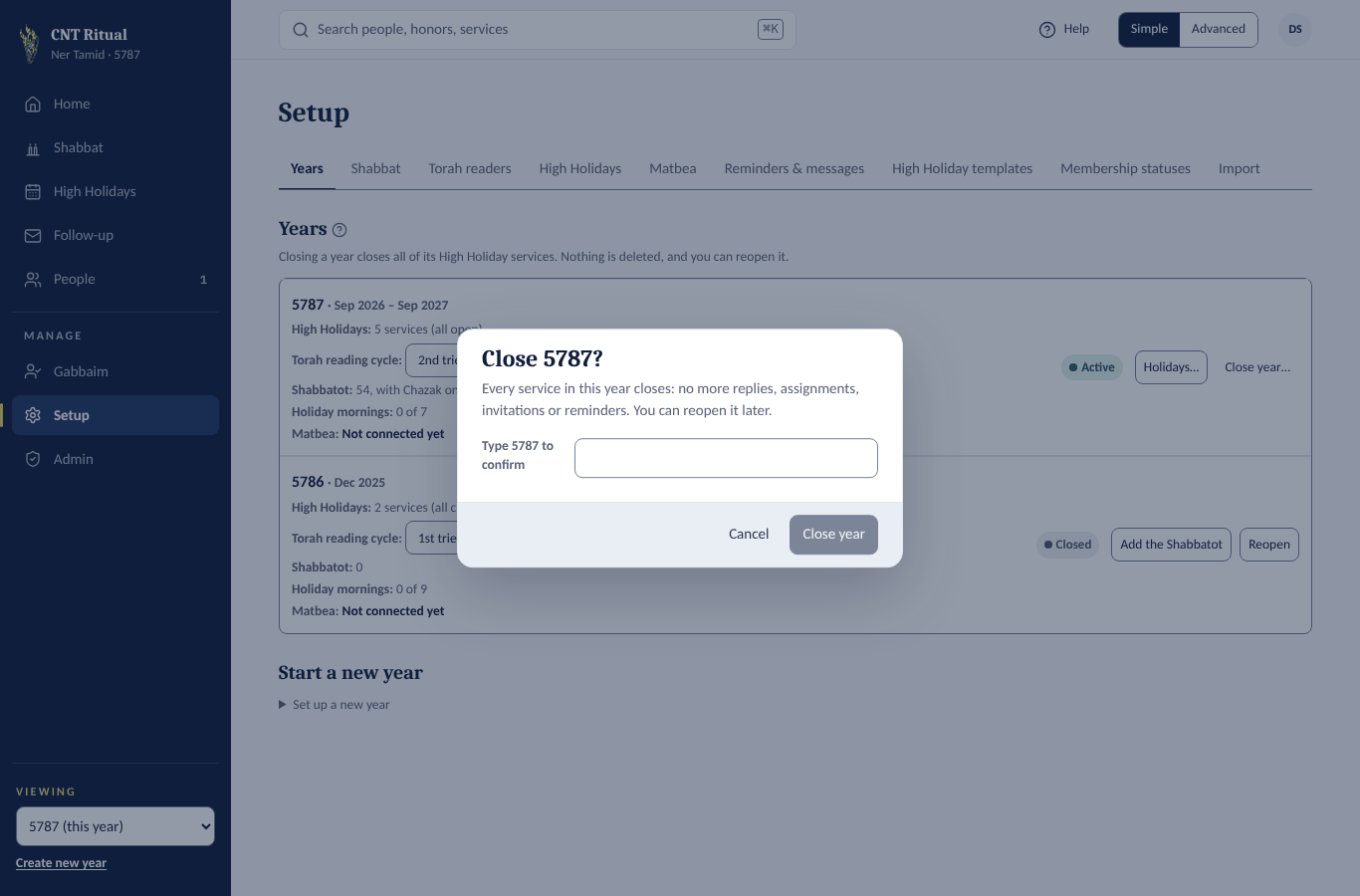
On Setup › Years, click Close year…, type the year (for example 5787) and click Close year. Reopen undoes it.
Section 9Shabbat and the Gabbaim
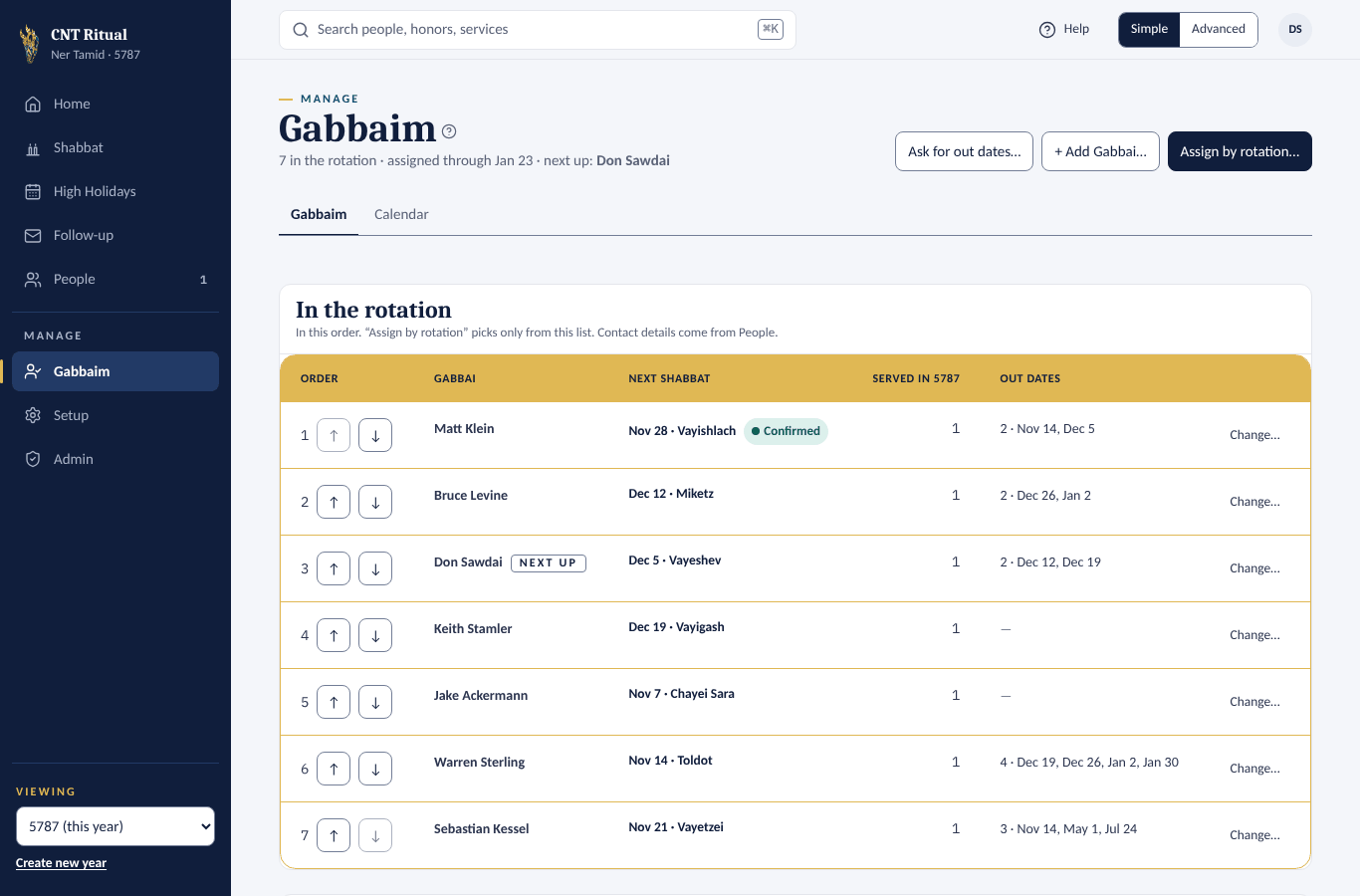
The rotation works like dealing cards: Assign by rotation gives the next Gabbai in order to each open Shabbat, skipping anyone marked Out.
The Gabbai list
Click Gabbaim.
- In the rotation — the order used by Assign by rotation. Use ↑ Move up and ↓ Move down. Next up is marked.
- Not in the rotation — Gabbaim you assign by hand.
- Change… on a row — Take out of the rotation or Remove from the Gabbai list….
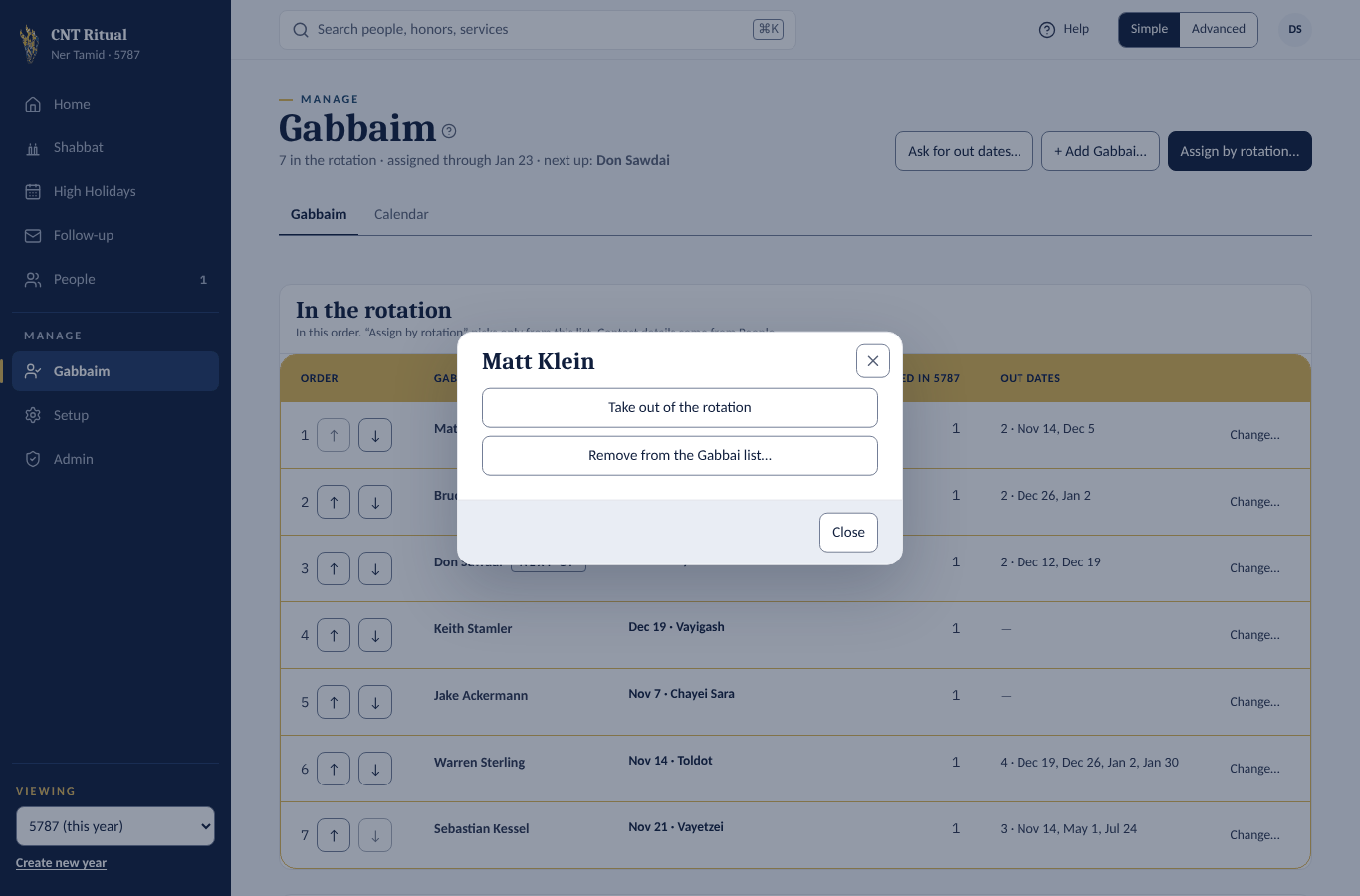
Add a Gabbai
- Click + Add Gabbai….
- Pick the person from People. They get the Gabbai role and can sign in to mark out dates.
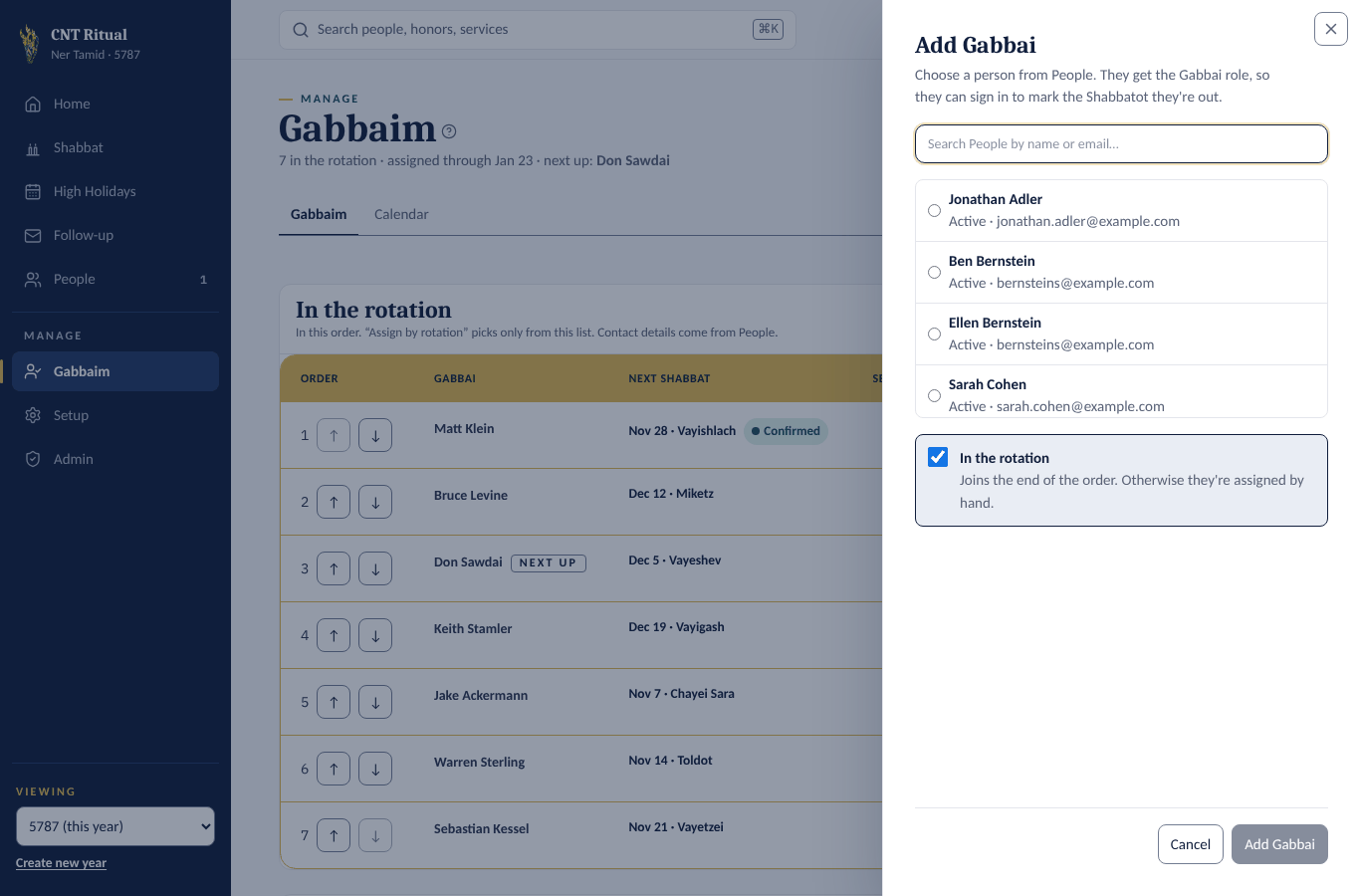
Collect out dates
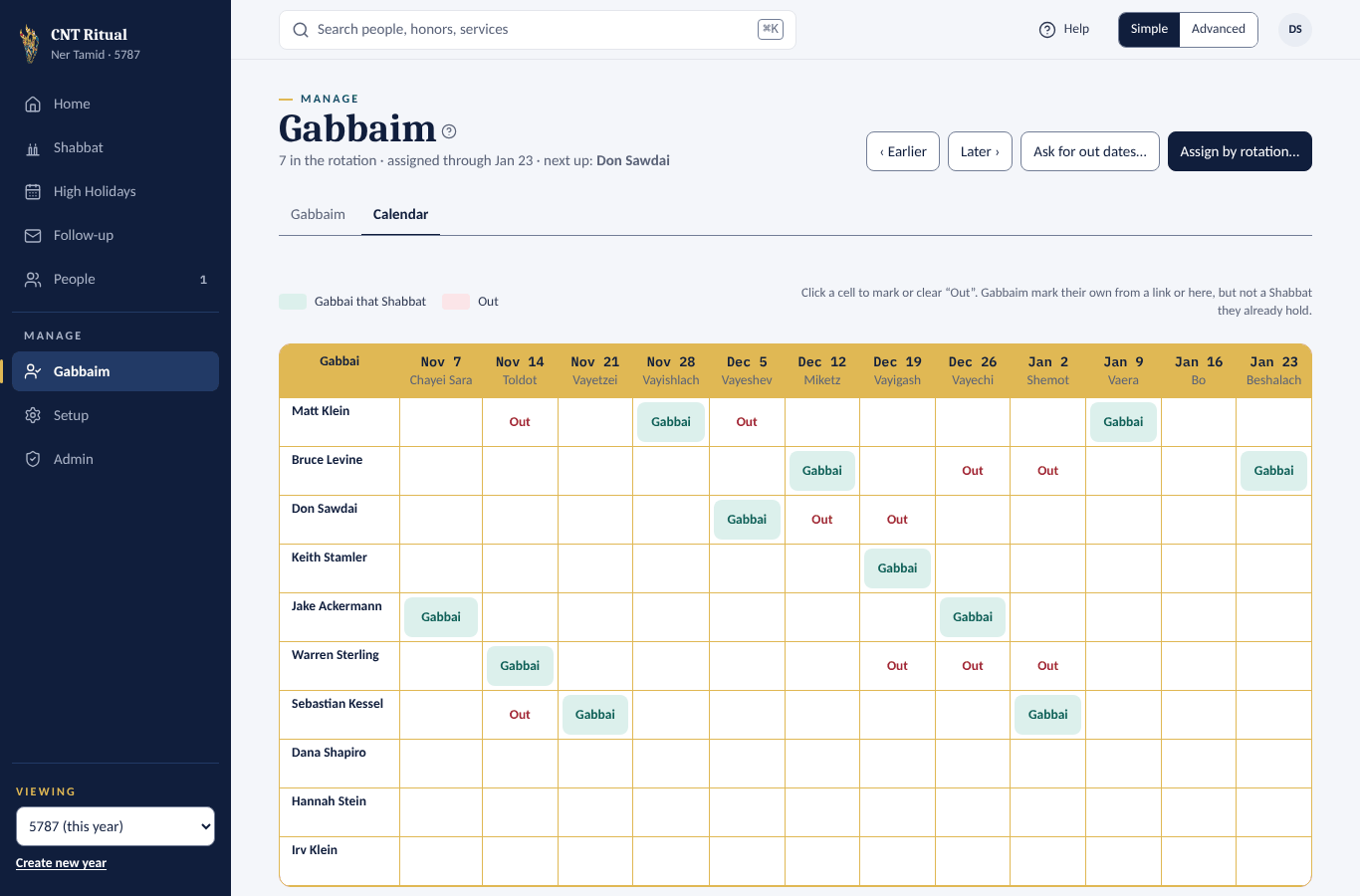
Click Ask for out dates…, then Email N Gabbaim. Each Gabbai gets a link to mark the Shabbatot they're out. Their answers show on the Calendar tab, teal for Gabbai and crimson for Out. You can click any cell to change it.
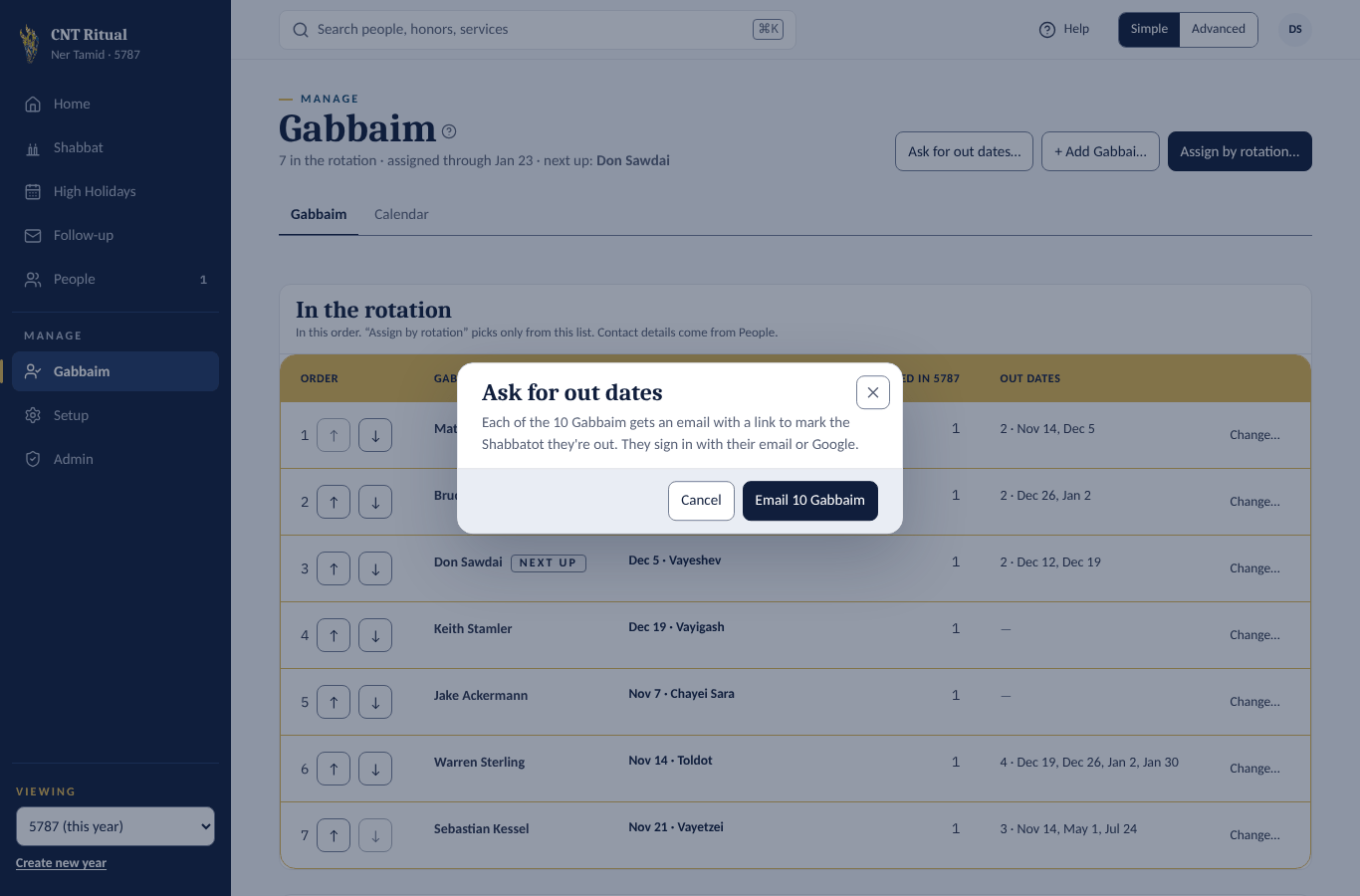
Fill the schedule
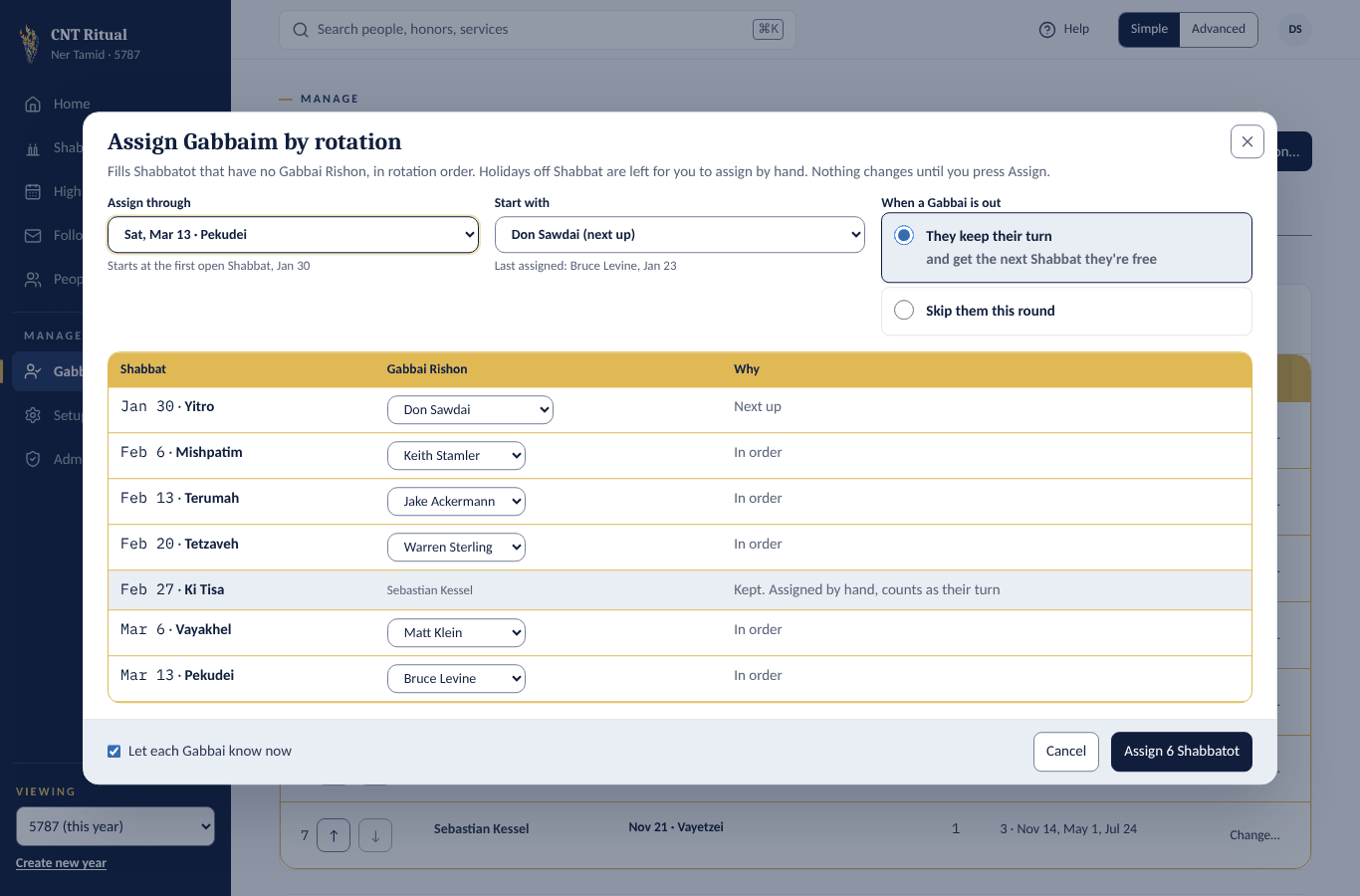
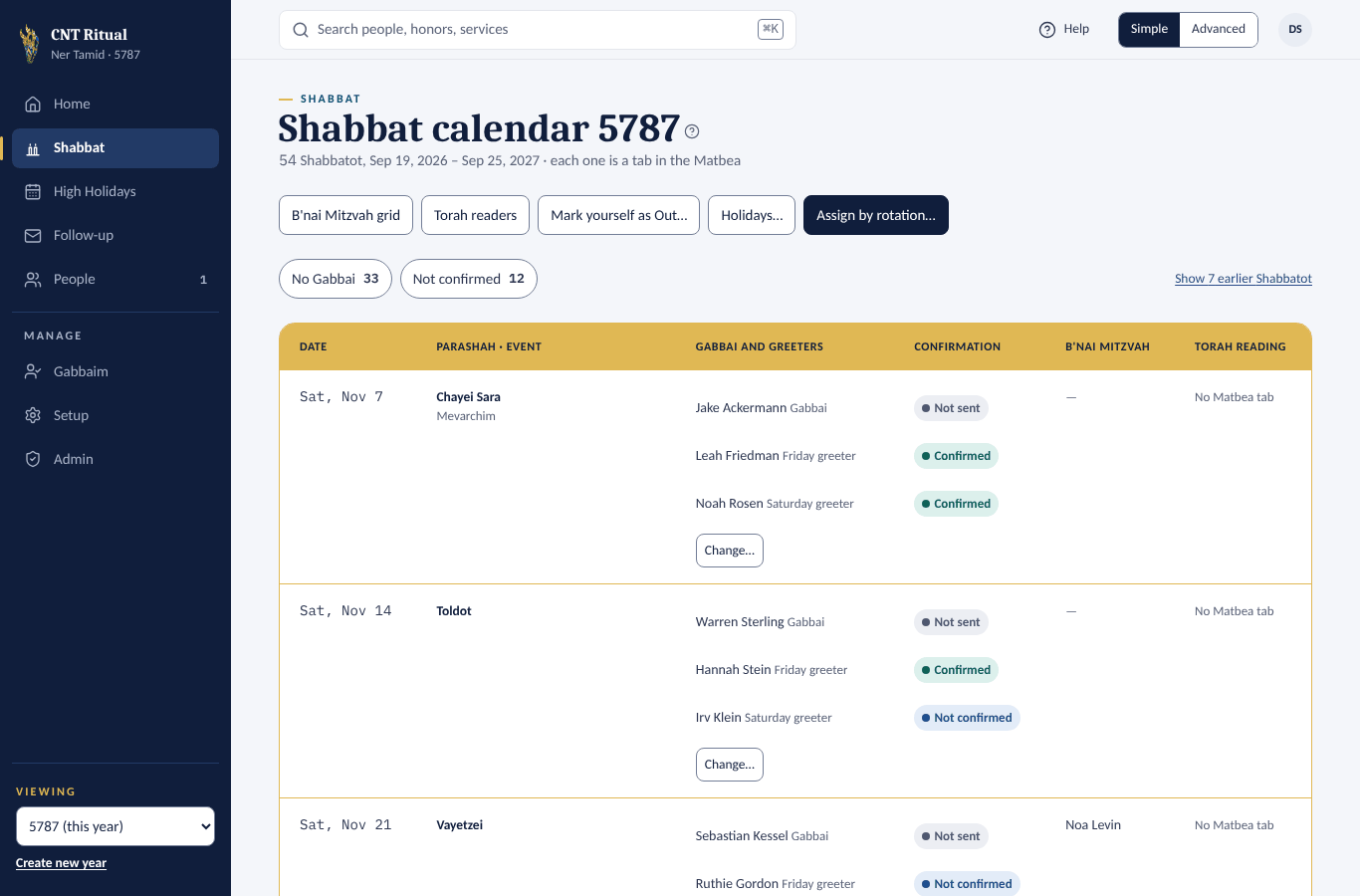
- Click Assign by rotation… on Gabbaim or the Shabbat calendar.
- Pick Assign through — the last Shabbat to fill.
- Check the preview. Nothing changes until you click Assign.
It only fills Shabbatot with no Gabbai. Holiday mornings that aren't on Shabbat are left for you to assign by hand.
Assign or change one Shabbat by hand
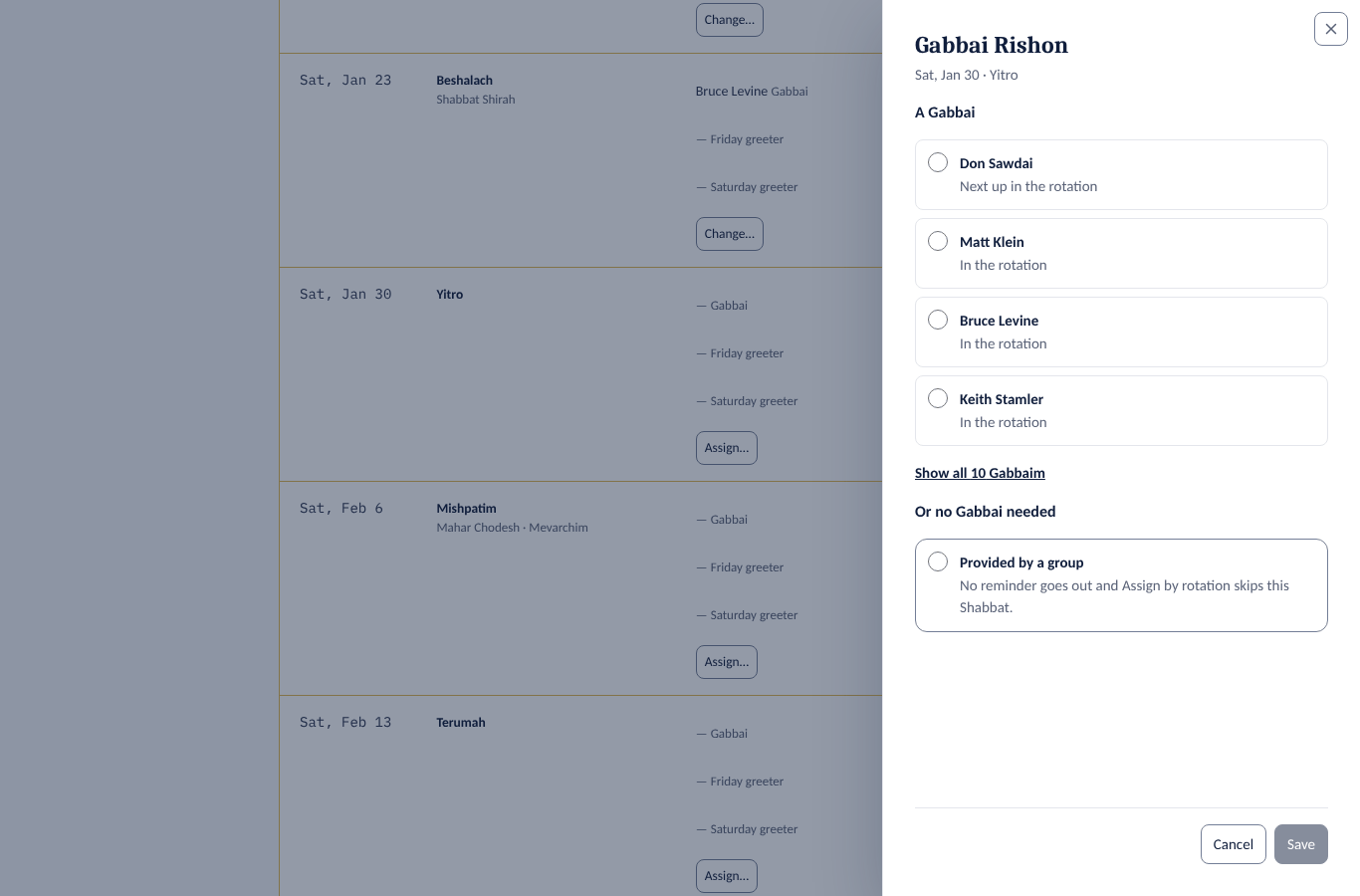
- On the Shabbat calendar, click Assign… or Change… on that row. Or open the Shabbat and click Change… on the Gabbai card.
- Pick a Gabbai — Next up and anyone Out are marked — or Provided by a group, which sends no reminder and is skipped by the rotation.
- Click Save. A Gabbai you take off gets an email saying so.
Reminders and nudges
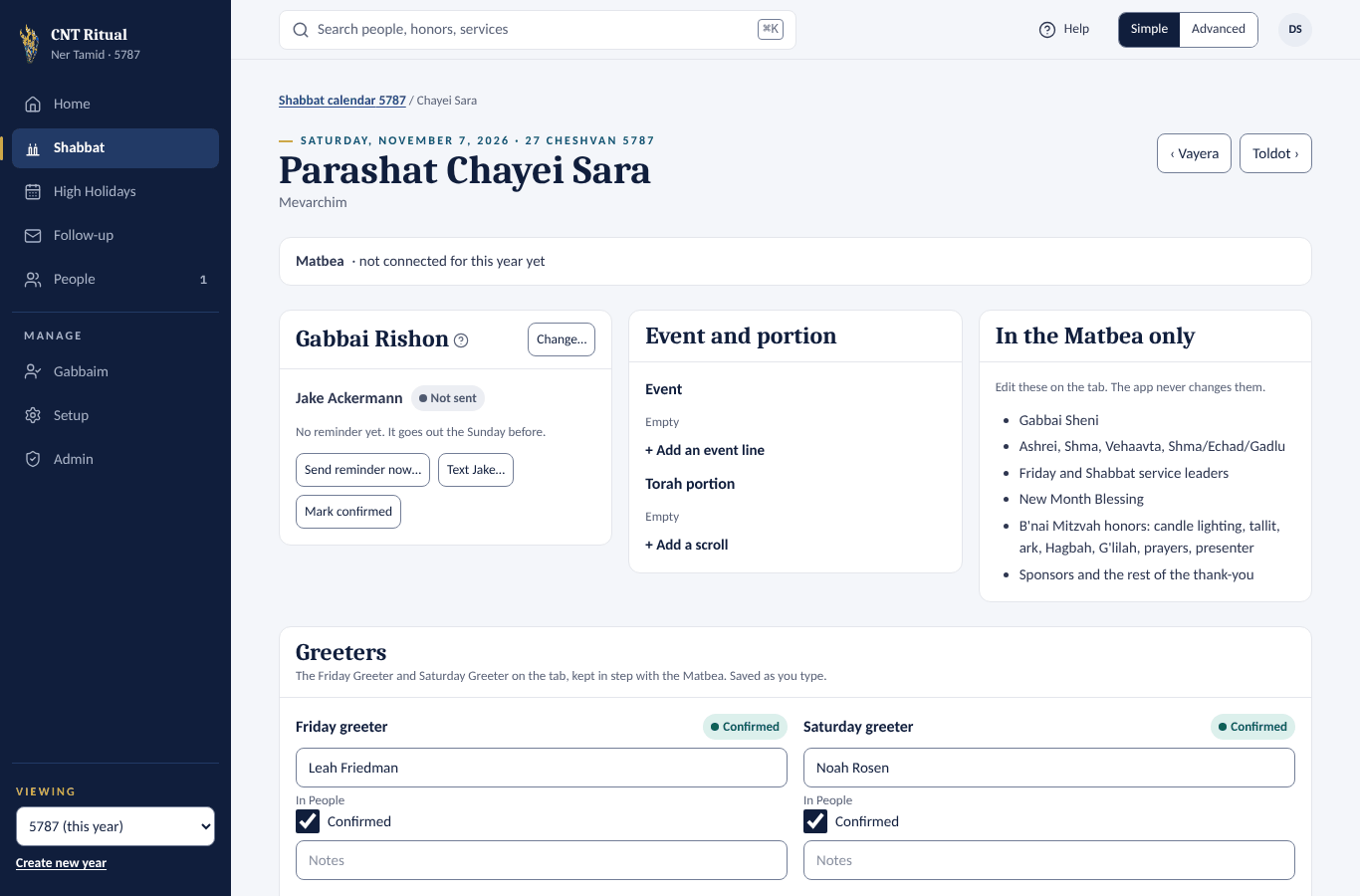
On a Shabbat's page, the Gabbai card has:
- The reminder, which goes out by itself on the day set in Setup › Reminders & messages.
- Send reminder now… — sends it immediately.
- Text [name]… — opens WhatsApp or Messages on your phone with the message and confirm link written. You press send, so replies come to you. The app itself never texts.
- Mark confirmed — when they told you in person.
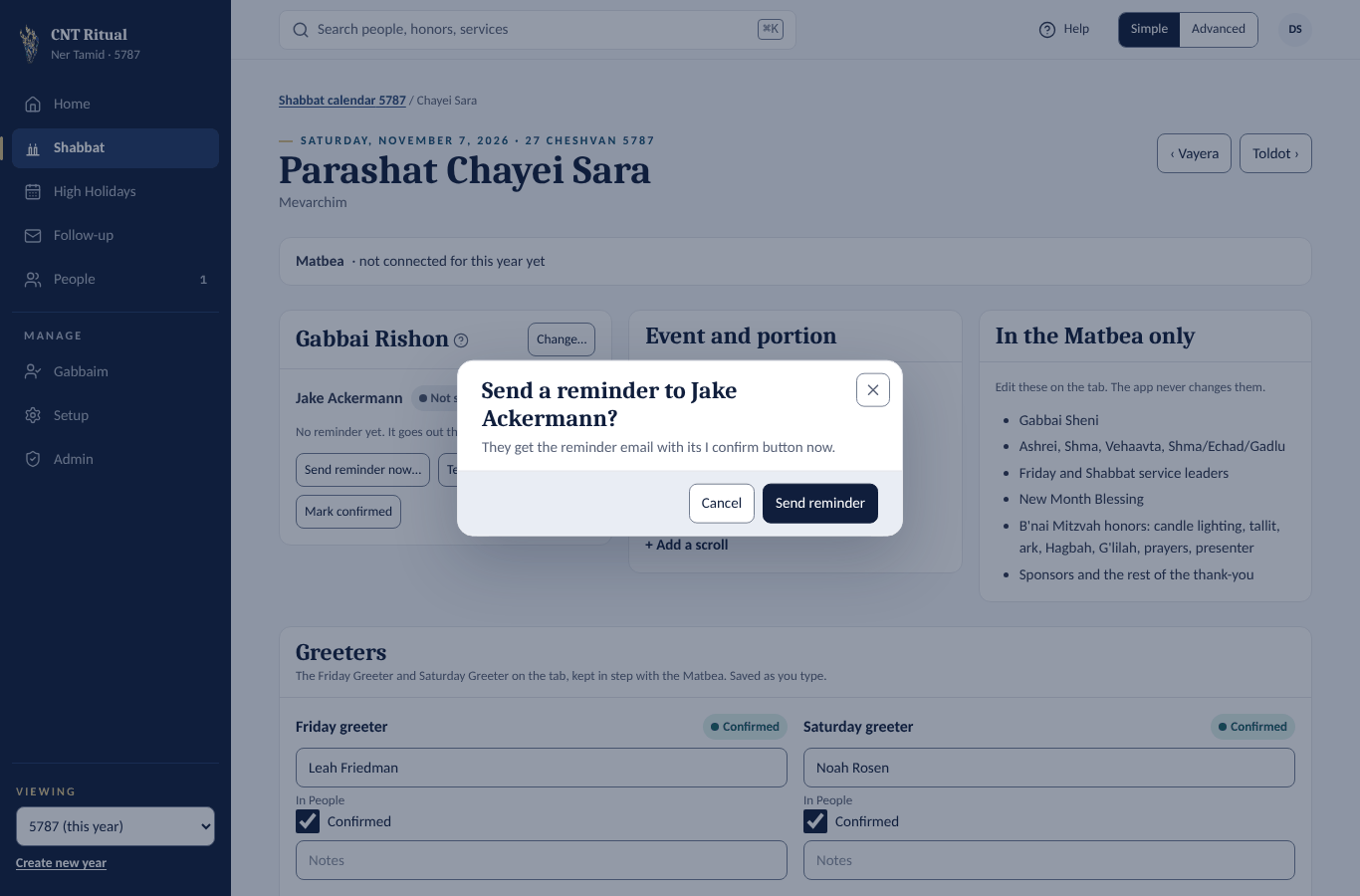 1Send reminder now
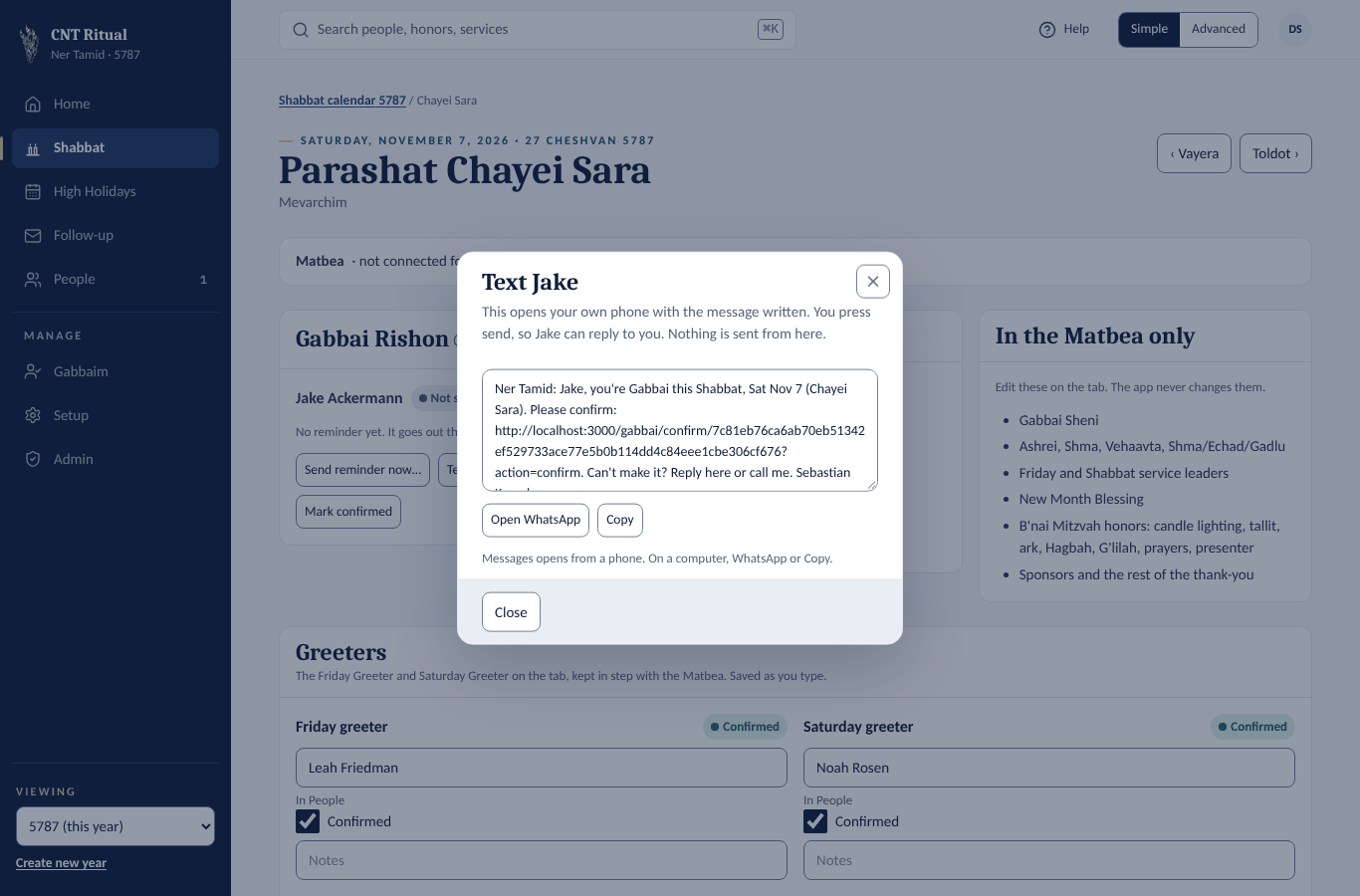 2Text a Gabbai from your phone
When a Gabbai confirms, you get an email if that is switched on, and they show as Confirmed on Home and on the Shabbat calendar. Editing a Shabbat page works as described in the Staff Manual.
Greeters
Each Shabbat page has a Greeters card: the Friday and Saturday greeters (the same names as on the Matbea tab), a Confirmed tick and Notes for each. The Shabbat calendar's Gabbai and greeters column lists all three people, with their statuses under Confirmation. Greeters get no emails or reminders: you or the office tick Confirmed by hand. How to fill it in is in the Staff Manual.
Section 10The other Setup pages
Click Setup. Its tabs are Years · Shabbat · Torah readers · High Holidays · Matbea · Reminders & messages · High Holiday templates · Membership statuses · Import. Years and High Holidays are covered in Set up a year and its honors; Torah readers in the Staff Manual.
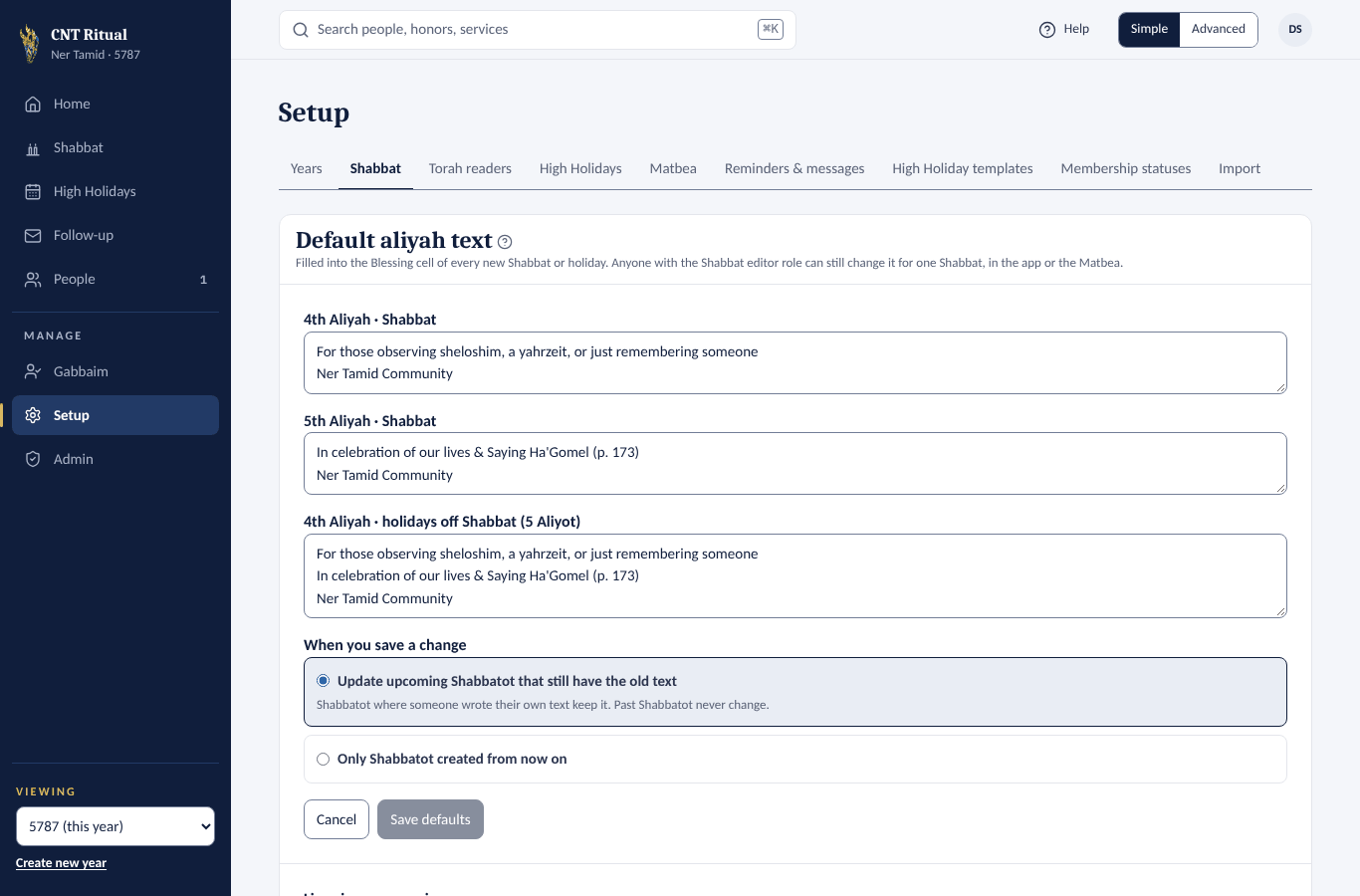
Shabbat: the default Aliyah text
- Edit the opening text for the 4th and 5th Aliyot, and for the 4th Aliyah on holidays.
- Choose Update upcoming Shabbatot that still have the old text, or Only Shabbatot created from now on.
- Click Save defaults.
Shabbatot where someone wrote their own text keep it, and past Shabbatot never change. Lines in every service — Mischeberach, Reader's Kaddish and Chazak — are listed below for reference.
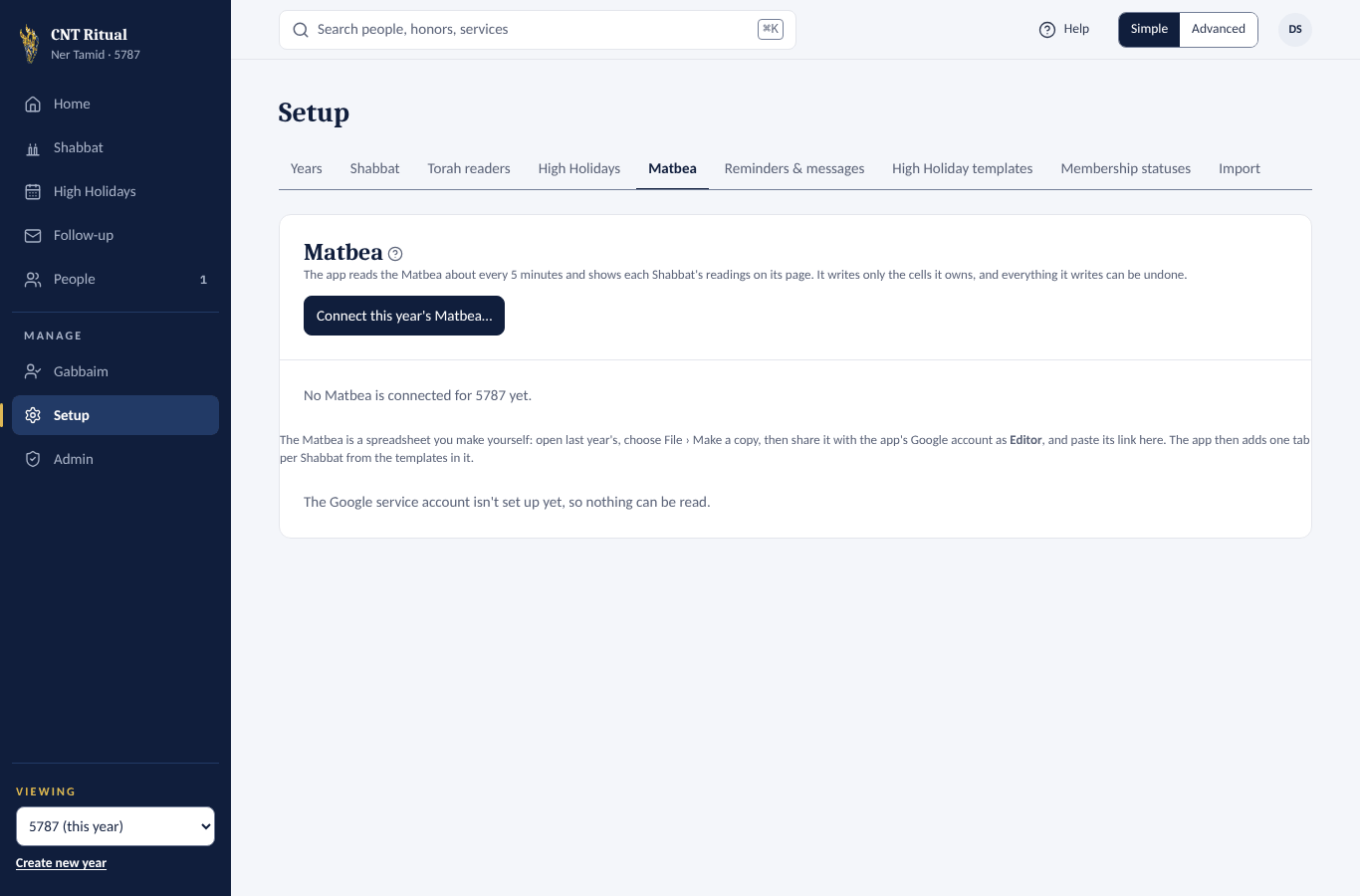
Matbea: the Google Sheet
The app reads the Matbea about every 5 minutes and writes only the cells it owns. Everything it writes can be undone.
- Connect a new year's Matbea: in Google Sheets, open last year's Matbea and choose File › Make a copy. Share the copy with the app's Google account as Editor. Then click Connect this year's Matbea… and paste the link.
- Sync now reads it immediately. Pause writing stops the app from changing the sheet. Each Shabbat page has its own Sync now too, on the Matbea bar at the top: it does exactly the same, for Admins and Staff.
- Needs a look lists anything to check, such as a cell edited in both places. Mark as seen clears it.
- Rows grow to fit their text. When a row on an upcoming tab is too short to show everything in it (for example an honoree's in memory of line), the app makes it tall enough. Activity lists it as Row made tall enough for its text. Rows that already show everything are left as they are.
- Sheet setup holds the one-time preparation (Validate Matbea, then Get the Matbea ready), making Shabbat tabs and Holiday tabs, who can open the sheet, and Undo the app's changes…. Each one shows what it would do before it does it.
- Give Upcoming Simchas its own row (step 1) leaves no line between the thank-you box and Upcoming Simchas: they read as one box but stay separate cells. On a Matbea where step 1 already ran, click Validate Matbea again; step 1 then lists the line to take away on each tab. Run it with Get the Matbea ready.
- Add Candle Lighting (step 8, its own button) adds a Candle Lighting: line between Shma/Echad/Gadlu and Friday Services: on every Shabbat tab that hasn't passed and on the templates, with Friday's time for 90275 (18 minutes before sunset, the same as hebcal.com), for example 4:38 PM. Only columns A to C move down a row; the Greeter lines stay where they are. A time someone typed is left alone. New tabs get the line when they are made. Afterwards, run Lock the cells the app owns (step 5) again to lock the new line, like every other line the app owns.
Reminders & messages
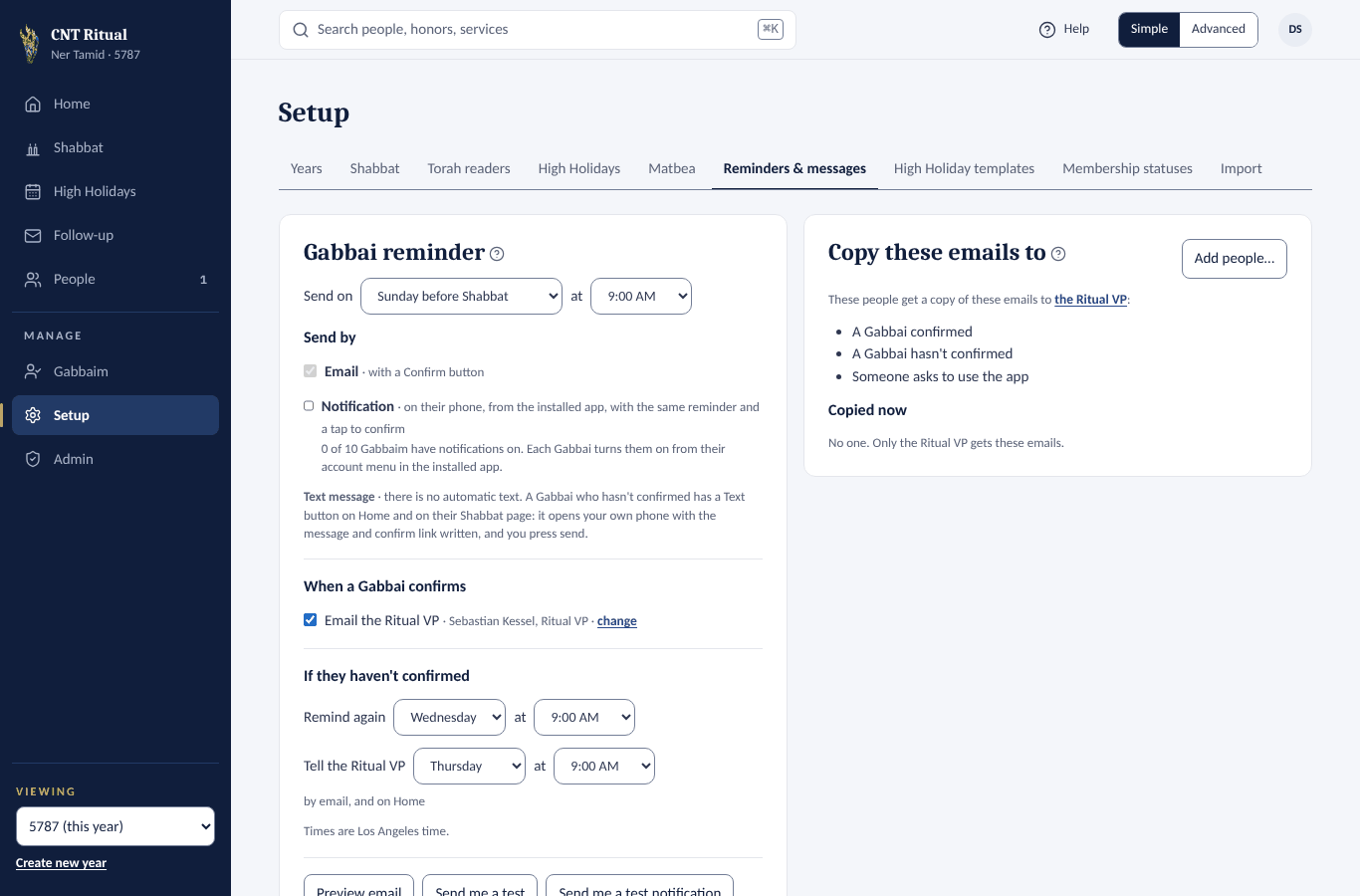
This page is there even when the Gabbaim aren't switched on. The first card is:
Copy these emails to — people who get a copy (CC) of three emails to the Ritual VP, and no others: A Gabbai confirmed, A Gabbai hasn't confirmed and Someone asks to use the app.
- Click Add people…, search by name or email, tick the people to copy and click Add.
- To take someone off, click Remove beside their name under Copied now.
Each change is saved straight away. the Ritual VP in the card, and change beside their name on the Gabbai settings, open Admin › Ritual VP. With nobody copied it says No one. Only the Ritual VP gets these emails. Only users who are switched on and have an email can be picked, and nobody is copied on an email that already goes to them. When the Gabbaim are switched on, this card sits beside the Gabbai settings:
- Gabbai reminder — the day and time it goes out, for example Sunday before Shabbat, 9:00 AM.
- Send by — email with a Confirm button and, if you like, a notification to the Gabbai's installed app. There is no automatic text message.
- When a Gabbai confirms — whether to email the Ritual VP. Either way, the Gabbai shows as Confirmed on Home and on the Shabbat calendar.
- If they haven't confirmed — remind again on a day and time you choose.
High Holiday templates
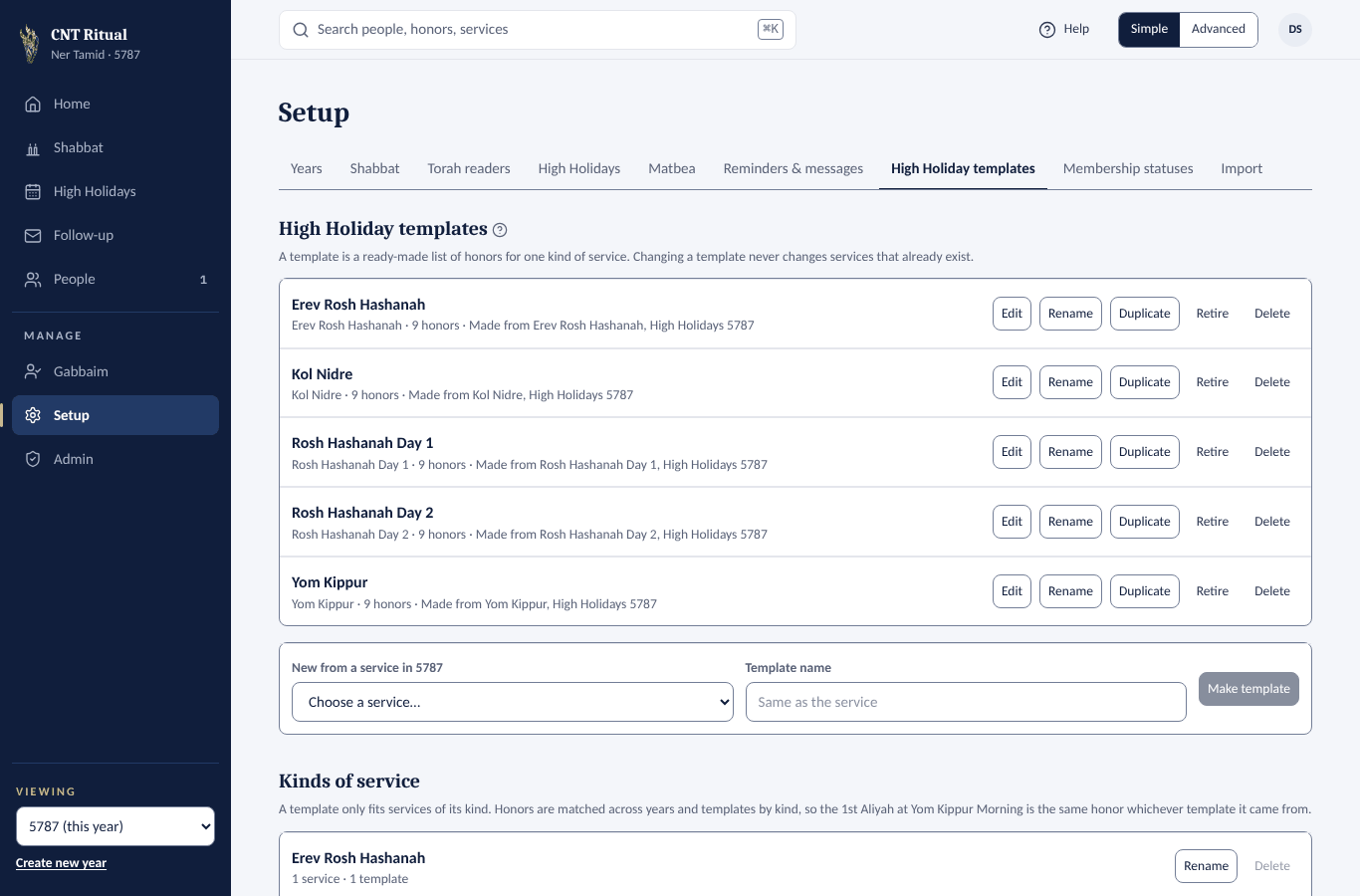
Ready-made honor lists for each kind of service. Edit, Rename, Duplicate, Retire or Delete a template, or make one with New from a service. Changing a template never changes services that already exist.
Membership statuses
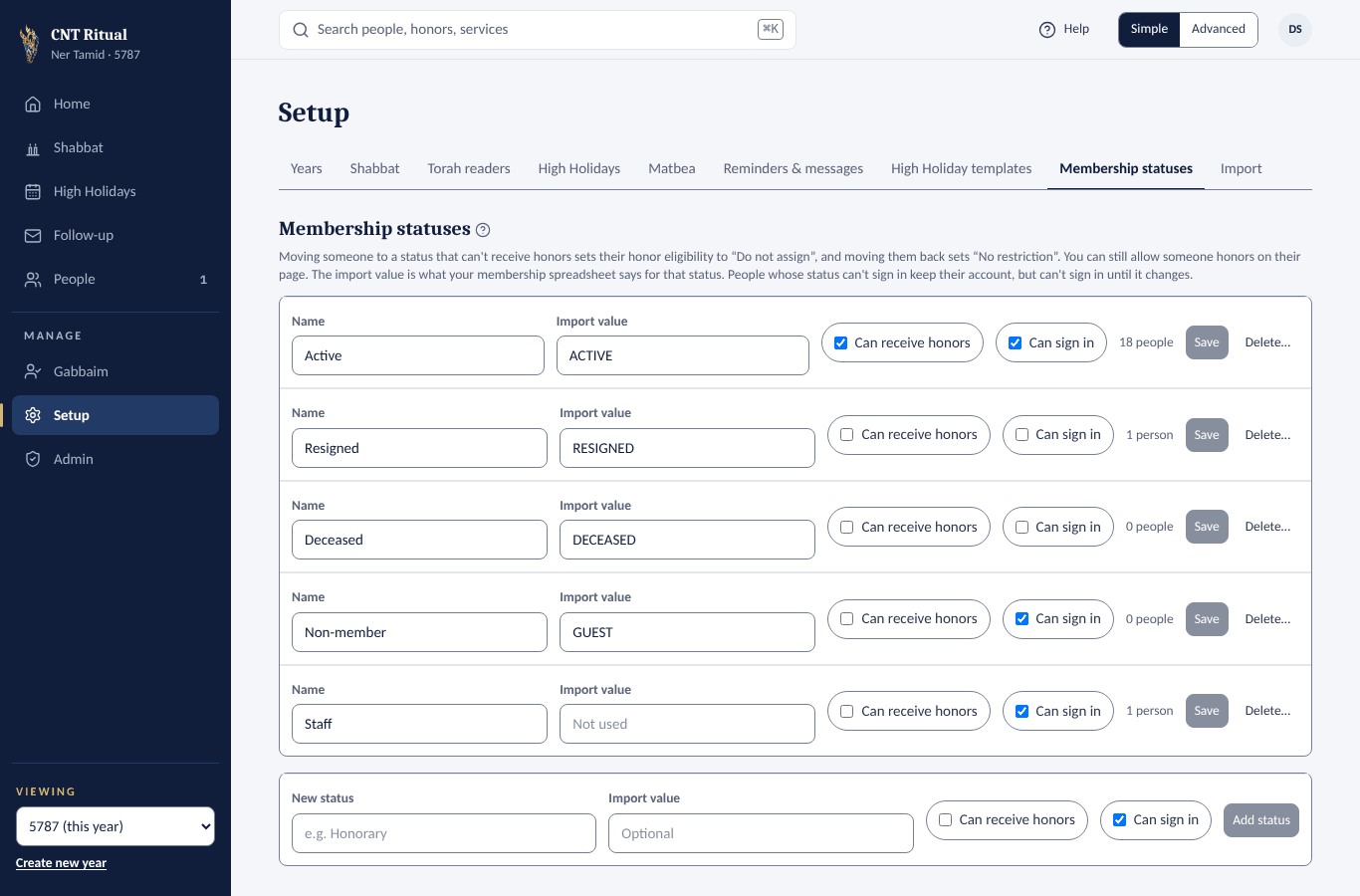
For each status, set Can receive honors and Can sign in, then click Save. Moving someone to a status that can't receive honors sets them to Do not assign.
Import
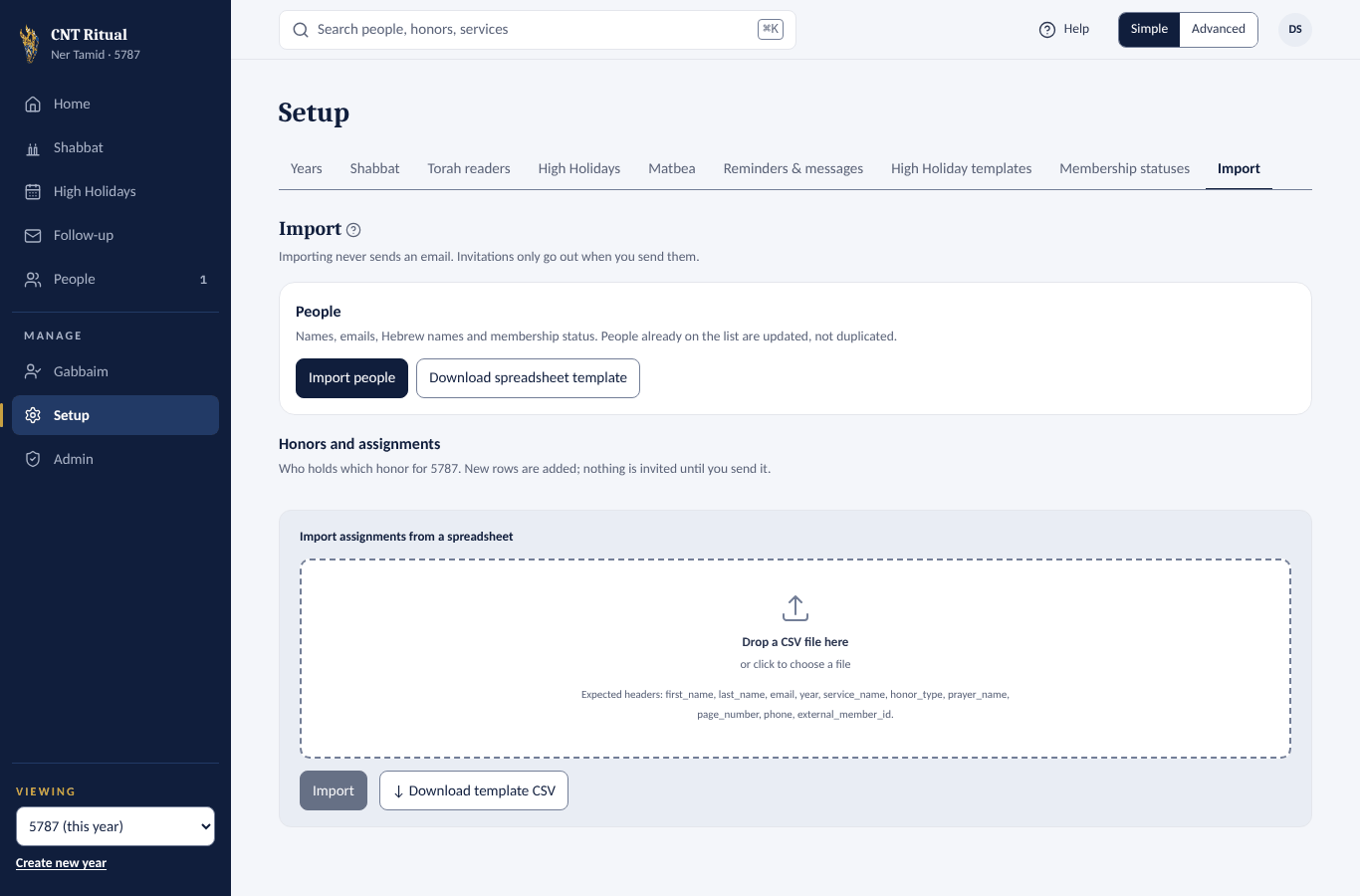
Load People or Honors and assignments from a spreadsheet. Download template shows the columns. Importing never sends an email.
Section 11Quick answers
| Question | Answer |
|---|---|
| A member says they can't sign in | Check People: is their email right, and does their membership status allow sign-in? Or answer their access request. |
| A couple shares one email | Only one of them can sign in with it. See Shared email addresses under People. |
| A member wants to change their honor answer | Use Change status on the service. |
| An invitation bounced | Follow-up › Email problems: fix the email, then Try again…. |
| I assigned someone by mistake | Change status › Delete this honor… |
| A Gabbai can't make it | Open the Shabbat, click Change… on the Gabbai card, and pick someone else. |
| The Matbea and the app disagree | Setup › Matbea › Sync now, then check Needs a look. |
| Something failed and I don't know why | Admin › Activity log. |
| Which manual should someone read? | Members and Torah readers: the Congregant Manual. Gabbaim: the Gabbai Manual. Office and clergy: the Staff Manual. Help in the app opens the right one for them. |