
Contents
Fill in Shabbat readings and honorees, keep the B'nai Mitzvah calendar, approve Torah readers, and look up High Holiday honors and people.
- At a glance
- Shabbat readings and honorees
- The B'nai Mitzvah grid
- Torah readers
- Torah reader sign-up settings
- Reserving readings settings
- High Holidays, Follow-up and People
- Quick answers and help
Section 1At a glance
Think of the app as the shul's front-office binder, kept up to date for you. Staff can read every page of it and edit the Shabbat and Torah reader pages.
| Area | What Staff can do |
|---|---|
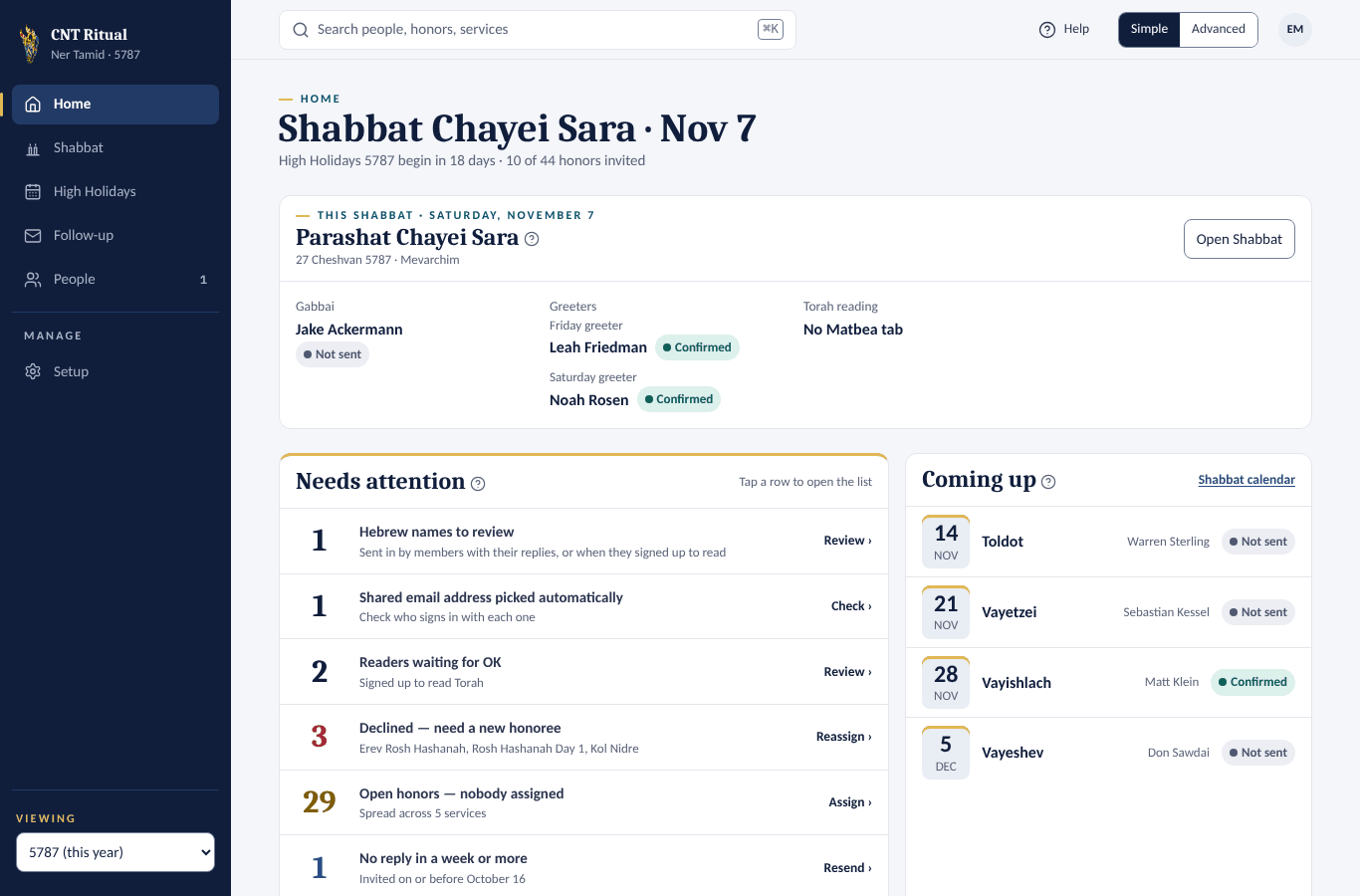
| Home | See this Shabbat (its Gabbai, greeters with their notes, and Torah reading), what needs attention and what's coming up |
| Shabbat | Edit readings, honorees, readers and B'nai Mitzvah names; Sync now with the Matbea |
| Torah readers | Approve, decline and change sign-ups; confirm, let go and make reservations; change sign-up and reservation settings |
| High Holidays, Follow-up | See services, honors and replies |
| People | See people and their honors |
| Setup › High Holidays | Add honors to a service |
These are the usual permissions. The Ritual VP can change them.
To sign in, go to ritual.nertamid.com/admin and follow the Sign in steps in the Gabbai Manual. It is the same page.
Finding your way around
- Home — this Shabbat's Gabbai and reading, Needs attention, Coming up, and Reserved readings not confirmed when members are holding readings.
- Simple / Advanced, at the top right — Advanced shows more numbers and columns.
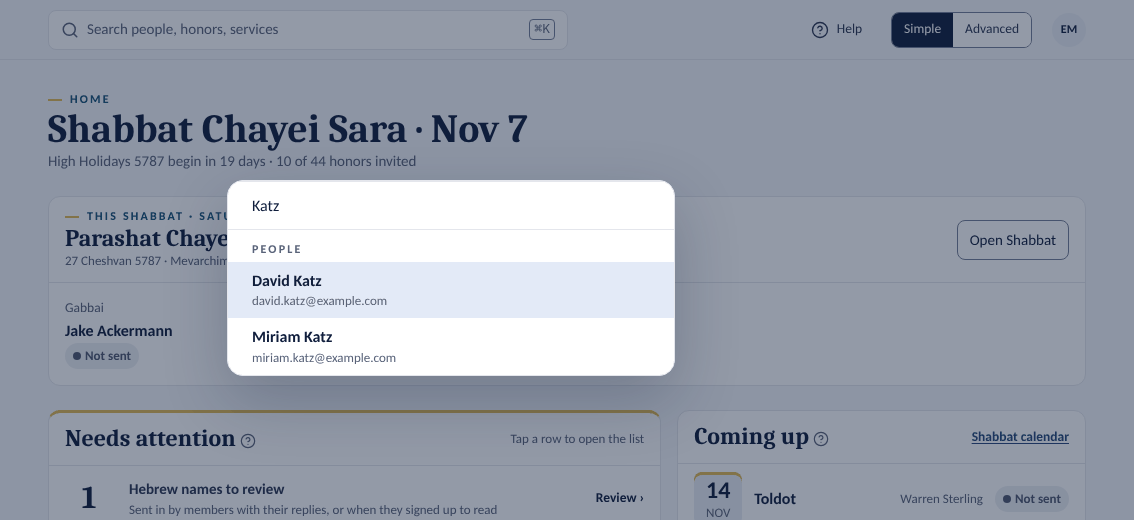
- Search, in the top bar (or press Ctrl+K, ⌘K on a Mac) — find people, honors and services.
- Your initials, at the top right — Member home, Security settings, notifications, Light or Dark, and Sign out.
- Help, in the top bar (the ? on a phone) — opens this manual at the part about the page you're on. A small ? beside a title opens the part about that card, for example Coming up.
Good to know
- On a computer with a wide window, the manual opens in a Help panel on the right and the page moves over, so you can follow the steps while you click. Use Search the manual to find anything else; Open in full manual opens the whole manual in a new tab; ✕ or Esc closes the panel.
- On a phone, Help and ? open the manual in a new tab.
- On Member home and the sign-up pages, Help opens the Congregant Manual: what a member sees there.
On a phone, the main screens are tabs at the bottom. Follow-up and Setup are under More.
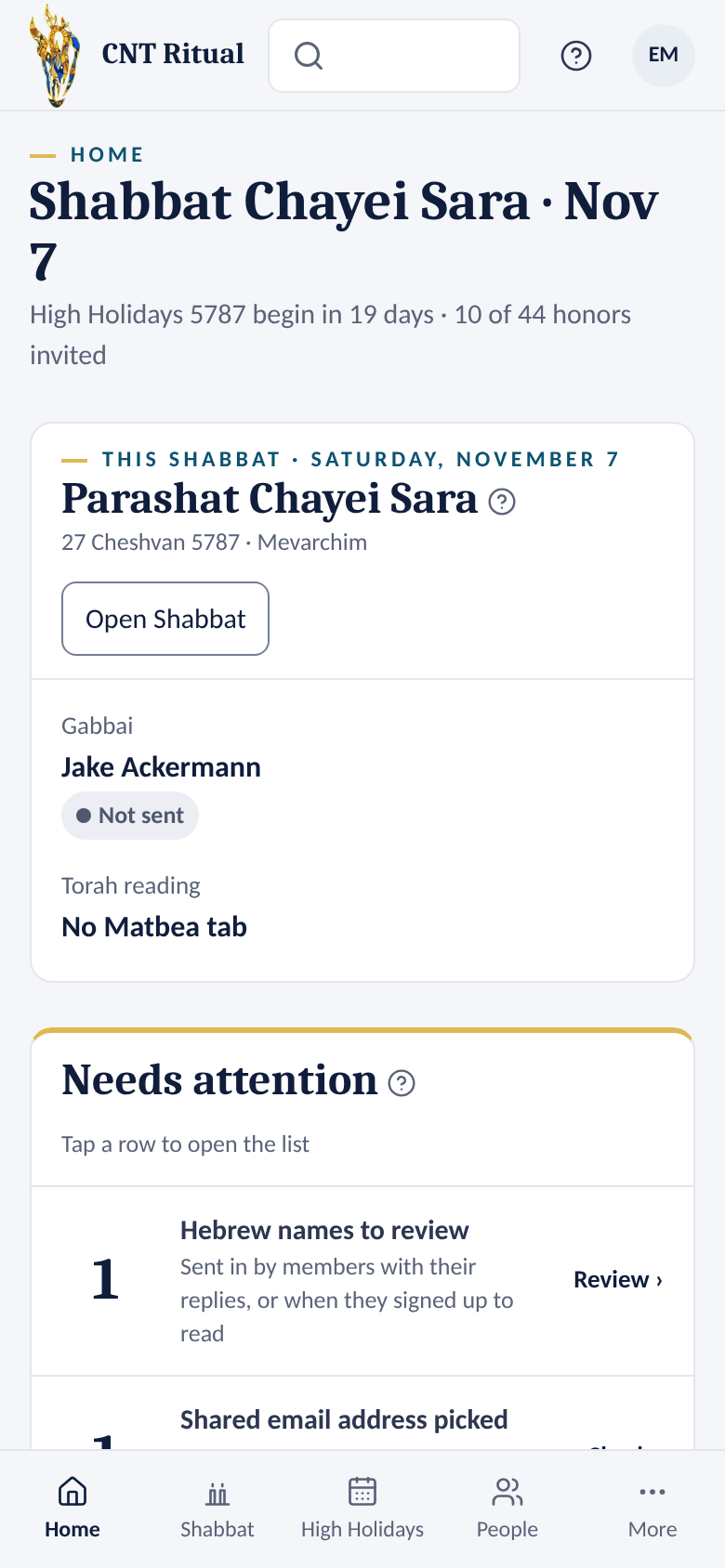 1Home
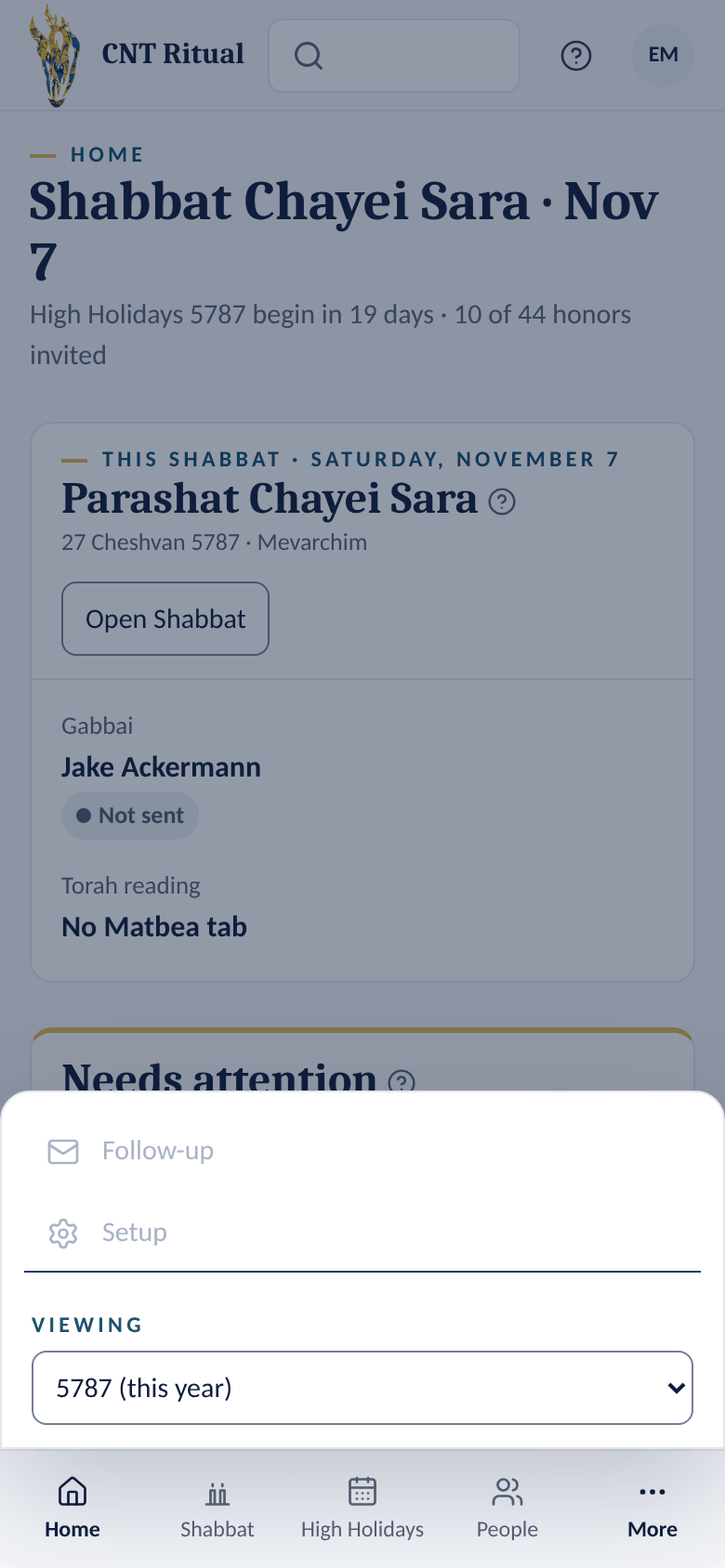 2More
Section 2Shabbat readings and honorees
How the app and the Matbea fit together. The Matbea is the congregation's Google Sheet, one tab per Shabbat. The app is a second window onto the same tab: what you type in the app is written into the Matbea, and what editors type in the Matbea shows up in the app within about 5 minutes.
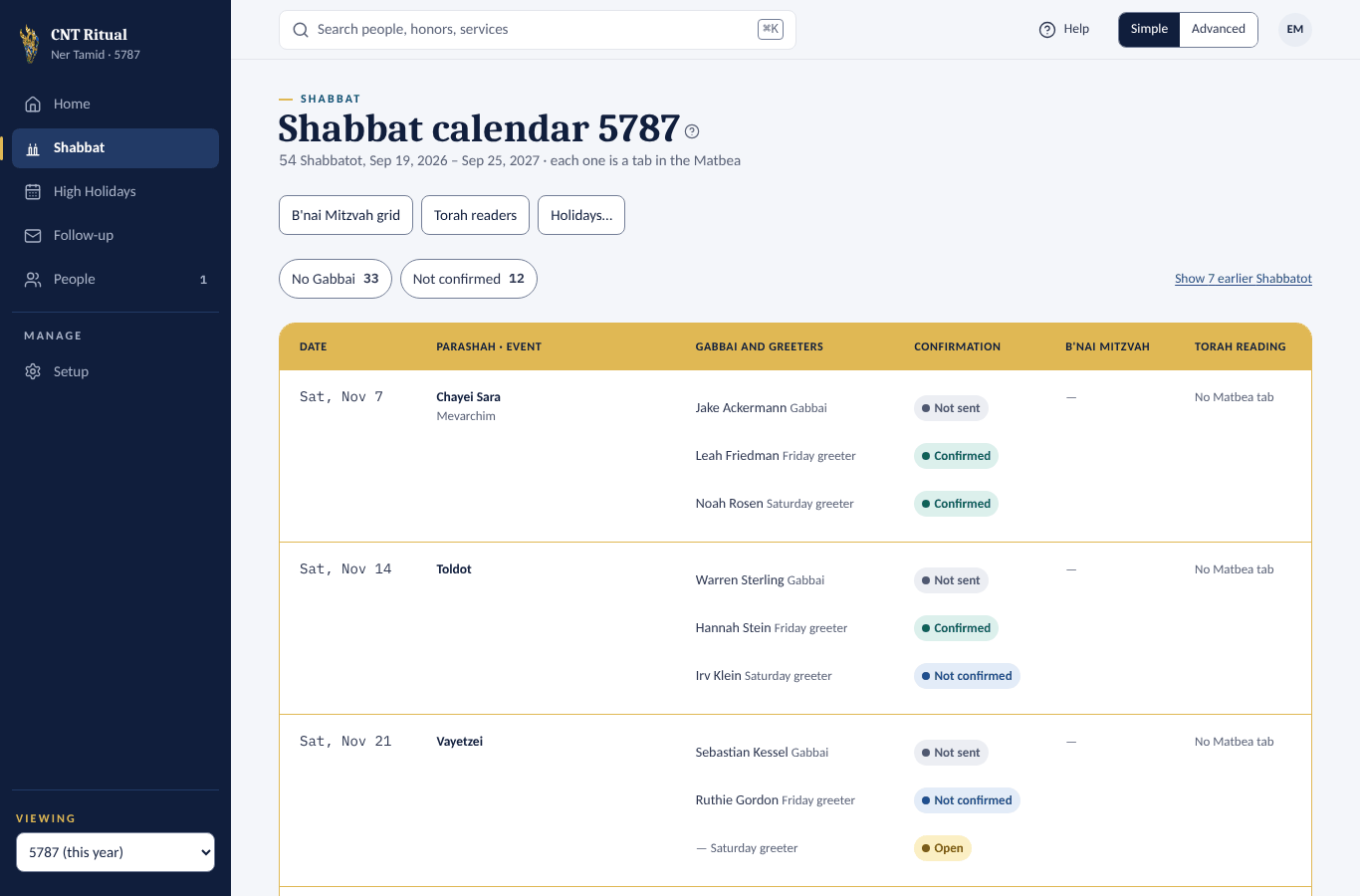
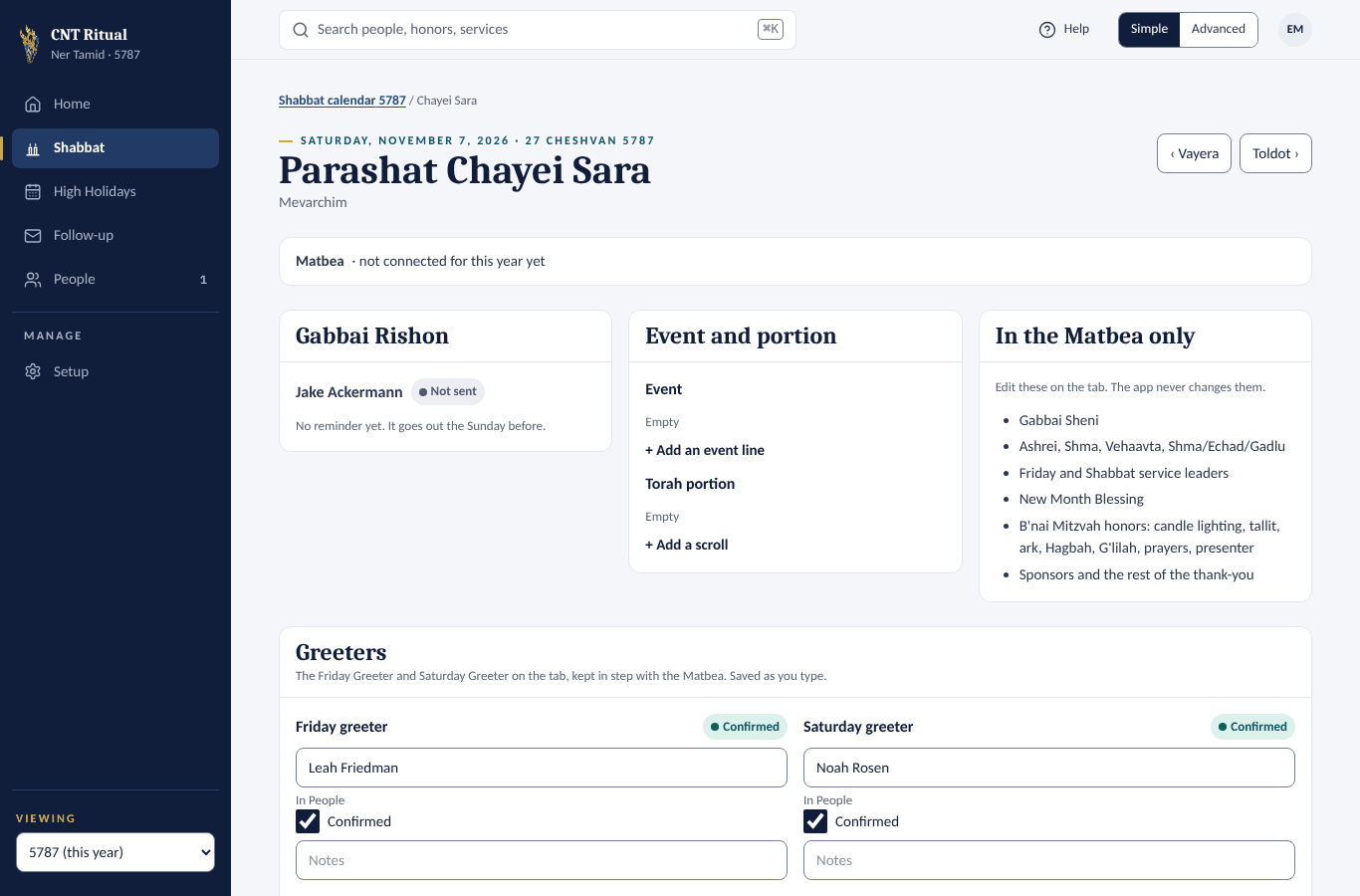
Open a Shabbat
- Click Shabbat in the left menu.
- Click the Shabbat's name, for example Lech-Lecha.
Fill in a reading
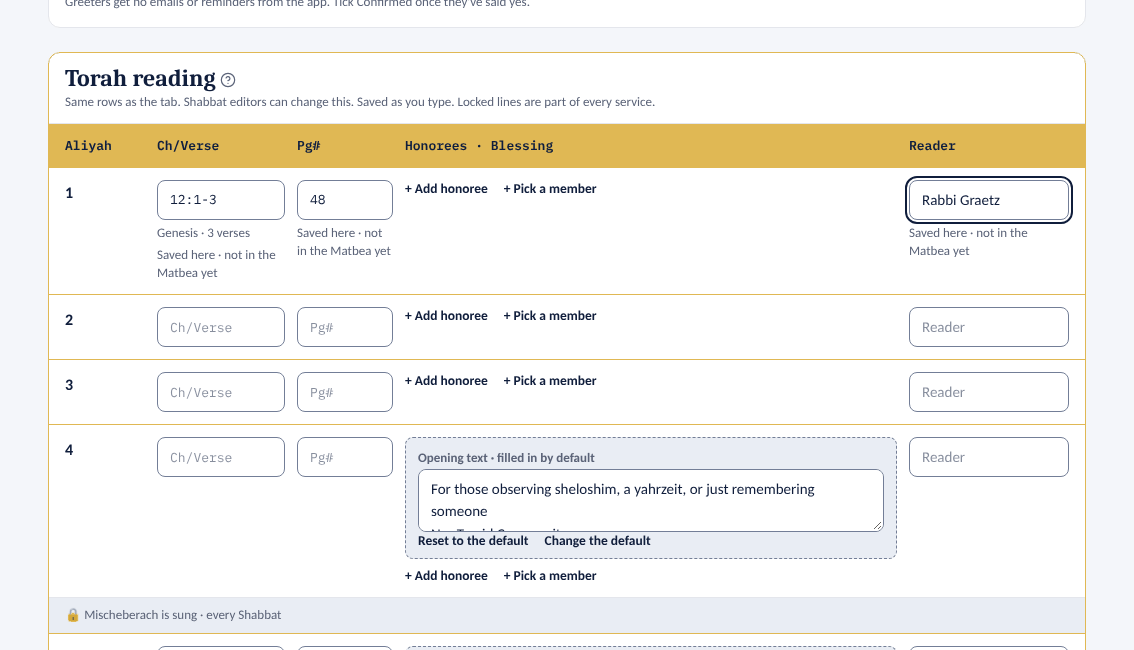
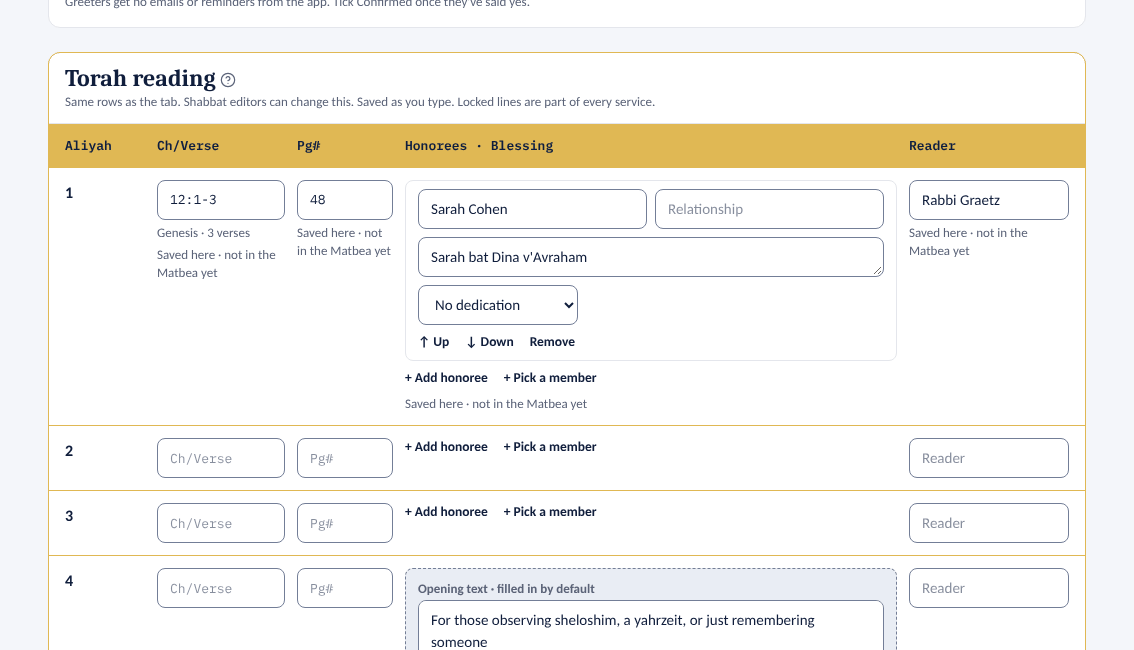
- Scroll to Torah reading.
- On the Aliyah's row, type the Ch/Verse (for example 12:1-3) and the Pg#.
- Type the Reader's name.
- Stop typing. It saves by itself about a second later. There is no Save button.
Under the Ch/Verse the app shows the book and how many verses it is, for example Genesis · 13 verses. You don't type these: they are worked out from the verses. When the verses don't name a book, the app first uses what the Matbea says: a book named higher up in the same scroll, then the scroll's book on the Torah portion line (for example 2nd scroll Pinchas (Bemidbar/Numbers)). After that it checks the Jewish calendar's list of readings for that day, then the week's parashah. It only picks a book that has those verses. To use a different book, type its name in front of the verses, for example Exodus 30:11-16.
Add an honoree
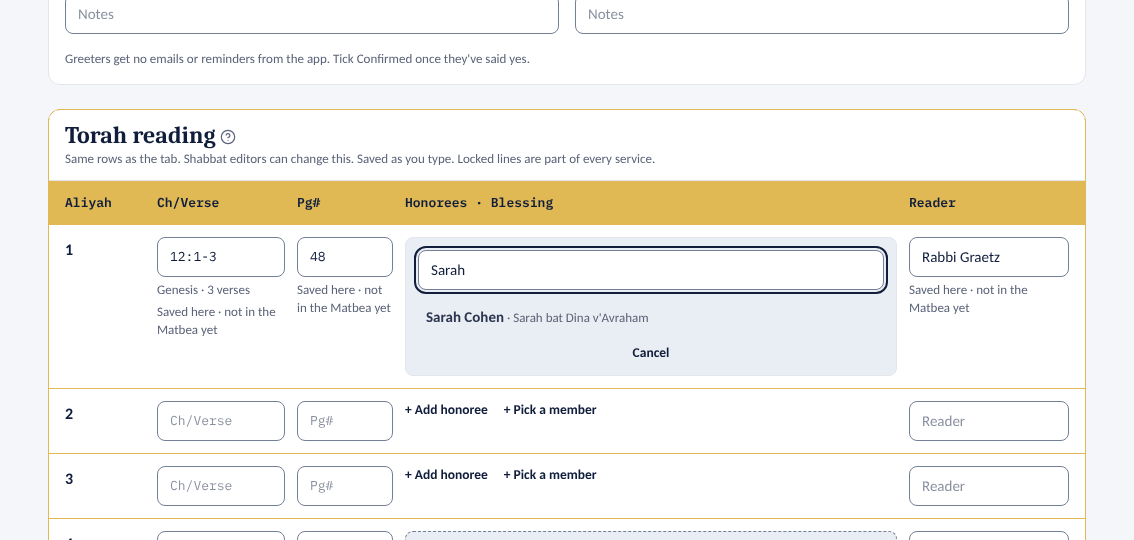
- On the Aliyah's row, click + Pick a member.
- Type part of a name, then click the person. Their English and Hebrew names are copied in.
- Someone not in People? Click + Add honoree and type the name instead.
In honor of, in memory of, or in celebration of
An honoree can give their honor in honor of someone, in memory of someone, or in celebration of something. It goes on its own line under their name in the Matbea.
- Under the honoree's Hebrew name, pick In honor of, In memory of or In celebration of.
- Type the rest, for example her beloved husband Stan or their 50th wedding anniversary.
- To take it off, pick No dedication.
For any other line under the honoree, pick Other and type the whole line, for example Kiddush sponsored by the Cohens. It goes into the Matbea exactly as typed. Leave out commas: the Matbea reads a line with a comma as another honoree.
An editor can also type it straight into the Matbea, on its own line right under the honoree's names. The app then shows it with that honoree.
Greeters
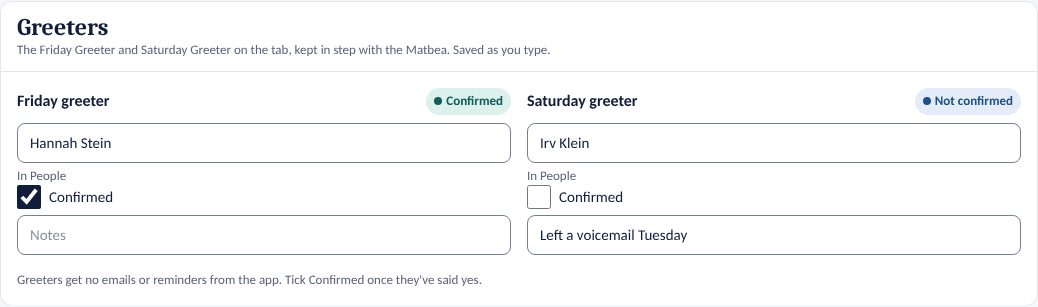
Each Shabbat has a Friday greeter and a Saturday greeter. They are the same two names as Friday Greeter: and Saturday Greeter: at the top of the Matbea tab: a name typed in either place shows up in the other.
- Open the Shabbat. Find the Greeters card, under the Gabbai card.
- Start typing the name in Friday greeter, for example Loni. Pick the person from the list that opens. Someone who isn't in People: type the whole name and press Enter (or click outside the box).
- When they've said yes, tick Confirmed.
- Type anything the team should know in Notes, for example Bringing name tags. Notes stay in the app; they never go into the Matbea.
What the words mean:
- In People — the name is someone in People. A name typed by hand is matched to People when exactly one person has it; otherwise the page says Not matched to anyone in People.
- Open, Not confirmed, Confirmed — the badge beside each greeter. A new name always starts as Not confirmed, even if the old one was confirmed. Notes stay.
Good to know
- The app never emails or reminds greeters. Tick Confirmed yourself once they've said yes.
- Holidays have no Friday or Saturday greeter.
Other things on the page
- Event and portion — + Add an event line (for example Mevarchim) and + Add a scroll.
- Opening text on the 4th and 5th Aliyot is filled in by default. Reset to the default puts it back.
- 🔒 Locked lines — Mischeberach, Reader's Kaddish and Chazak — are part of every service and can't be edited.
- In the Matbea only — Gabbai Sheni, service leaders, sponsors and the like. Edit those in the Matbea itself.
- On the Shabbat calendar, Gabbai and greeters lists the Gabbai, the Friday greeter and the Saturday greeter, one per line, and Confirmation shows each one's status beside them.
- ‹ and › at the top right move to the previous or next Shabbat.
- Sync now, on the Matbea bar at the top, reads the Matbea straight away and writes the app's changes into it, the same as Sync now on Setup › Matbea. Use it when someone just changed the Matbea and you want to see it here. Only Admins and Staff see it (the Sync a Shabbat with the Matbea permission).
Good to know
- Saved here · not in the Matbea yet means the app has it and will write it into the Matbea within about a minute. Write to the Matbea now sends it right away.
- If someone changed the same cell in the Matbea at the same time, the page shows Edited in both places. Pick Use mine again or Keep the Matbea's.
- You can't edit a Shabbat that has passed.
- A row of the Matbea that is too short for its text grows to fit it within about 5 minutes, whether the text was typed in the app or in the Matbea.
Section 3The B'nai Mitzvah grid
One row per Shabbat. Type the names and pick the service, like filling in a paper calendar.
- Open Shabbat, then click B'nai Mitzvah grid.
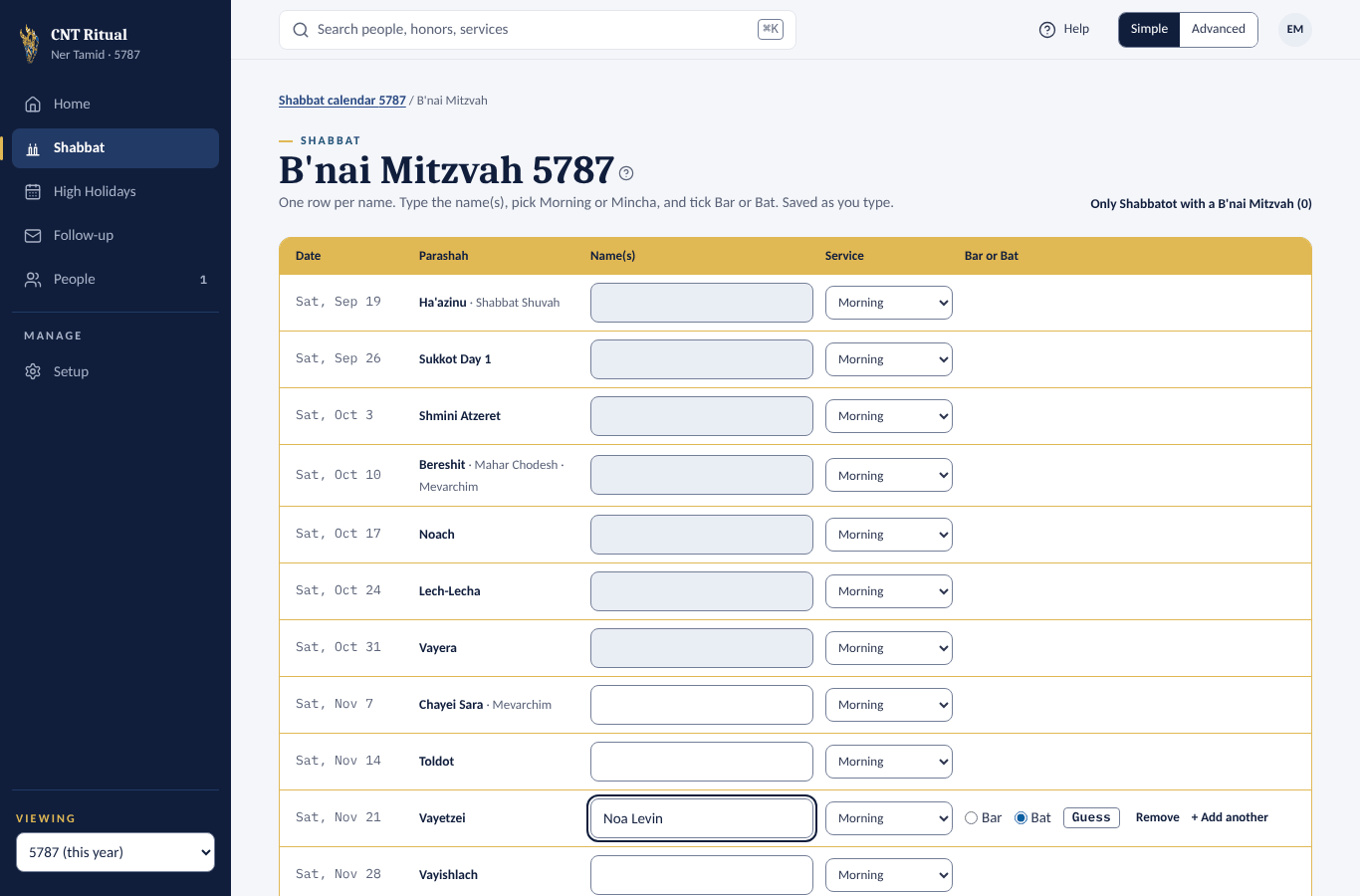
- Find the Shabbat. Type the name or names under Name(s), for example Noa Levin.
- Pick Morning or Mincha.
- Under Bar or Bat, tick Bar or Bat. The app ticks one for you from the first name and marks it Guess; tick the right one to confirm it. If the app can't tell from the name, neither is ticked. Two or more names in one row (for example Noa & Sam Katz) show B'nai: nothing to tick.
- Stop typing. It saves by itself.
What happens next:
- Morning — the Shabbat's Event line shows BM: [names], and the names are added to the Matbea tab's name.
- Mincha — the app adds a Mincha service for that Shabbat with three Aliyot. In the Matbea it appears under Upcoming Simchas.
- Upcoming Simchas in the Matbea lists each name with what you picked, for example December 5, 2026, Ethan Henry's Bar Mitzvah. Until someone ticks one, it uses the guess, or Bar/Bat Mitzvah when there is none. A line at the top of the page says how many names still need a check.
- Tick Only Shabbatot with a B'nai Mitzvah to see just those weeks.
Section 4Torah readers
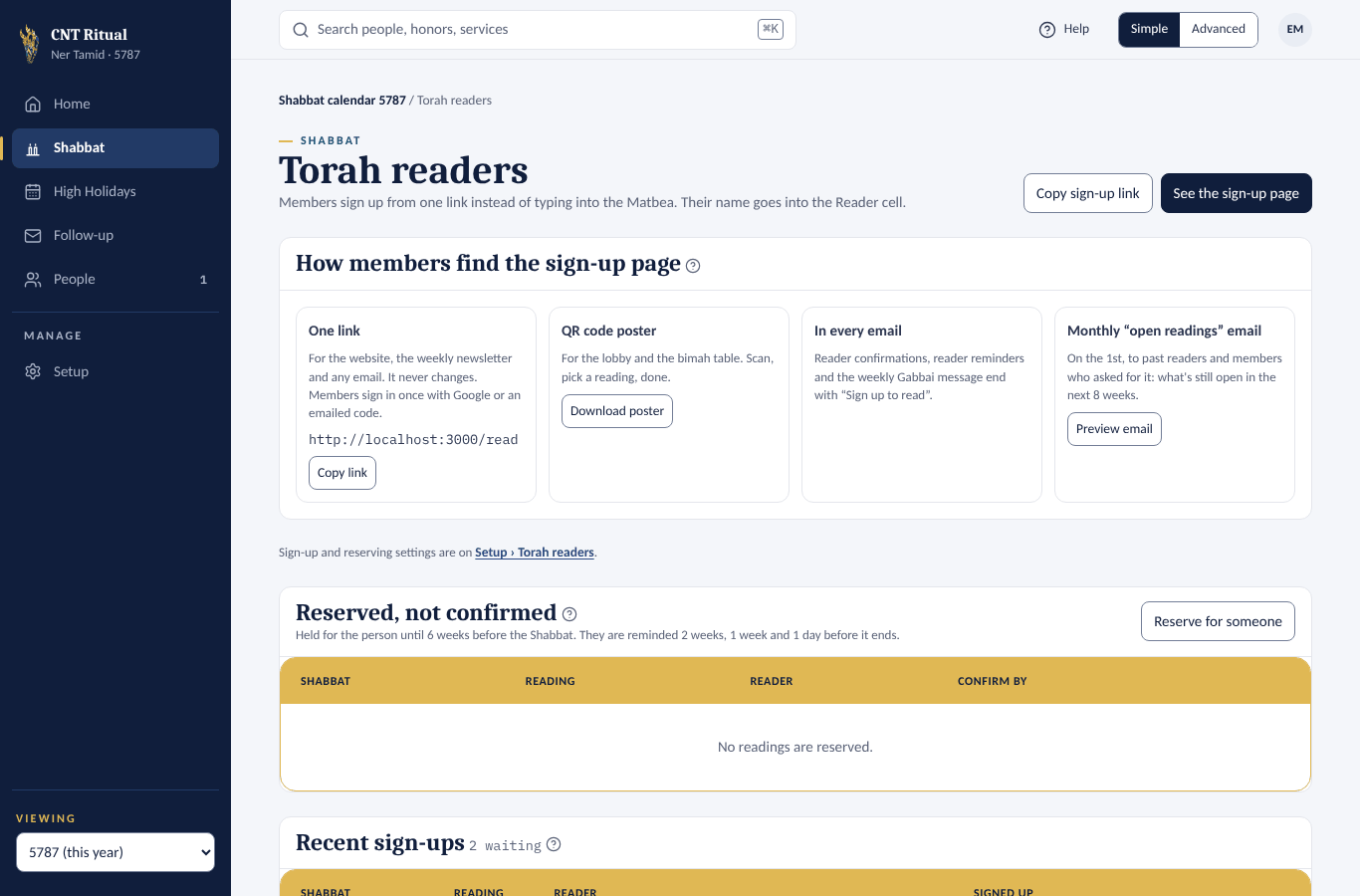
Members sign up online instead of typing into the Matbea, and their name goes into the Reader cell. Open Shabbat, then Torah readers.
Approve a first-time reader
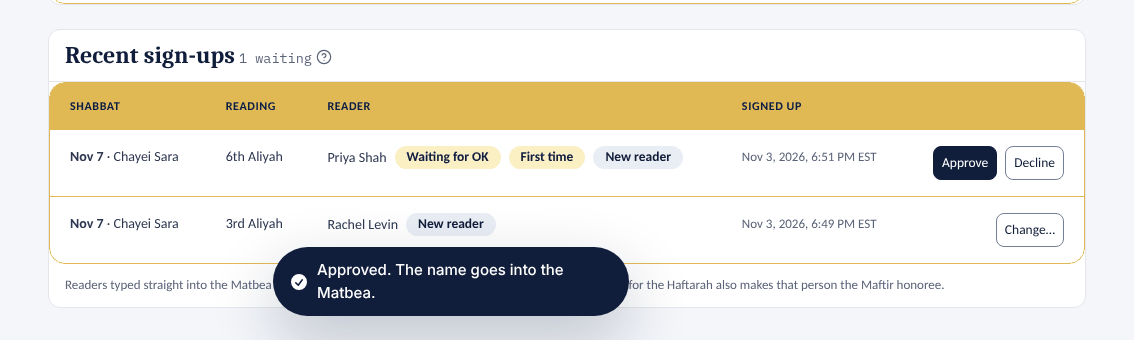
A member's first reading waits for an OK. It shows the badges Waiting for OK and First time.
- Find the row under Recent sign-ups.
- Click Approve. The name goes into the Matbea, and the reader gets a Your Torah reading is approved email.
- Or click Decline. The reading opens up again and the member is told.
Approving someone approves them for good: their later sign-ups go straight in.
Change or remove a sign-up
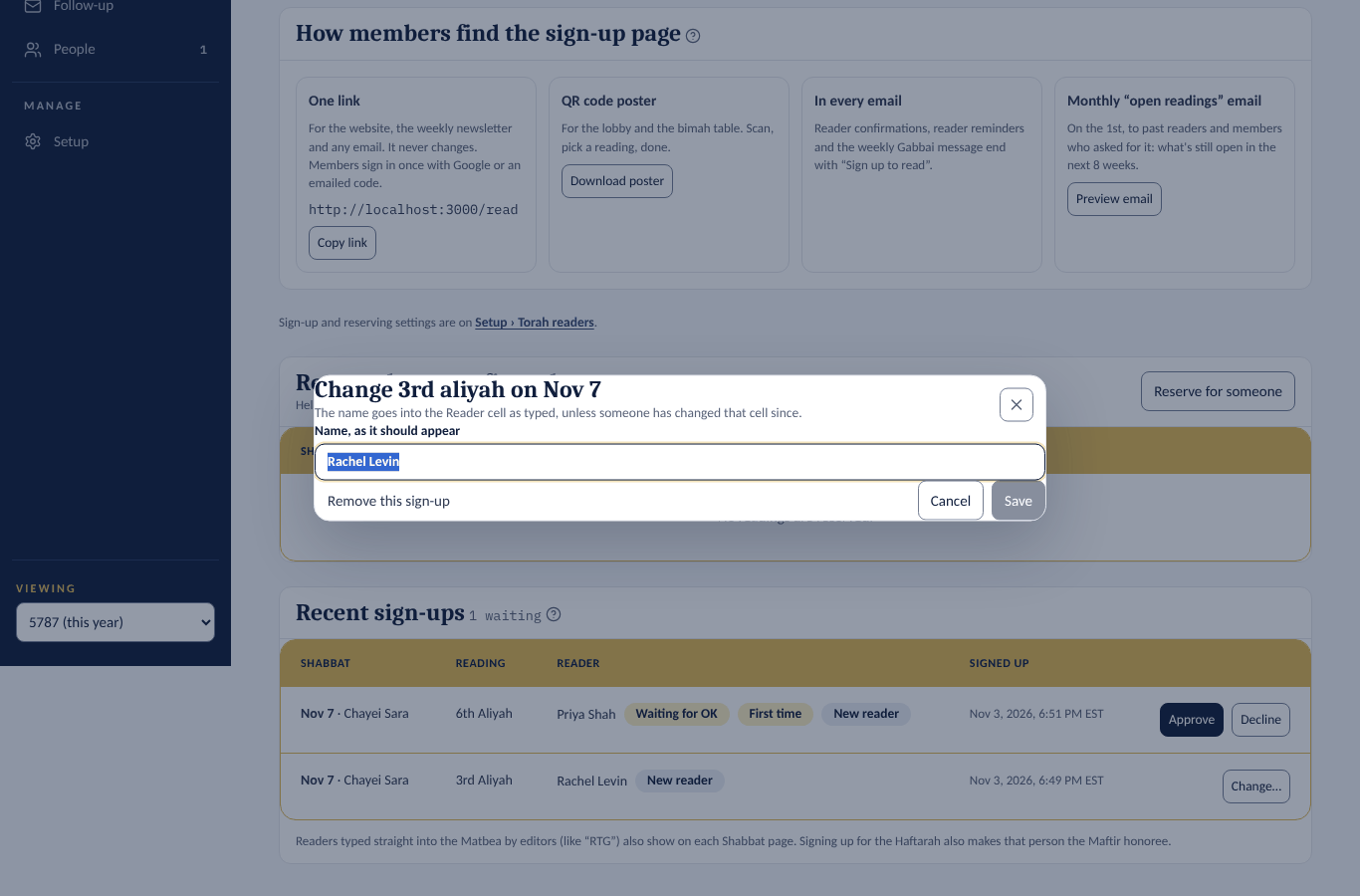
- Click Change… on the row.
- Edit Name, as it should appear, then click Save. Or click Remove this sign-up.
- The reader gets an email that their sign-up changed.
Reserved readings
A member can reserve a reading for now and confirm it later, once reserving is switched on under Reserving readings on Setup › Torah readers (see Reserving readings settings). A reservation holds the reading until a set time before the Shabbat (6 weeks unless you change it). The member is emailed before it ends (2 weeks, 1 week and 1 day before, unless you change it); if nobody confirms, the reading opens again. While it is held, the Reader cell in the Matbea says the name with ?? after it, for example Sam Osofsky??. Each person can hold up to 3 at a time (unless you change it).
They are listed under Reserved, not confirmed, above Recent sign-ups, with the day each must be confirmed by. Home shows the first few too.
- Click Confirm to make it an ordinary sign-up. The name goes into the Matbea without the ??, and the reader gets the usual confirmation. A first-time reader still waits for an OK.
- Or click Let it go, then Let it go again. The reading opens up again and the reader is told by email.
Reserve for someone (for a member who asks by phone or in person):
- Click Reserve for someone.
- Search People and click the person. Change Name, as it should appear if you need to.
- Choose the Shabbat. Only Shabbatot further off than the time a reservation ends (for example 6 weeks) are listed.
- Check the readings, then click Reserve.
The person must have an email address in People, so they can be reminded. If they already hold as many as allowed, the app says so and reserves nothing more.
From the Matbea: when a Shabbat editor types a name with ?? in a Reader cell further off than the time a reservation ends, it becomes a reservation too, marked From the Matbea. A ?? typed closer than that stays plain text in the Matbea. If the name matches nobody in People it is marked Not matched to People: click Choose person, search, and click Save. Until then nobody is reminded. Over the limit means that person now holds more than allowed; the Matbea's one is kept.
Help members find the sign-up page
- One link — ritual.nertamid.com/read. Click Copy sign-up link and paste it into the newsletter, the website or any email. The screenshot shows a test address.
- QR code poster — click Download poster and print it for the lobby or the bimah table. It shows the QR code, the sign-up link, and who to ask: the Ritual VP's name, title and email from Admin › Ritual VP. Change the Ritual VP there and download the poster again.
- In every email — reader emails already end with Sign up to read.
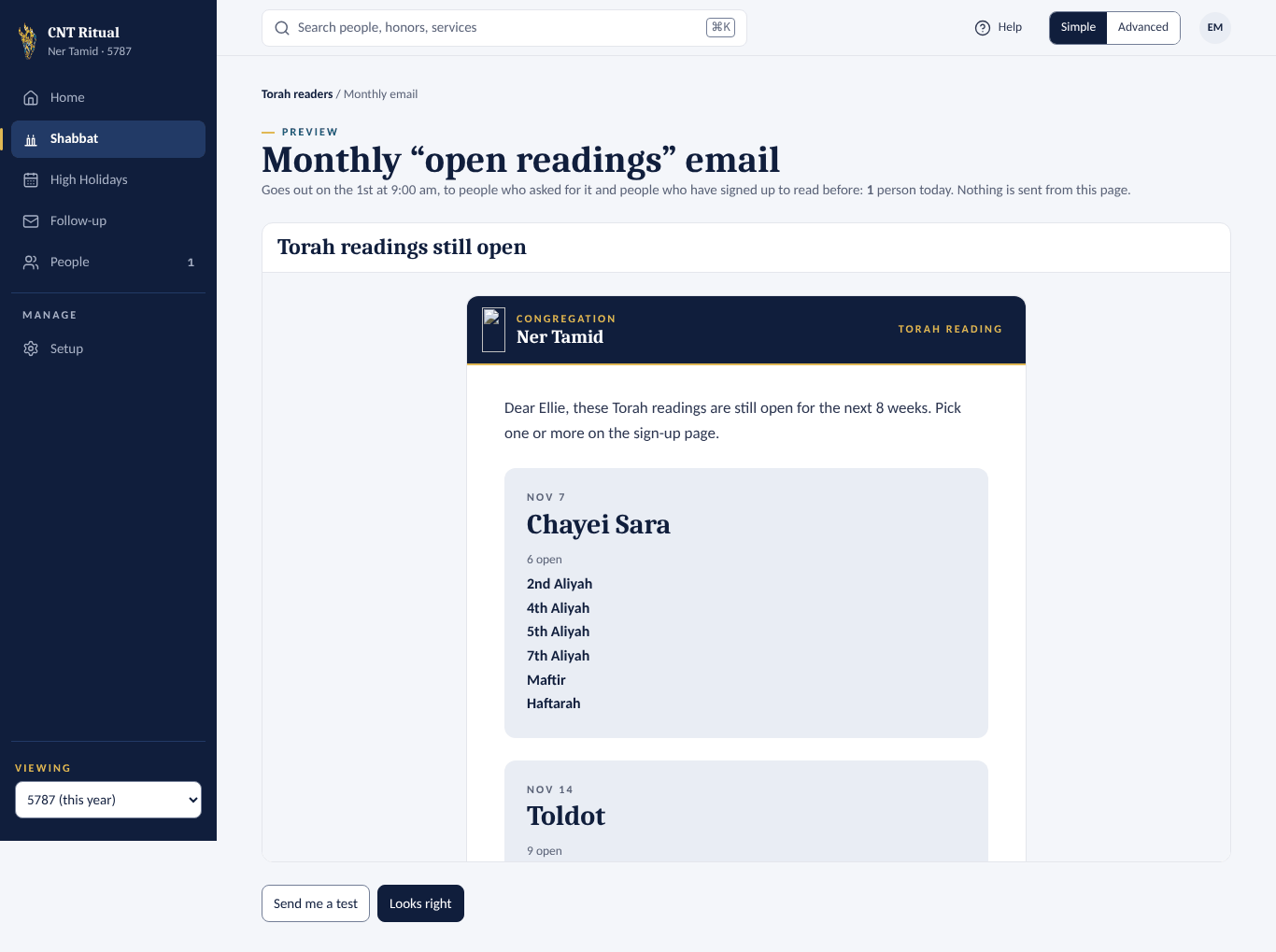
- Monthly "open readings" email — click Preview email to see it. It lists each open reading with its verses and page, like 3rd Aliyah: Gen 12:1–13 · page 45. Once it has been previewed, it can be switched on in the sign-up settings.

Good to know
- Readers typed straight into the Matbea, like RTG, also show on each Shabbat page.
- Signing up for the Haftarah also makes that person the Maftir honoree.
- The signed up to read Torah email to Shabbat editors gives each reading's verses and page in brackets after its name.
Section 5Torah reader sign-up settings
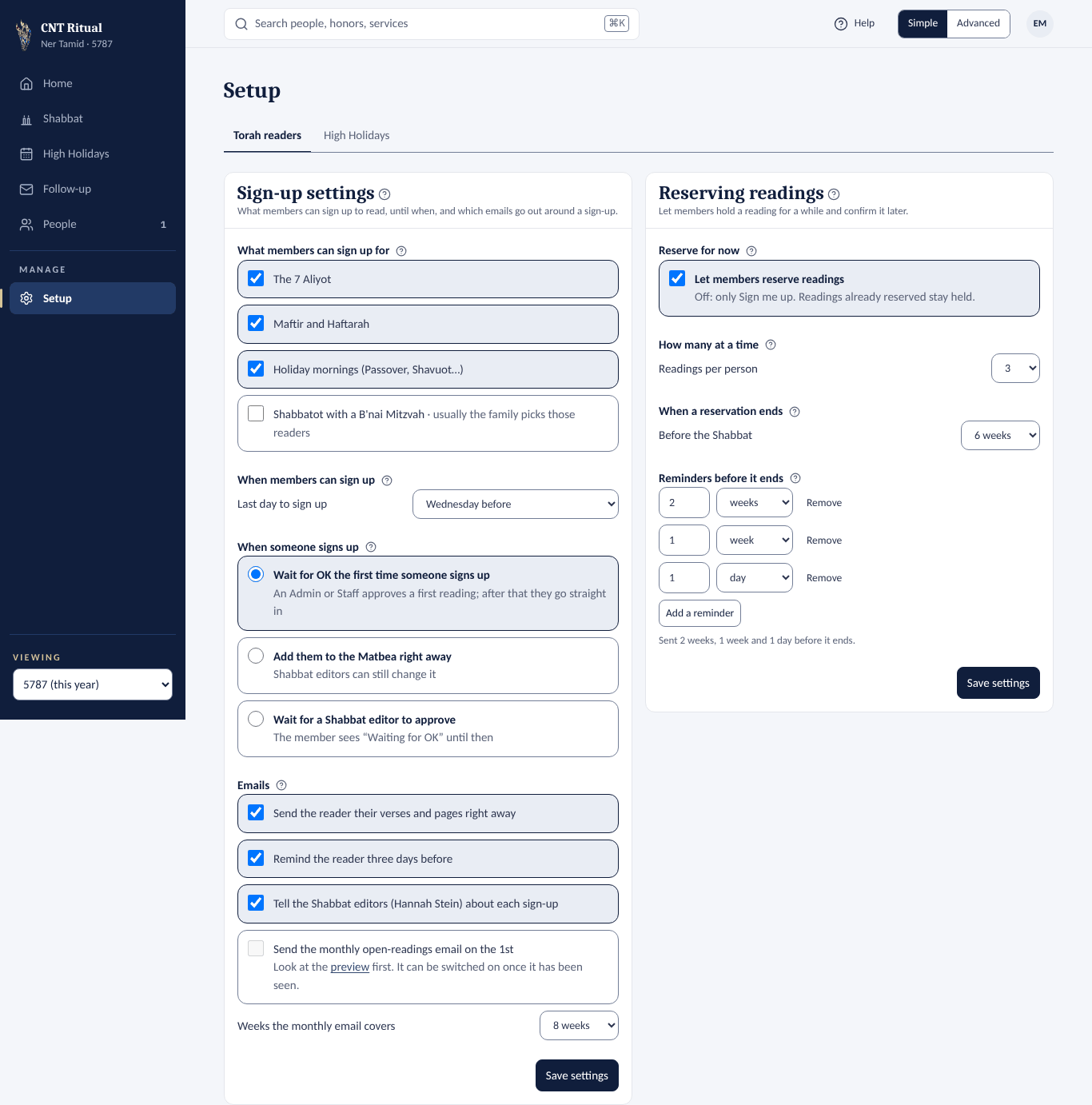
- Click Setup in the left menu, then the Torah readers tab.
- Change what you need. The choices are listed below.
- Click Save settings.
| Setting | Choices |
|---|---|
| What members can sign up for | The 7 Aliyot · Maftir and Haftarah · Holiday mornings · Shabbatot with a B'nai Mitzvah |
| Last day to sign up | Sunday through Friday before, or no last day |
| When someone signs up | Wait for OK the first time (usual) · Add to the Matbea right away · Wait for a Shabbat editor every time |
| Emails | Verses and pages right away · Reminder three days before · Tell the Shabbat editors · Monthly open-readings email on the 1st |
| Weeks the monthly email covers | 1 to 26 weeks |
Anything unchecked under What members can sign up for is left for Shabbat editors to fill in.
Section 6Reserving readings settings
The Reserving readings card is on Setup › Torah readers, beside the sign-up settings on a computer and after them on a phone. Reserving is off until someone switches it on.
- Click Setup in the left menu, then the Torah readers tab.
- Check Let members reserve readings. Members then see Reserve for now beside Sign me up.
- Under How many at a time, pick Readings per person (1 to 10).
- Under When a reservation ends, pick how long Before the Shabbat (1 to 26 weeks). The last day to confirm is the Friday before that.
- Under Reminders before it ends, set when the member is emailed, for example 2 weeks, 1 week and 1 day before it ends. Click Add a reminder for another (up to 5), or Remove to drop one. With none, nobody is emailed.
- Click Save settings.
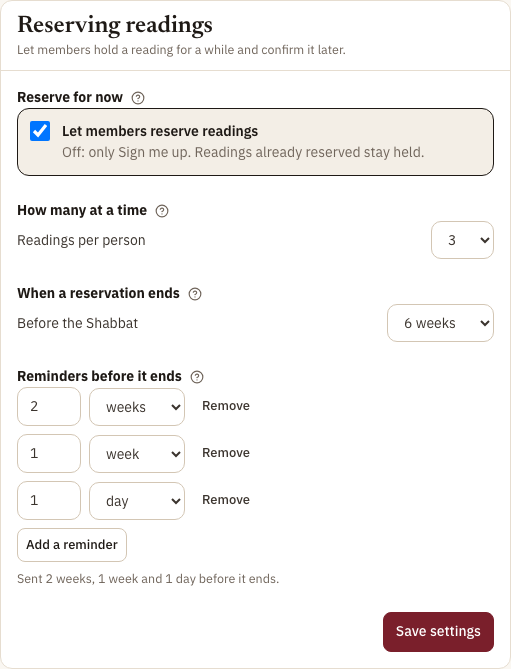
Two changes ask first, in a card, before they are saved. Click Save anyway to go ahead, or Cancel:
- A longer time before the Shabbat — reservations that are now too close end as soon as you save. Their readings open for others and nobody is emailed.
- Switching reserving off while readings are reserved — they stay held and show as Taken, with no reminders and no end, until you switch it back on or click Let it go on each under Reserved, not confirmed. The list on Shabbat › Torah readers stays while any are left.
A shorter time keeps reservations longer. A ?? that was already in the Matbea closer than the old time stays plain text. Changing the reminders never sends the same reminder twice.
Section 7High Holidays, Follow-up and People
Staff can look at all of these. Assigning honors and sending invitations is done by the Ritual VP and the High Holiday volunteers.
See a service's honors
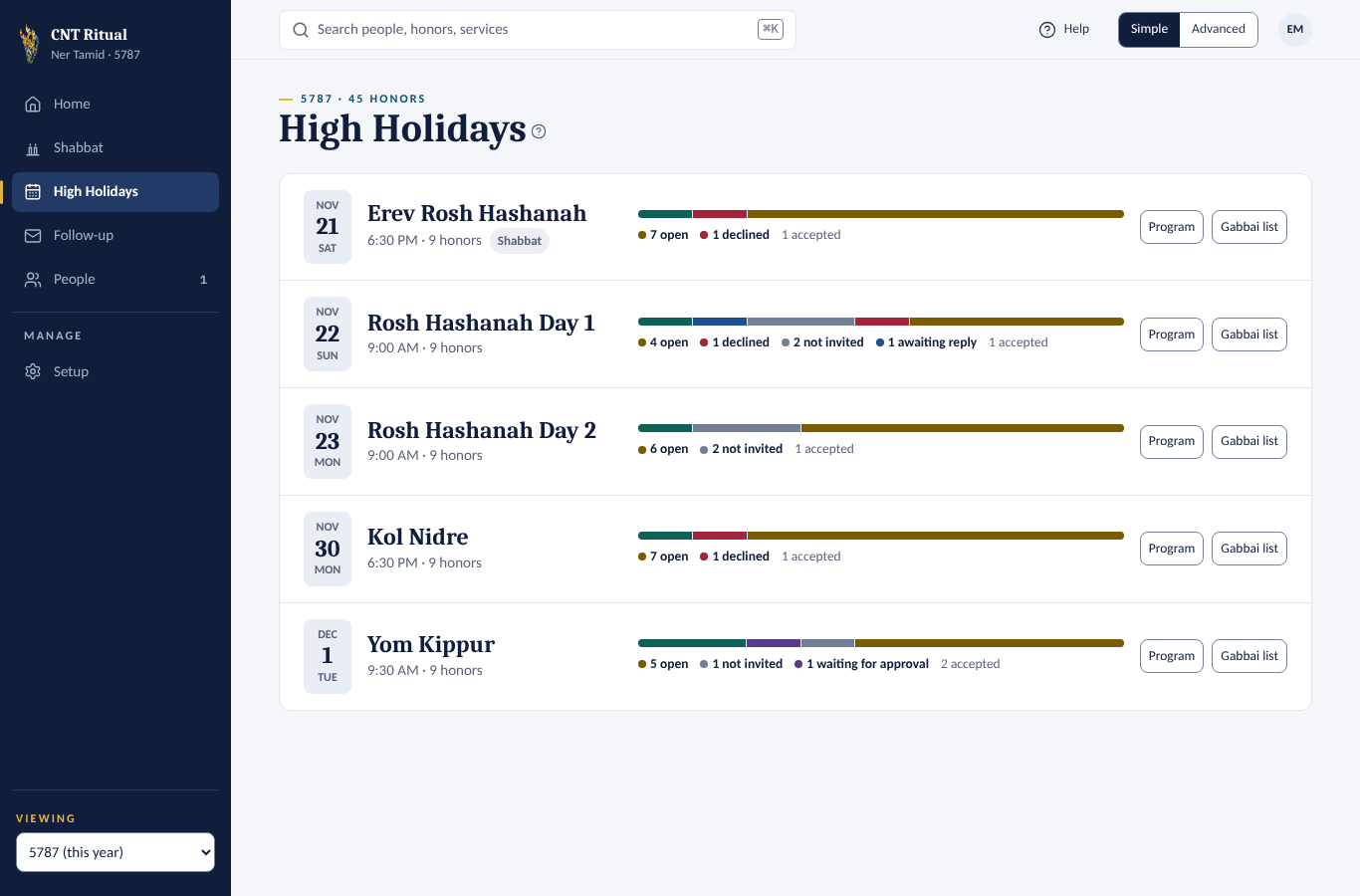
- Click High Holidays. Each service shows how many honors are open, awaiting reply, declined or accepted.
- Click a service to see every honor, its honoree and its status.
- Click the filter pills — Open, Awaiting reply, Declined and so on — to narrow the list.
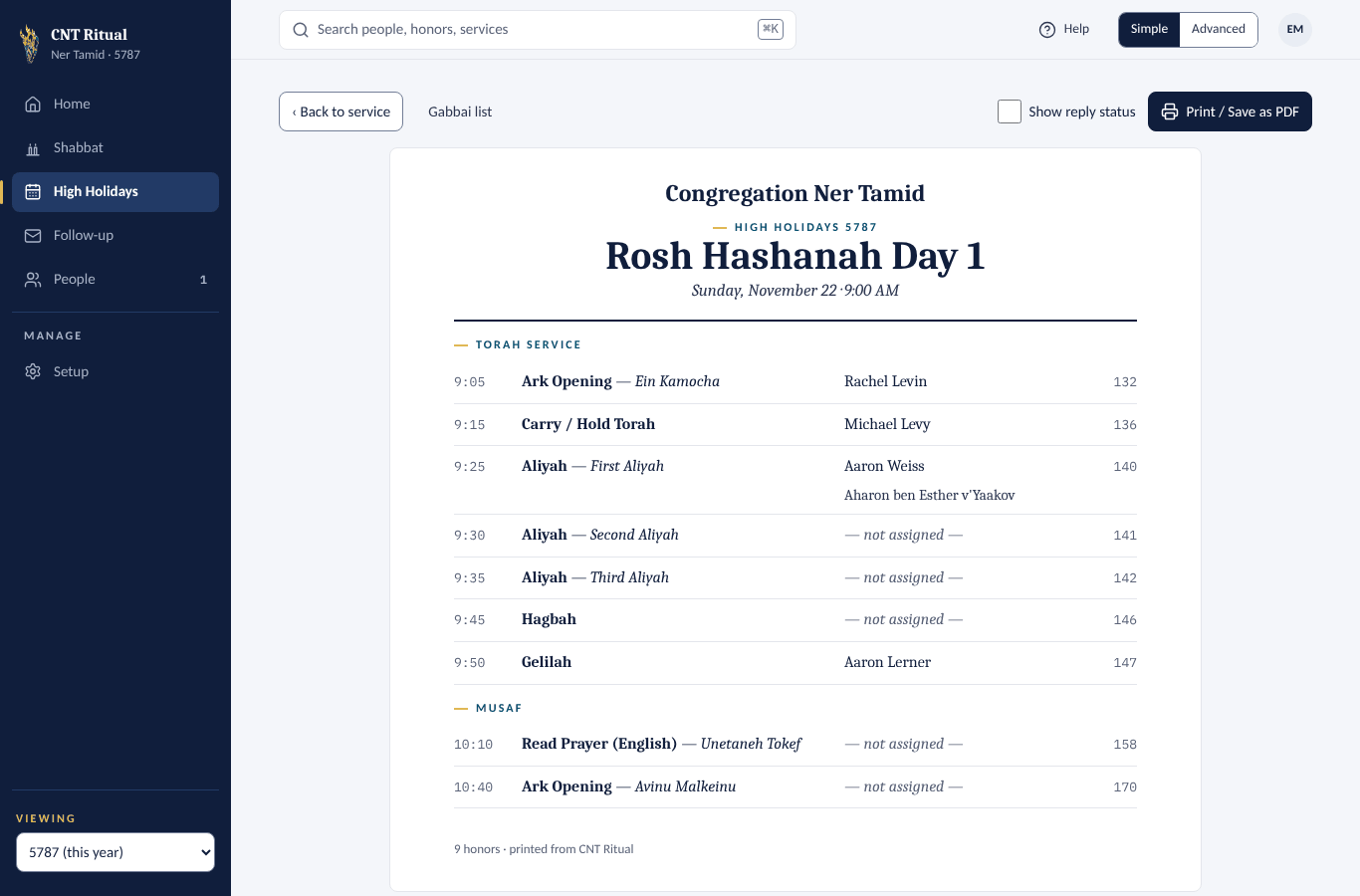
- Click Program view for a printable run of service.
Invitations and replies
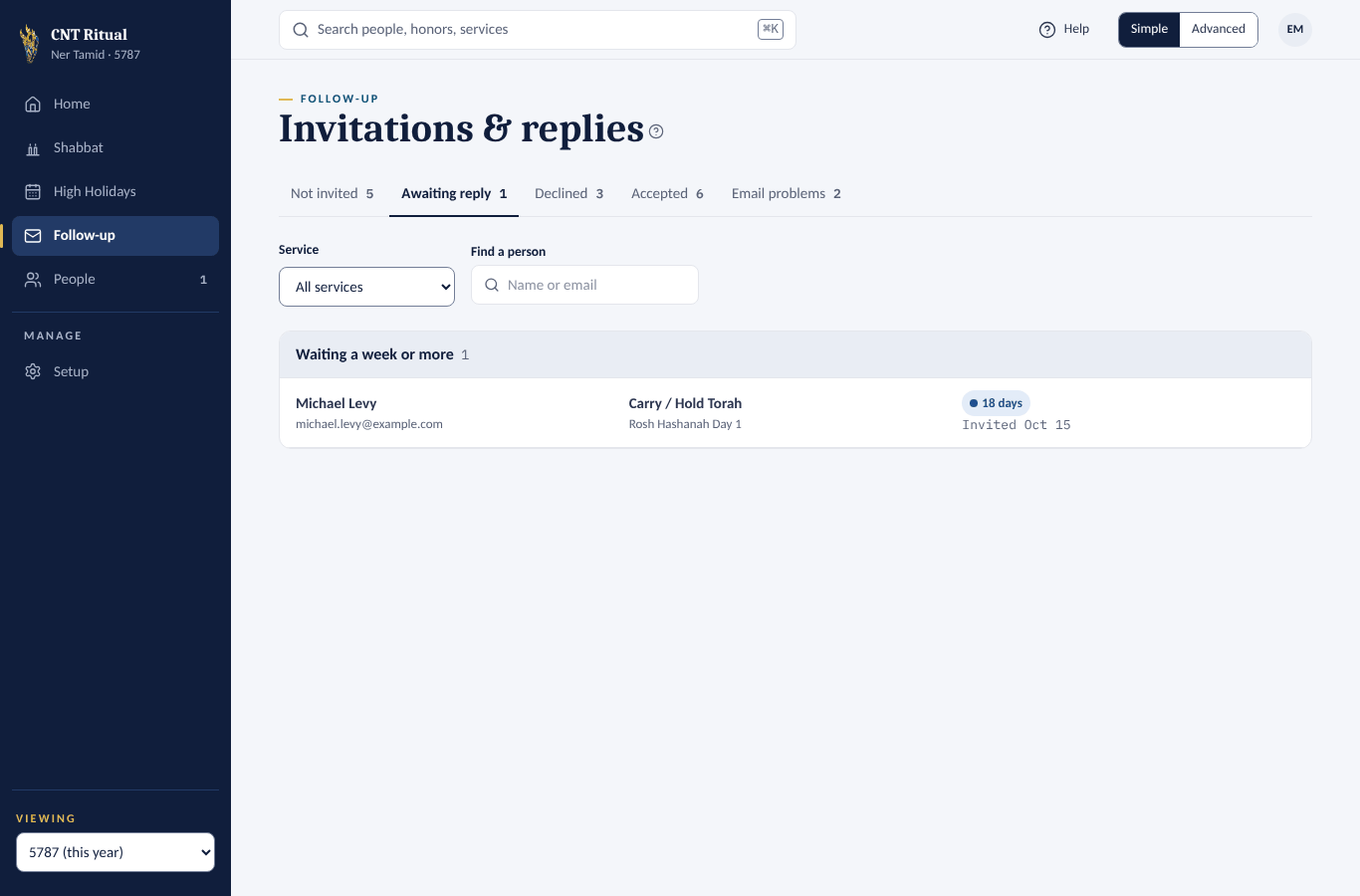
Click Follow-up. The tabs count Not invited, Awaiting reply, Declined, Accepted, Email problems and Needs approval. Pick a service or search for a person to narrow it. Download spreadsheet saves the list.
People
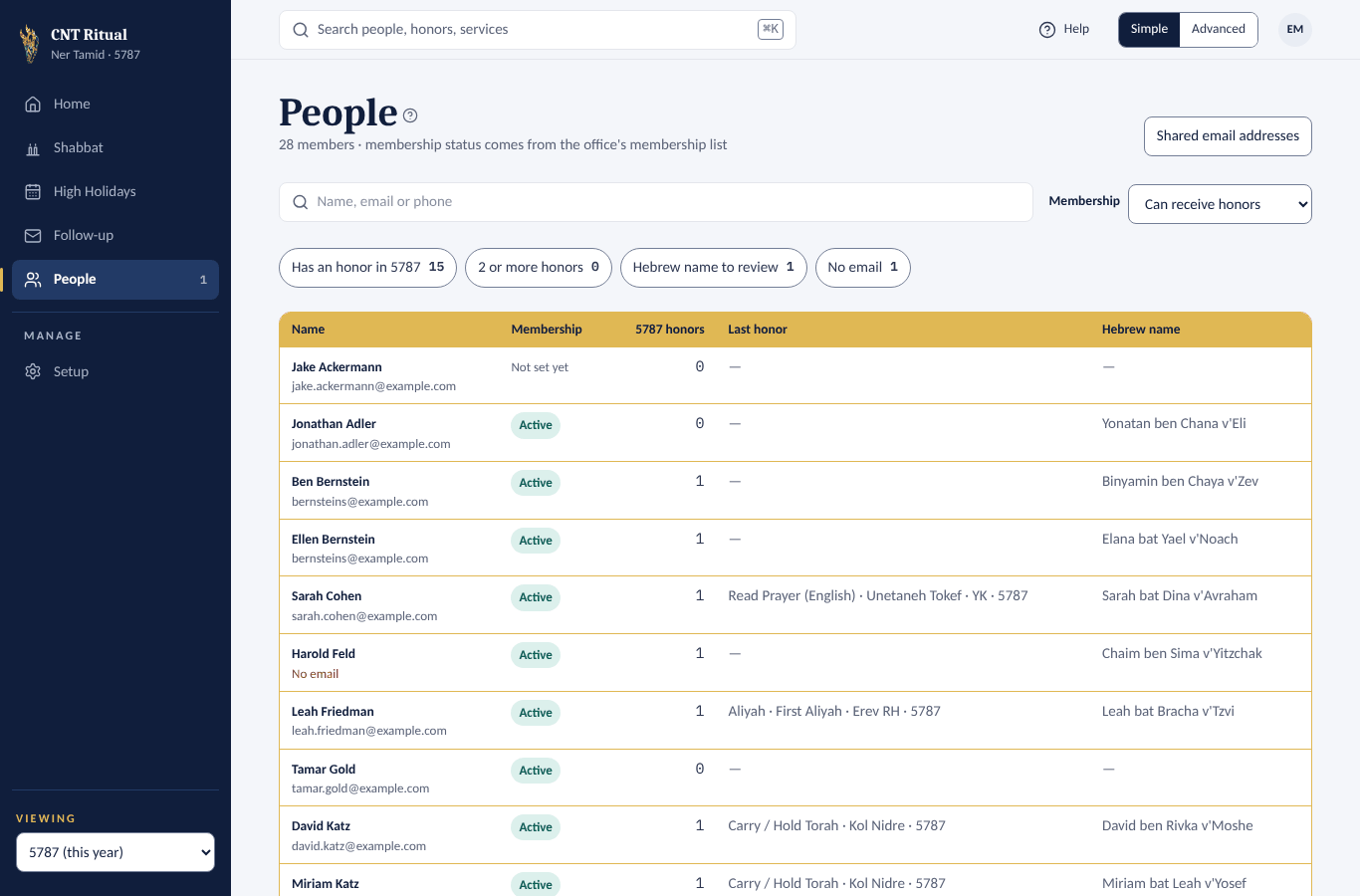
- Click People. Use the search box or the filter pills.
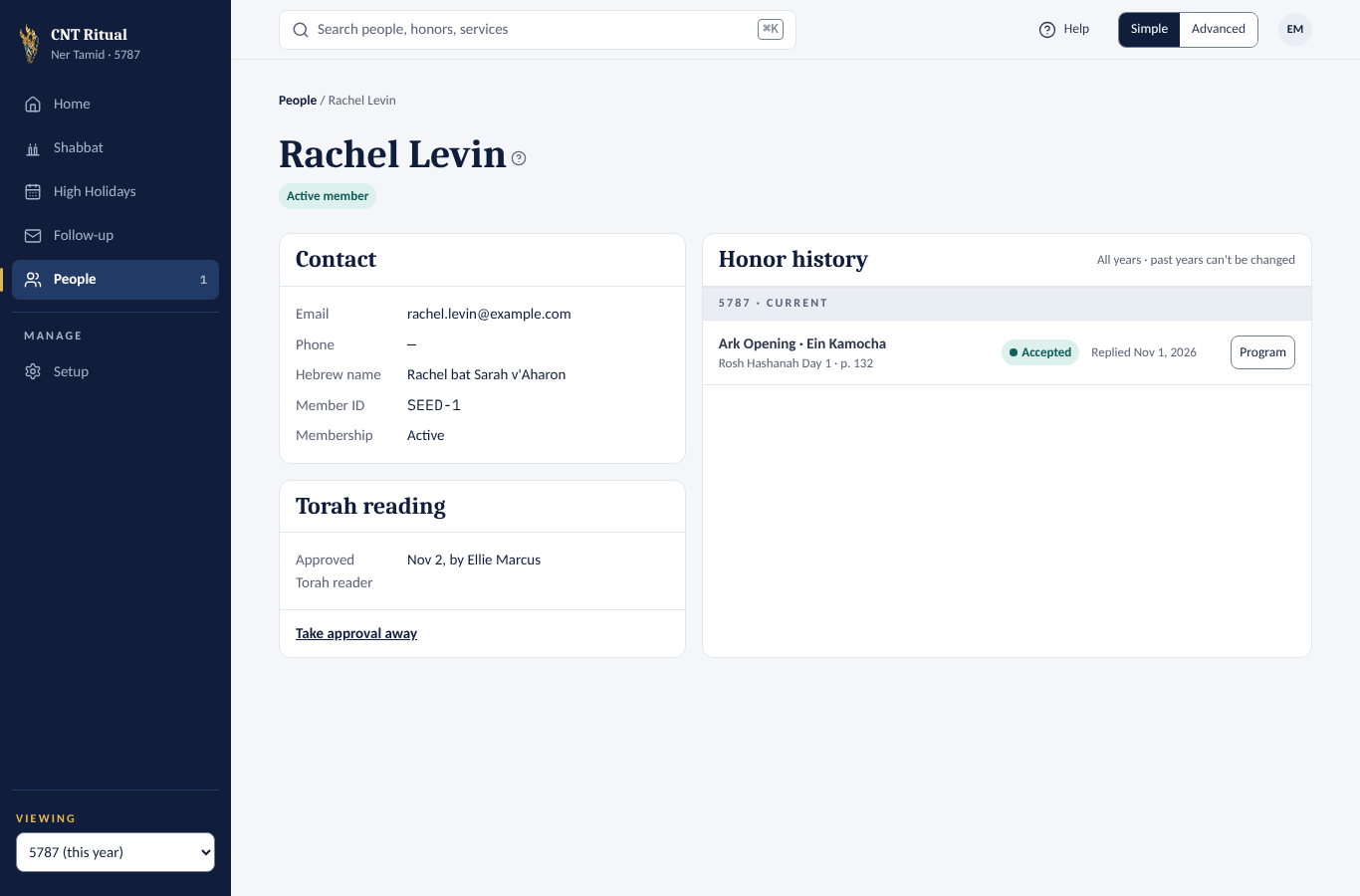
- Click a name to see contact details, honors across the years, and Torah readings.
Add an honor to a service
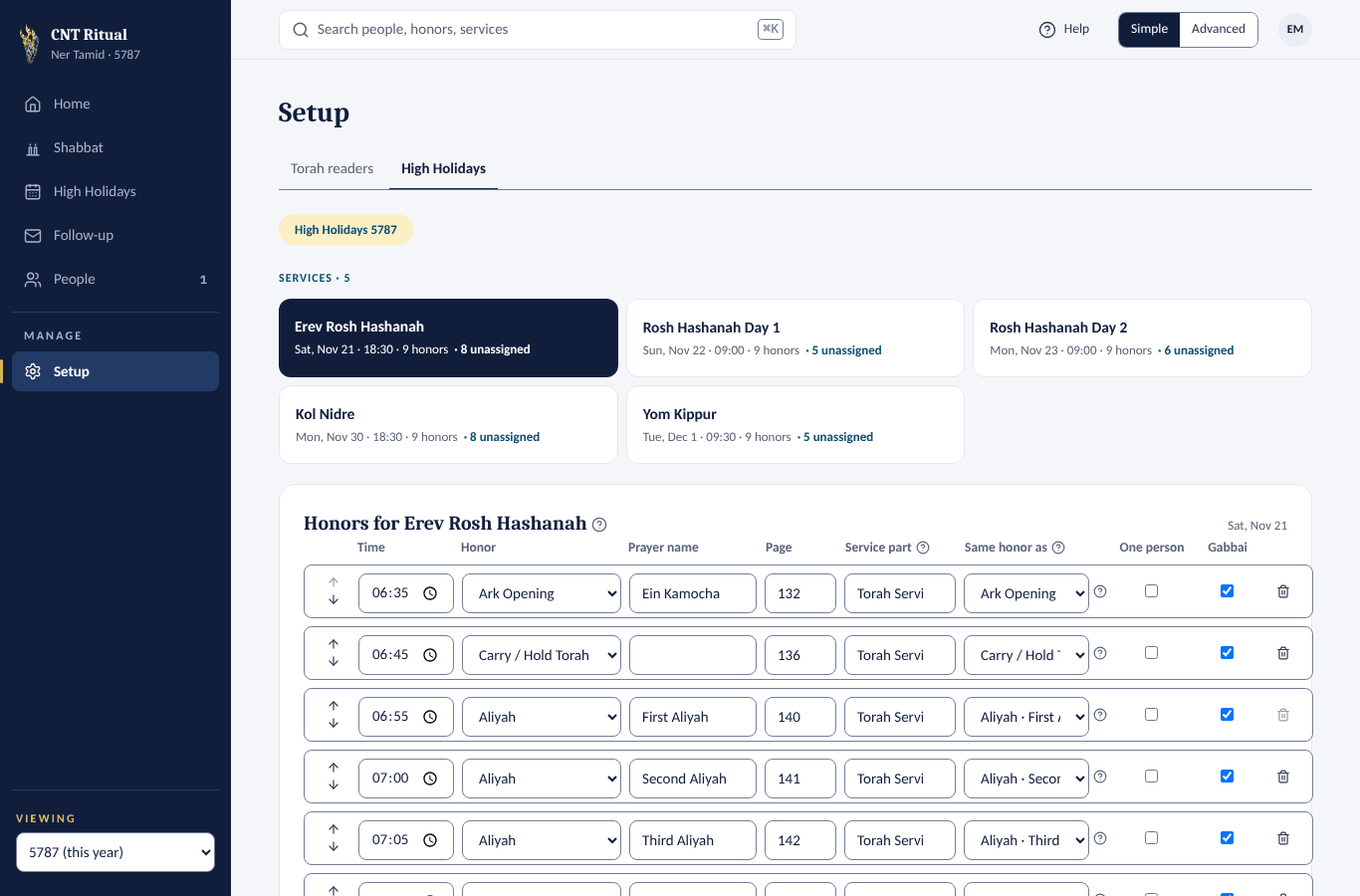
- Click Setup, then High Holidays.
- Click the service at the top.
- Click Add an honor and fill in the time, honor, prayer name and page.
- Click Save.
Staff can add honors, but can't remove one that already has someone assigned.
Section 8Quick answers and help
Get a phone alert when members answer an honor
- Click your initials at the top right.
- Click Enable RSVP notifications and allow notifications when asked.
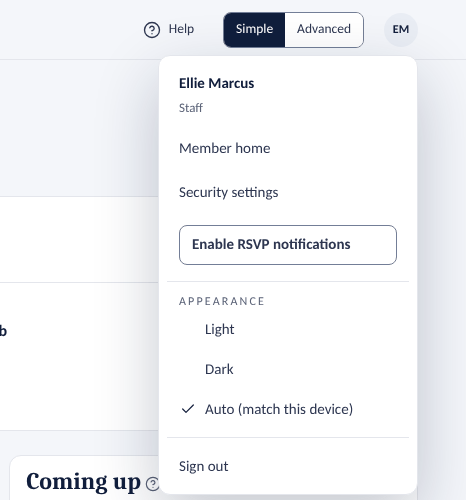
Light or dark screen
The app can show light pages, dark (navy) pages, or follow your computer or phone.
- Click your initials at the top right.
- Under Appearance, click Light, Dark or Auto (match this device).
The screen changes at once. The choice is kept on this computer or phone only, and Member home and the sign-in page on that device follow it too. Printed programs always print black on white.
Go back to Member home
Member home is the members' page, with your own readings and honors.
- Click your initials at the top right.
- Click Member home.
To come back, click Admin at the top right of Member home.
| Question | Answer |
|---|---|
| My edit says not in the Matbea yet | It is saved. It goes into the Matbea within about a minute, or click Write to the Matbea now. |
| I can't type on a Shabbat page | That Shabbat has passed, or the line is locked (🔒). |
| A reader wants a different reading | Remove their sign-up with Change… › Remove this sign-up. They can then pick another. |
| A member can't sign in | Ask them to use the email the congregation has, or to ask for access. The Ritual VP answers requests. |
| I need to assign an honor or a Gabbai | Ask the Ritual VP. |