
Contents
Check the Shabbat schedule, confirm your Shabbat with one tap, and tell the Ritual VP which weeks you're out.
- At a glance
- Sign in
- What you see
- Your reminder, and how to confirm
- Your Gabbai Shabbatot, on your home page
- Mark the Shabbatot you're out
- See the details of your Shabbat
- Get reminders on your phone
- Reading Torah yourself, and help
Section 1At a glance
Think of the app as the duty roster on the shul's fridge, except that it reminds you and you can update it from your phone.
As a Gabbai you can:
- See the Shabbat calendar — who is Gabbai Rishon each week, and whether they confirmed.
- Confirm your Shabbat — one tap from the reminder email.
- Mark the Shabbatot you're out — so the rotation skips you.
- Look at your Shabbat — readings, honorees and readers, read only.
- Read Torah yourself — sign up like any member.
You can look at the schedule but not change it. Need a swap? Tell Sebastian Kessel, Ritual VP.
Section 2Sign in
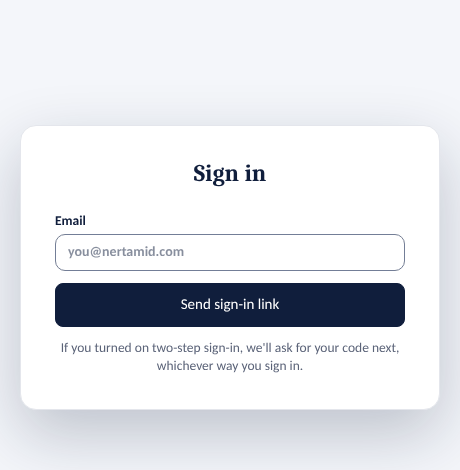
- Go to ritual.nertamid.com/admin.
- Tap Continue with Google, or type your email and tap Send sign-in link.
- Open the email from Ner Tamid. Tap the link, or tap Enter code on the sign-in page and type the code from the email.
- You land on the Shabbat calendar.
Good to know
- Use the email the congregation has for you.
- The link and code work once and expire after 15 minutes.
- In the app saved to your phone's home screen, use the code. The link opens your browser instead.
- You stay signed in on that device for up to 30 days.
- Turned on two-step sign-in? The app asks for your authenticator code next.
Section 3What you see
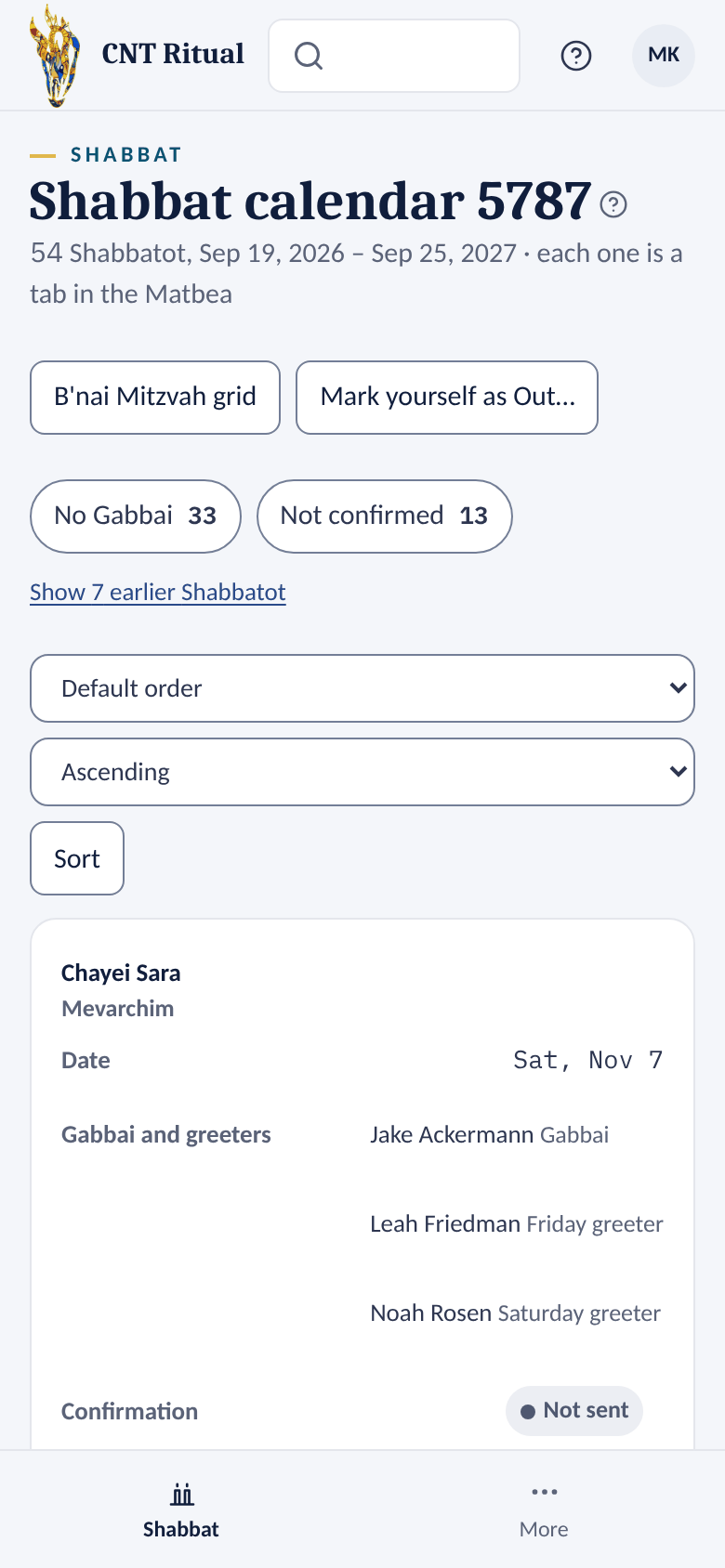
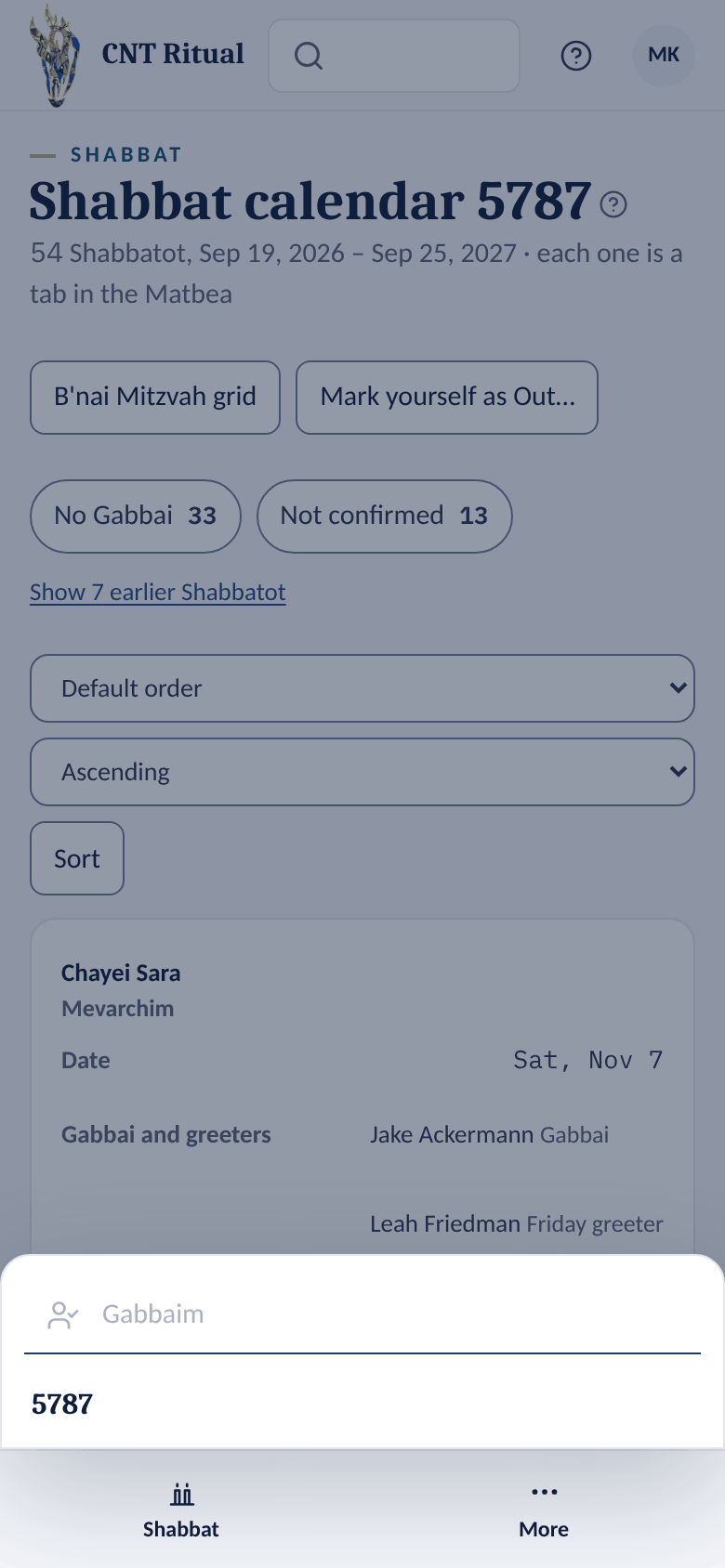
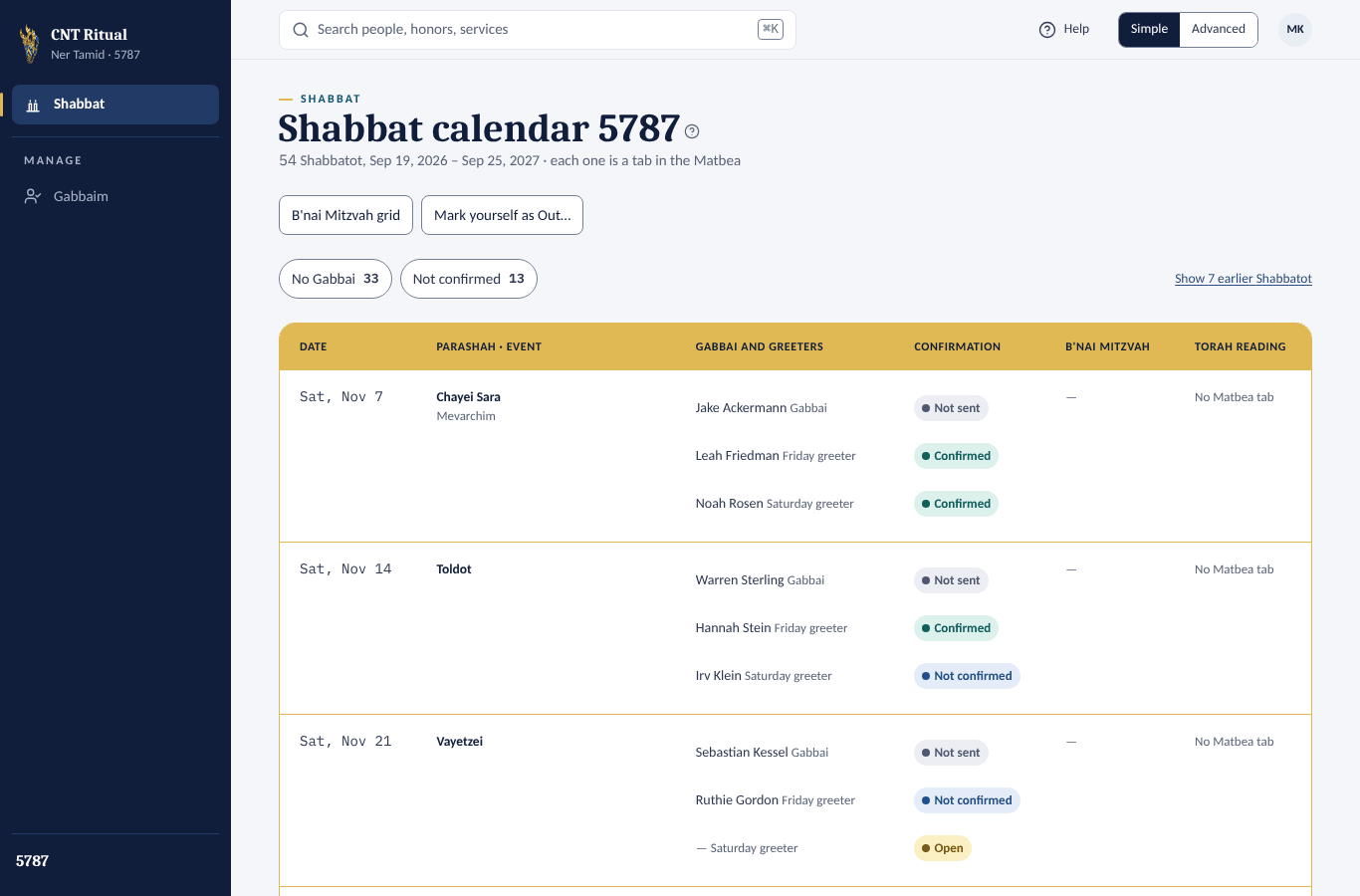
You have two screens: Shabbat and Gabbaim. On a computer they are in the left menu. On a phone, Shabbat is a tab at the bottom and Gabbaim is under More.
 1The Shabbat tab
 2More, for Gabbaim
The Shabbat calendar
One row per Shabbat:
- Gabbai and greeters — who is Gabbai Rishon that week, then the Friday greeter and the Saturday greeter, one per line.
- Confirmation — for the Gabbai Not sent, Awaiting reply or Confirmed; for each greeter Open, Not confirmed or Confirmed.
- B'nai Mitzvah and Torah reading — what is planned.
- Tap No Gabbai or Not confirmed to show only those Shabbatot.
- Tap a Shabbat's name to open its page.
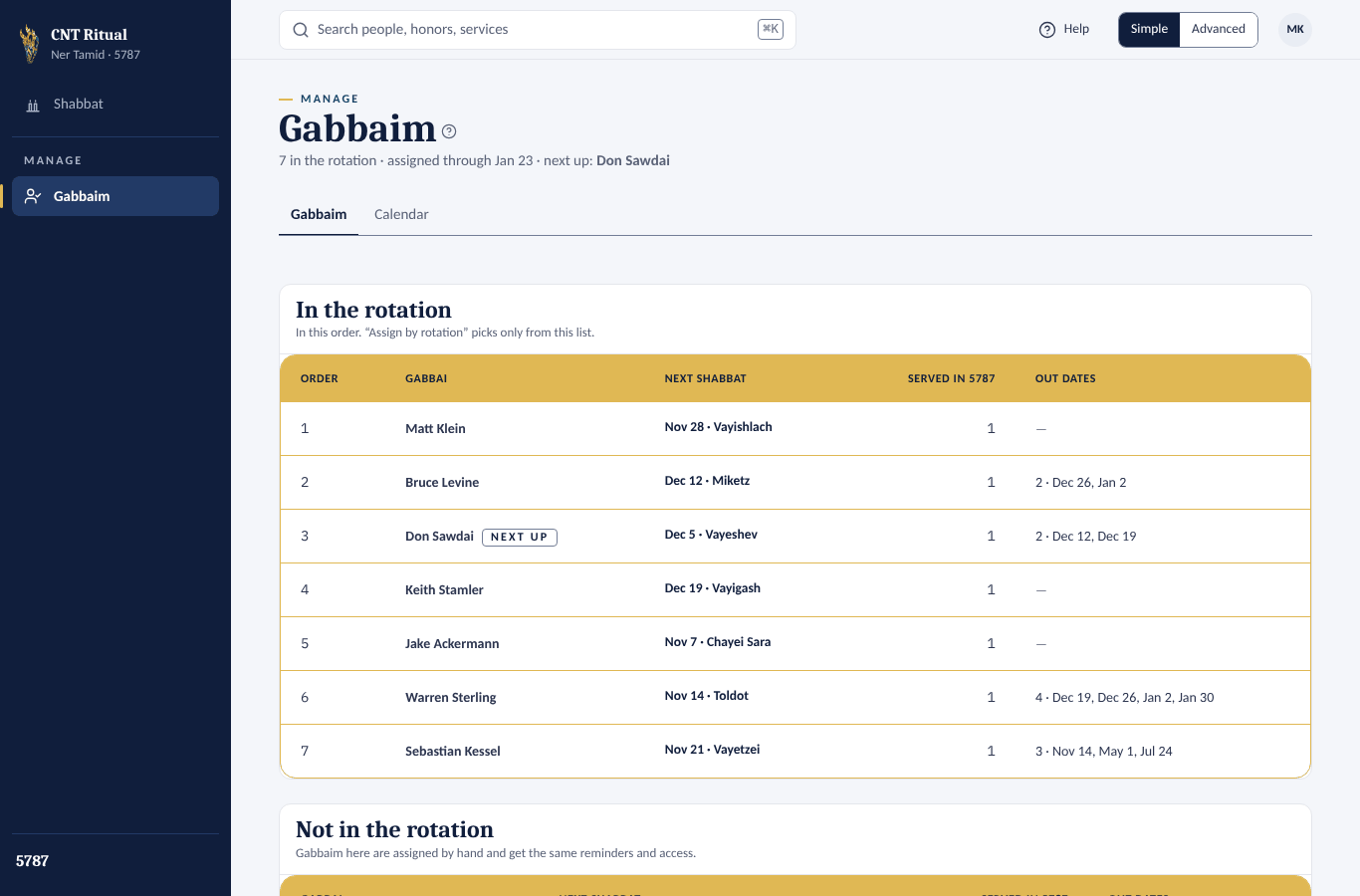
The Gabbai list
- In the rotation — the order Gabbaim are assigned in, each one's next Shabbat, how many they served this year, and their out dates.
- Not in the rotation — Gabbaim assigned by hand.
- The Calendar tab shows everyone's weeks at a glance.
Section 4Your reminder, and how to confirm
When you are Gabbai Rishon, the app emails you a reminder before your Shabbat — usually the Sunday before; the Ritual VP sets the day and time. If you haven't confirmed, a second reminder may follow.
- Open the reminder email.
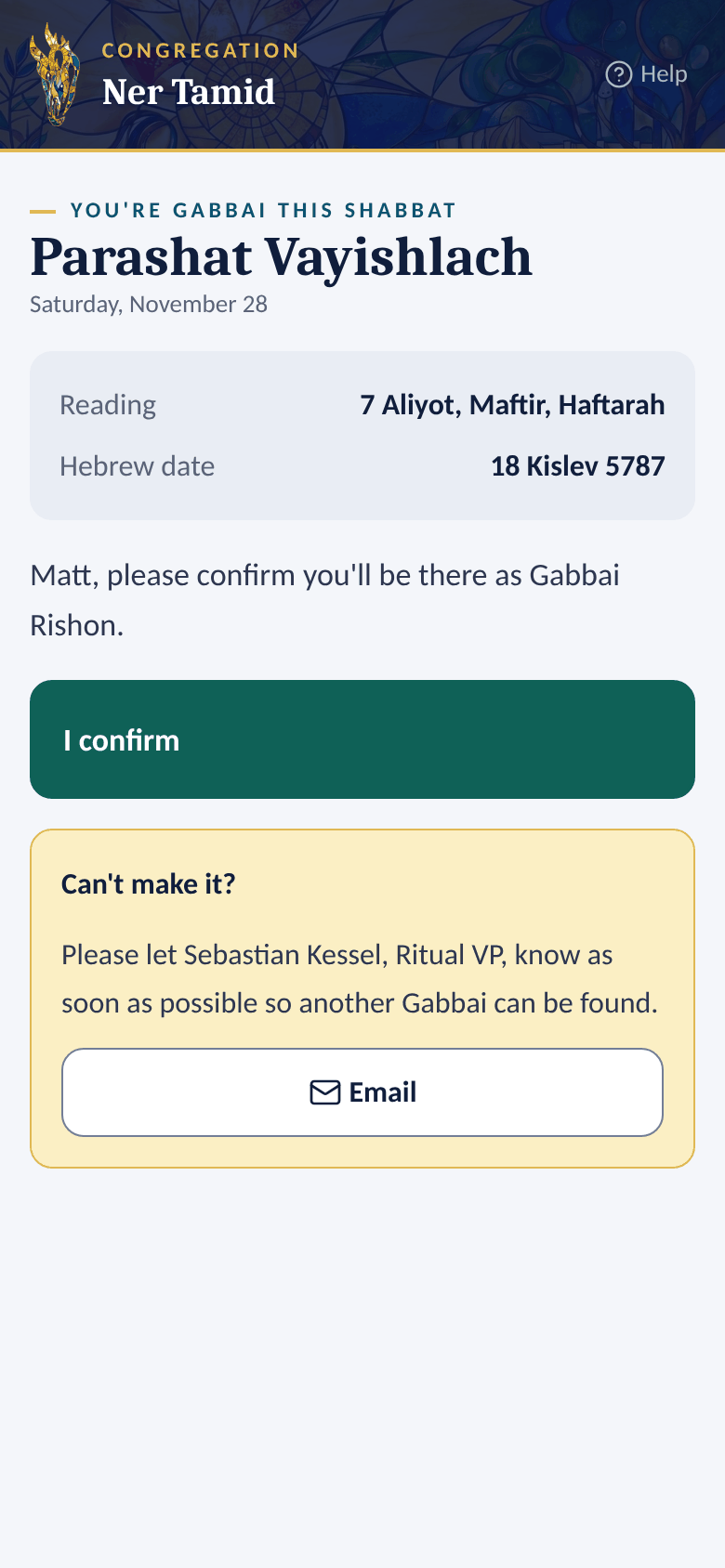
- Tap the confirm button. A page opens with the Shabbat, the reading and the Hebrew date.
- Tap I confirm.
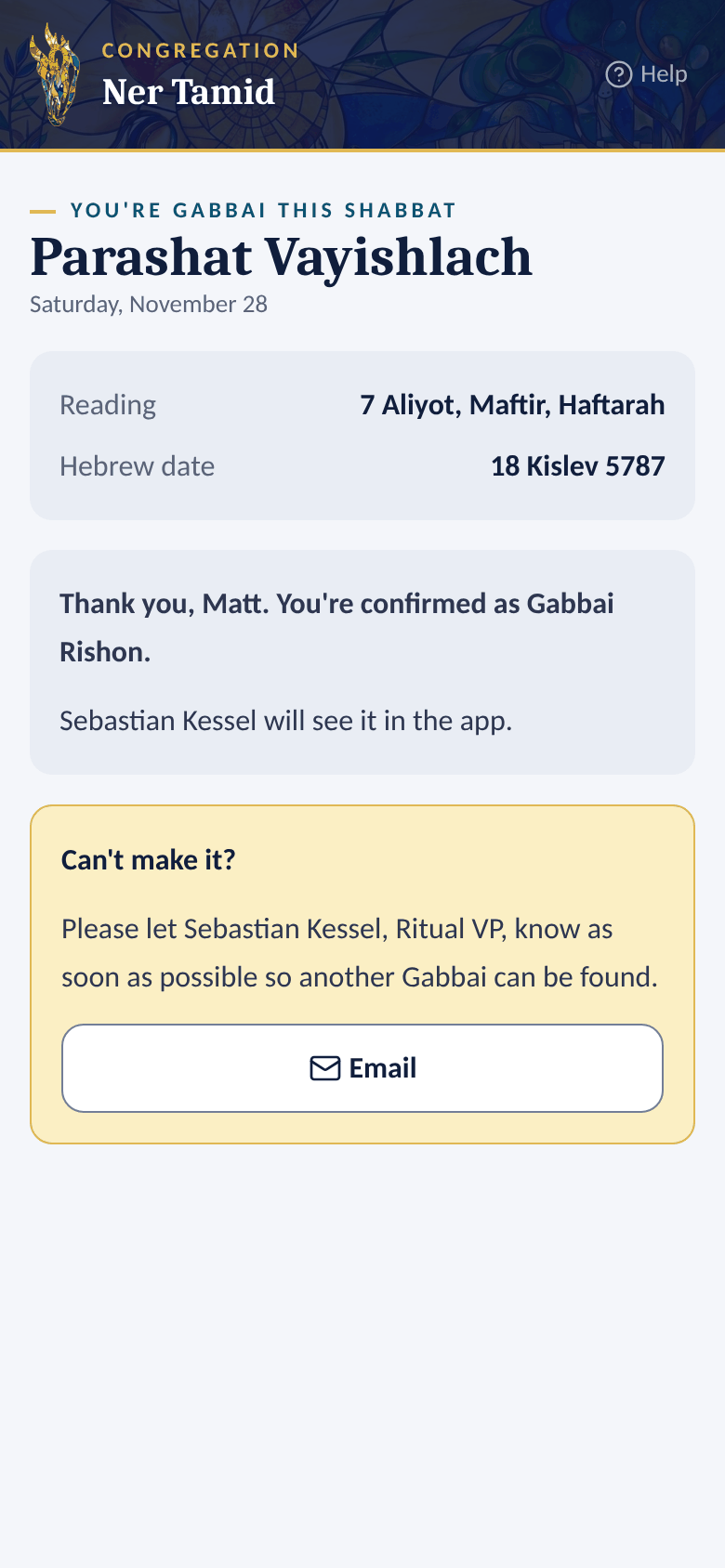
- You see You're confirmed as Gabbai Rishon. Sebastian Kessel sees it in the app.
 1Tap I confirm
 2Confirmed
Good to know
- No sign-in is needed to confirm.
- Sebastian may also text or WhatsApp you the same confirm link.
- You can also confirm from your home page: see Your Gabbai Shabbatot below.
- Can't make it? Don't ignore the email. Tap Email on the confirm page, or reply to Sebastian, right away so another Gabbai can be found. The app has no "decline" button on purpose.
Section 5Your Gabbai Shabbatot, on your home page
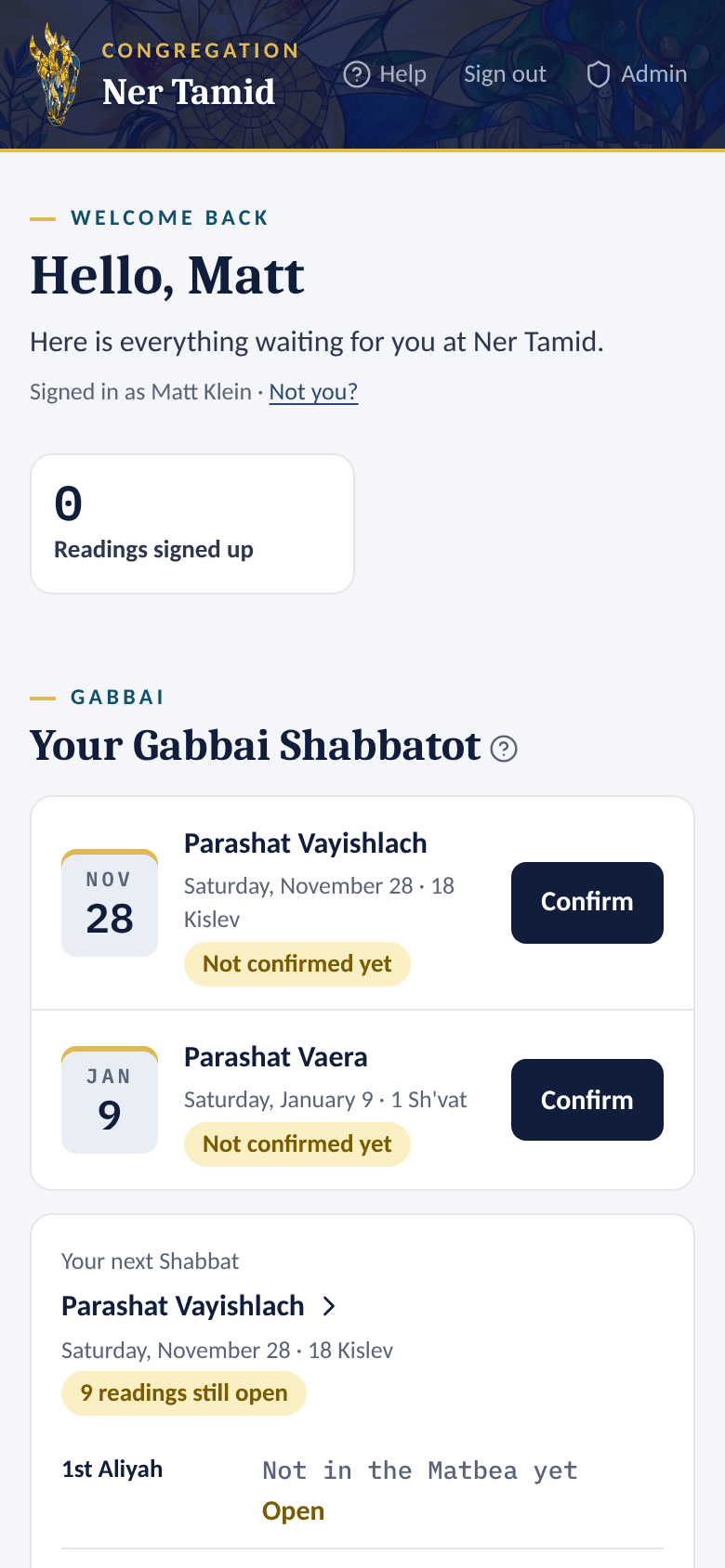
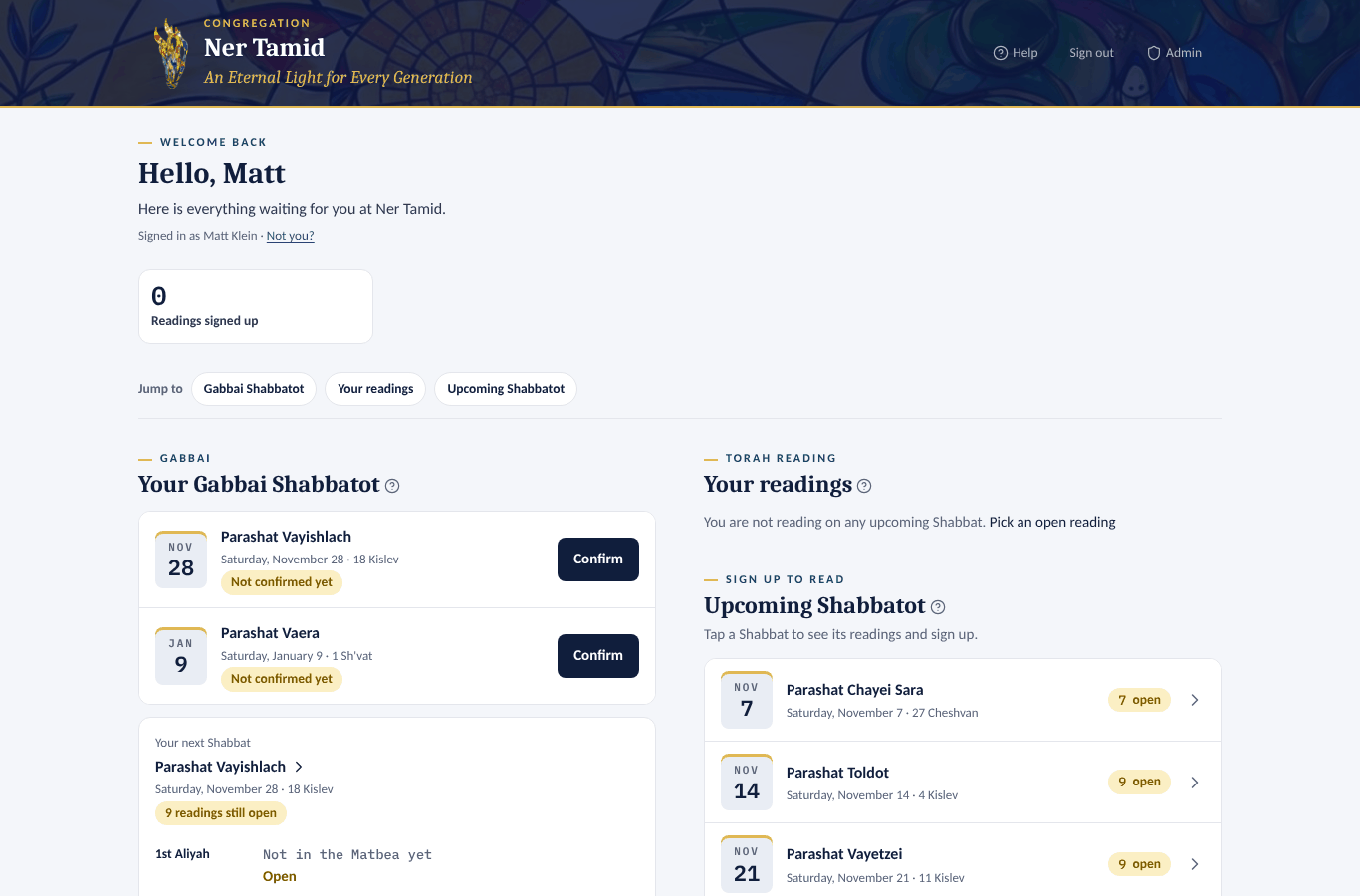
When you sign in at ritual.nertamid.com, your home page starts with Your Gabbai Shabbatot.
- Your next 4 Shabbatot as Gabbai Rishon, each with its date and name, and Confirmed or Not confirmed yet. Tap the Shabbat's name to open its reading page.
- Your next Shabbat — every reading (1st Aliyah … Maftir, Haftarah) with its verses and page, and who reads it, or Open, or Taken (someone signed up, no name yet). A reading someone has only reserved shows their name with (not confirmed), for example Ilene Gelbaum (not confirmed): they still have to confirm it, or it opens again a set time before the Shabbat (usually 6 weeks). A line tells you how many readings are still open, for example 2 readings still open.
- Mark the days I'm out — opens the out-dates page (see below).
To confirm from your home page:
- Tap Confirm on a Shabbat that says Not confirmed yet. The button says Confirming….
- The row now says Confirmed. Sebastian Kessel gets the same Gabbai confirmed email as when you confirm from the reminder.
Good to know
- With no coming Shabbat as Gabbai, the section says You aren't Gabbai on any coming Shabbat. The out-dates link is still there.
- This is the only place on members' pages that shows who reads. Other members don't see reader names.
Section 6Mark the Shabbatot you're out
Tell the app which weeks you can't do. Assign by rotation skips you on those weeks.
The quick way, on a phone or computer
- Open ritual.nertamid.com/gabbai/out — or tap Mark yourself as Out… on the Shabbat calendar, or the link in Sebastian's out dates email.
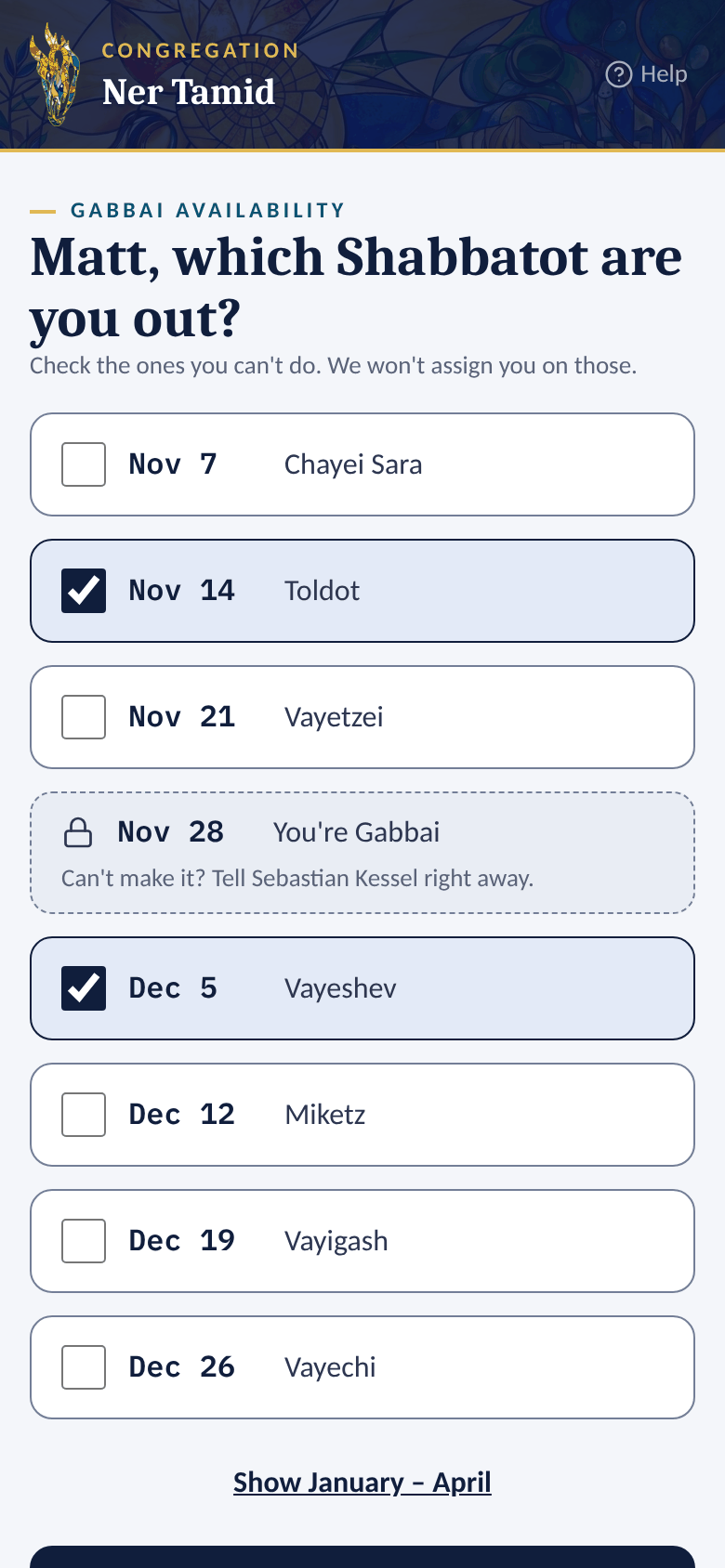
- Check every Shabbat you can't do. Tap Show December – April (or the next months) to see further ahead.
- Tap Save my out dates. You see Saved.
 1Check your out dates
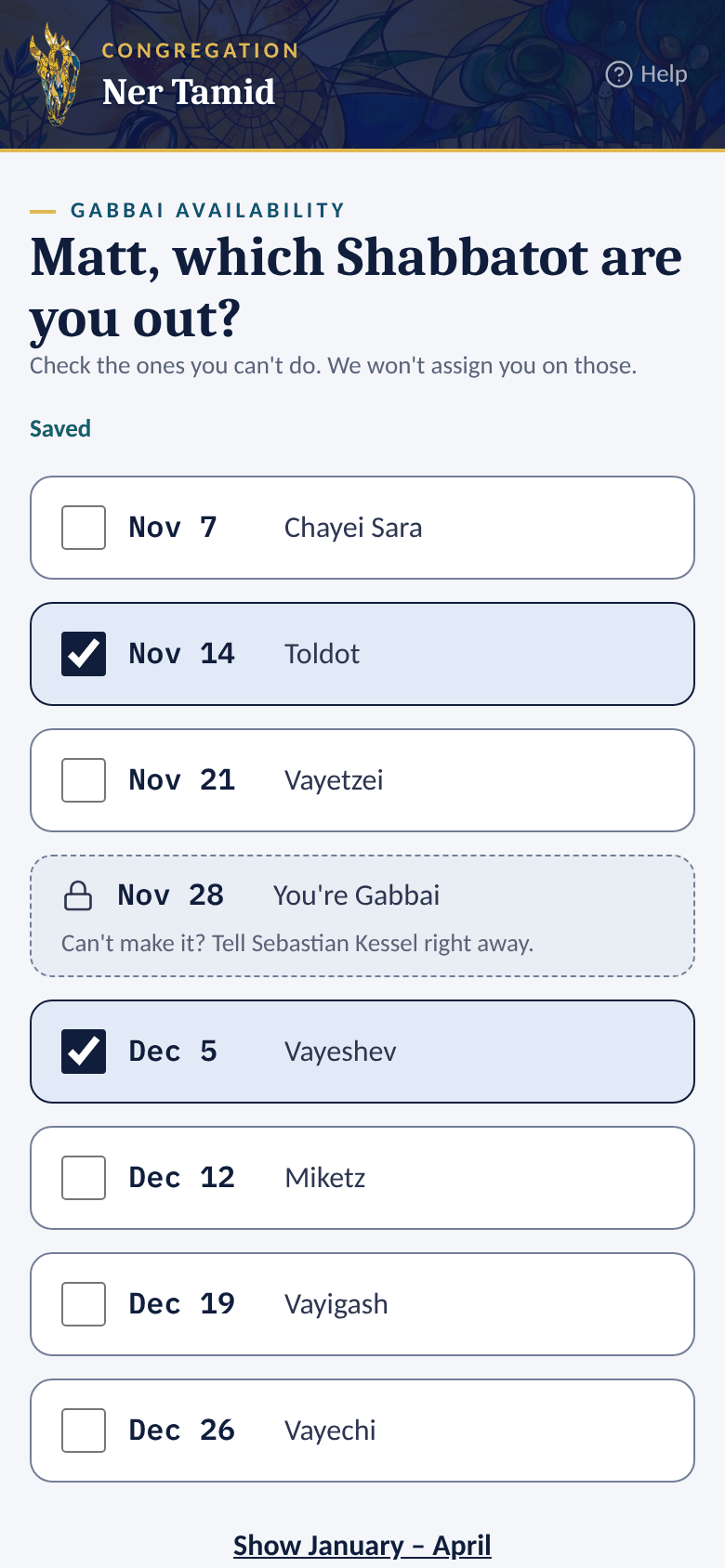 2Saved
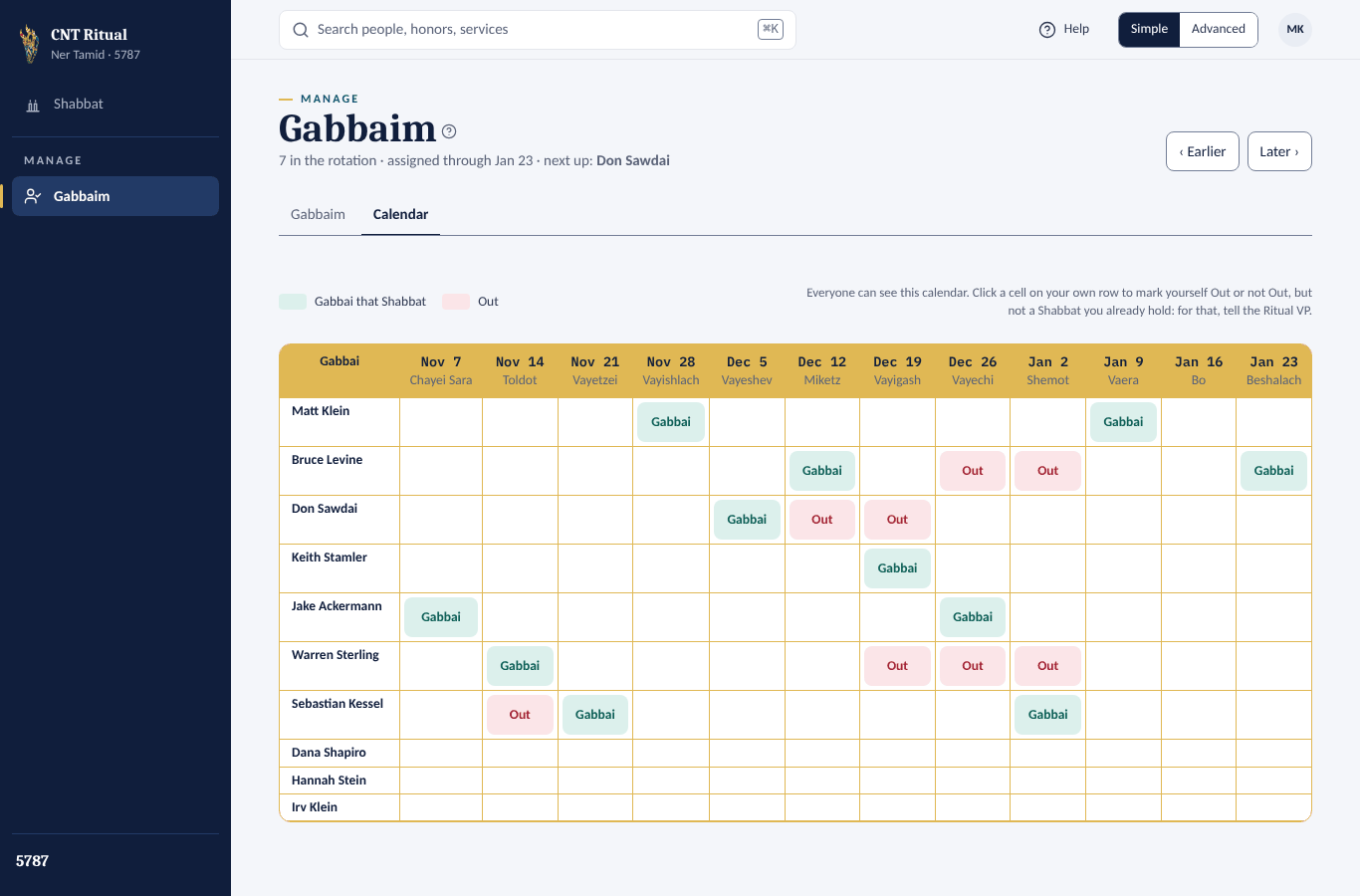
On the Gabbaim calendar
- Open Gabbaim, then the Calendar tab.
- Click a cell on your own row to switch that week between Out and not out.
Good to know
- A week you already hold is locked (You're Gabbai). To give it up, tell Sebastian Kessel right away.
- You can only change your own row, and only for weeks that haven't passed.
Section 7See the details of your Shabbat
- Open Shabbat.
- Tap the Shabbat's name, for example Vayishlach.
- The page shows, top to bottom:
- Gabbai Rishon — who, and whether confirmed.
- Event and portion — special lines and the Torah portion.
- Greeters — the Friday and Saturday greeters, whether they've confirmed, and the office's notes.
- In the Matbea only — parts kept only in the Matbea spreadsheet: Gabbai Sheni, service leaders, sponsors and so on.
- Torah reading — each Aliyah's verses (with its book and number of verses under them), page, honorees (with any in honor of, in memory of or in celebration of line) and reader.
- Use ‹ and › at the top right to move to the previous or next Shabbat.
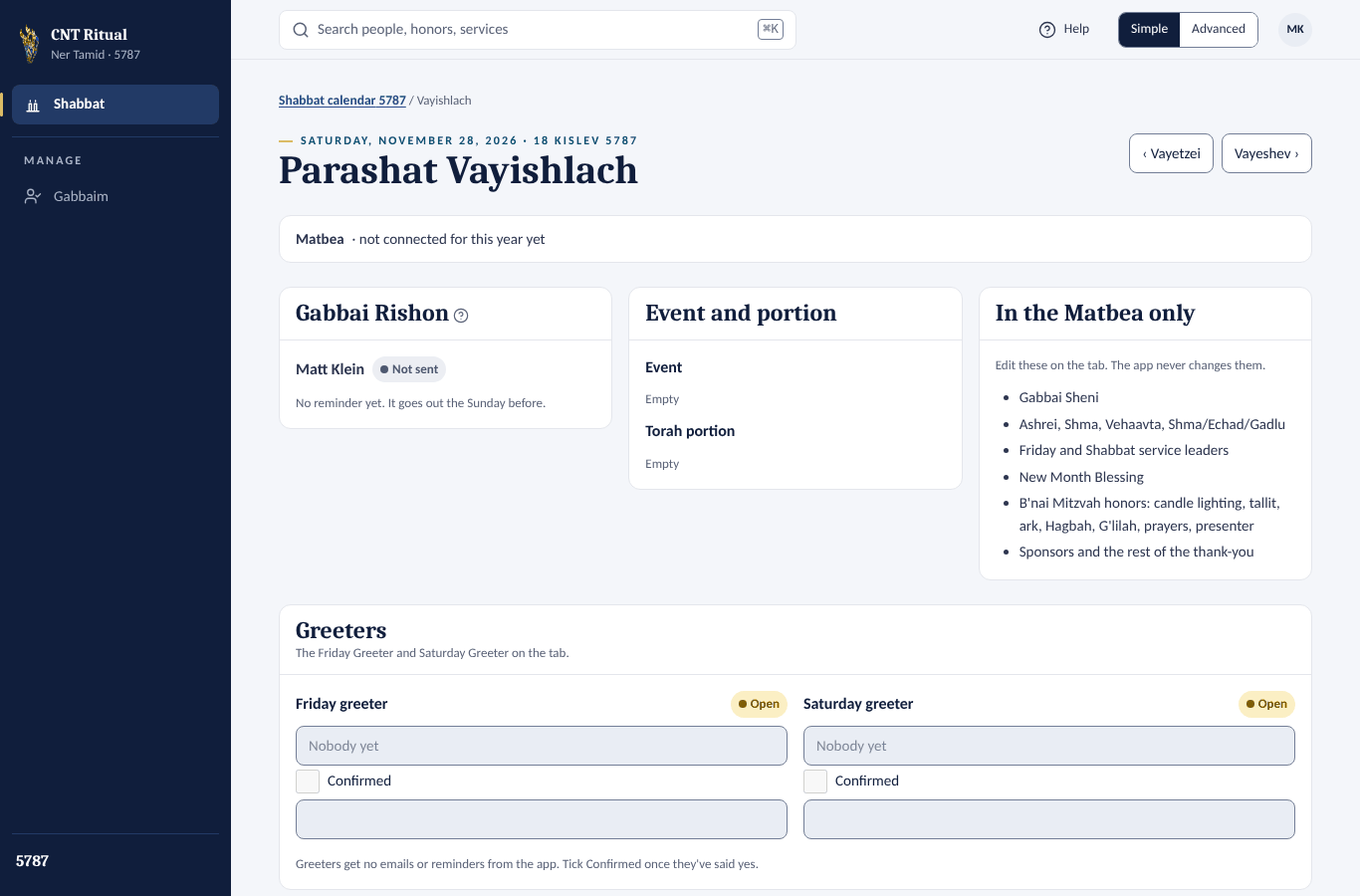
The page is read only for Gabbaim. If something looks wrong, tell a Shabbat editor or Sebastian Kessel.
Section 8Get reminders on your phone
If the Ritual VP has phone notifications turned on, your reminder can also pop up on your phone, with a tap to confirm. It works from the app saved to your home screen.
Save the app to your home screen
- iPhone (Safari): open ritual.nertamid.com/admin, tap the Share button, then Add to Home Screen.
- Android (Chrome): open the same address, tap the ⋮ menu, then Install app or Add to Home screen.
Sign in inside the app
- Open CNT Ritual from your home screen.
- Sign in with your email, then type the code from the email. The link would open your browser instead.
Turn on Gabbai reminders
- Tap your initials at the top right.
- Tap Enable Gabbai reminders.
- Allow notifications when your phone asks.
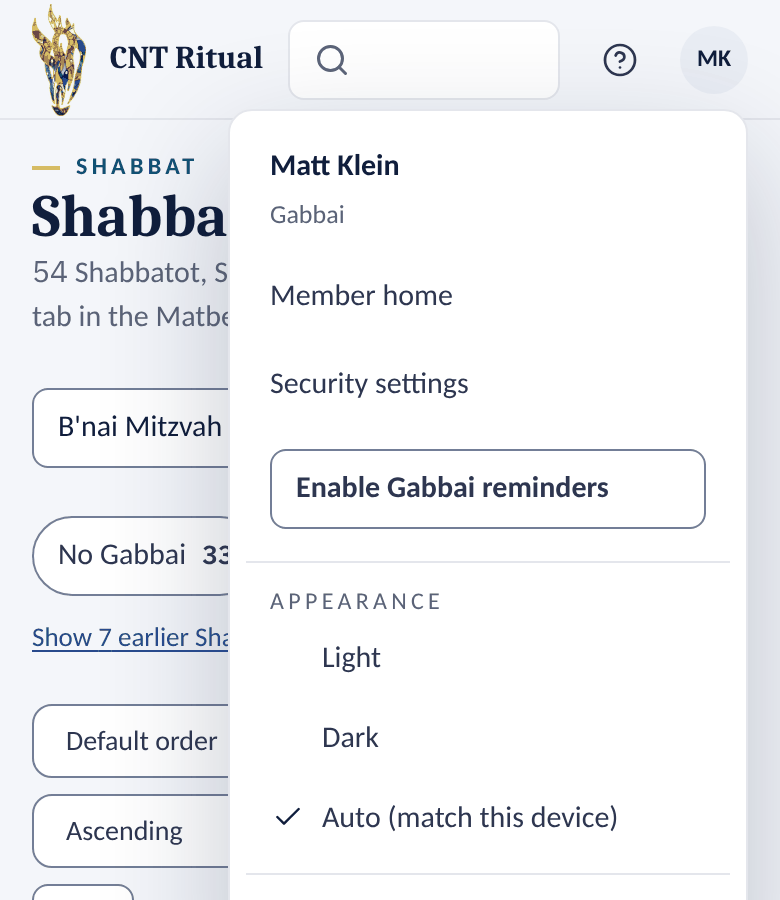
Tapping a notification opens your confirm page. It doesn't confirm by itself: tap I confirm there.
Light or dark screen
The app can show light pages, dark (navy) pages, or follow your phone or computer.
- Tap your initials at the top right.
- Under Appearance, tap Light, Dark or Auto (match this device).
The screen changes at once. The choice is kept on this phone or computer only, and Member home and the sign-in page on that device follow it too. Printed programs always print black on white.
Section 9Reading Torah yourself, and help
Gabbaim can sign up to read Torah like any member.
- Go to ritual.nertamid.com — the main page, not /admin.
- Your home page lists Upcoming Shabbatot. Tap one, check a reading, tap Next, then Sign me up.
The Congregant Manual walks through this step by step, with a short video.
On a computer, or a tablet turned sideways, the page uses two columns: Your Gabbai Shabbatot is on the left, and your readings are usually beside it on the right. Tap or click Gabbai Shabbatot, Your readings or Upcoming Shabbatot under Jump to to go straight to one.
Go back to Member home
From the Shabbat or Gabbaim screens:
- Tap your initials at the top right.
- Tap Member home.
To come back, tap Admin at the top right of your home page.
Help on every page
- Tap Help at the top of the screen (on a phone, the ? beside the search box). This manual opens in a new tab, at the part about that screen.
- A small ? beside a title, for example Gabbaim, opens the part about it.
- On a computer with a wide window, the manual opens in a Help panel on the right instead, and the page moves over so you can follow the steps while you click. Use Search the manual to find anything else, Back after following a link in the panel, and ✕ or the Esc key to close it.
- On your home page and the sign-up pages, Help opens the Congregant Manual instead.
Quick answers
| Question | Answer |
|---|---|
| I can't make my Shabbat | Tell Sebastian Kessel right away, by the email button on the confirm page. |
| I want to swap with another Gabbai | Agree on it together, then tell Sebastian. Only he changes assignments. |
| The reminder never came | Check spam. Your confirmation status is on the Shabbat calendar. |
| I don't see the Gabbaim screen | Make sure you signed in with the email the congregation has for you. |